How to use Cash In/Out in Odoo POS
Managing cash accurately is essential for any retail business, and Odoo Point of Sale (POS) makes this task simpler with its Cash In/Out feature. This functionality allows you to record any cash movements, whether you need to add money to the register (Cash In) or withdraw cash for expenses (Cash Out).
Access the Cash In/Out Menu
To start using the Cash In/Out feature, navigate to the POS cart screen. You will find a Menu button in the top, which opens a drop down. From the options in the drop down, select Cash In/Out. By default, Odoo will highlight the Cash Out option in red, making it easy for you to see which option is selected.

Record a Cash Out
Recording a Cash Out is necessary when cash is removed from the register for adjust the opening cash. If you are opening a new session, you would typically have already entered the opening cash amount. In this case, simply enter the same opening amount into the Cash Out field. Next, provide a reason for the cash out, such as “Opening Cash Adjustment”.
Once you’ve filled in the details, the system will display the Confirm button with the correct amount. Click Confirm to complete the process. You’ll see a confirmation message, such as:“Successfully made a cash out of Rs 5000.”

Record a Cash In
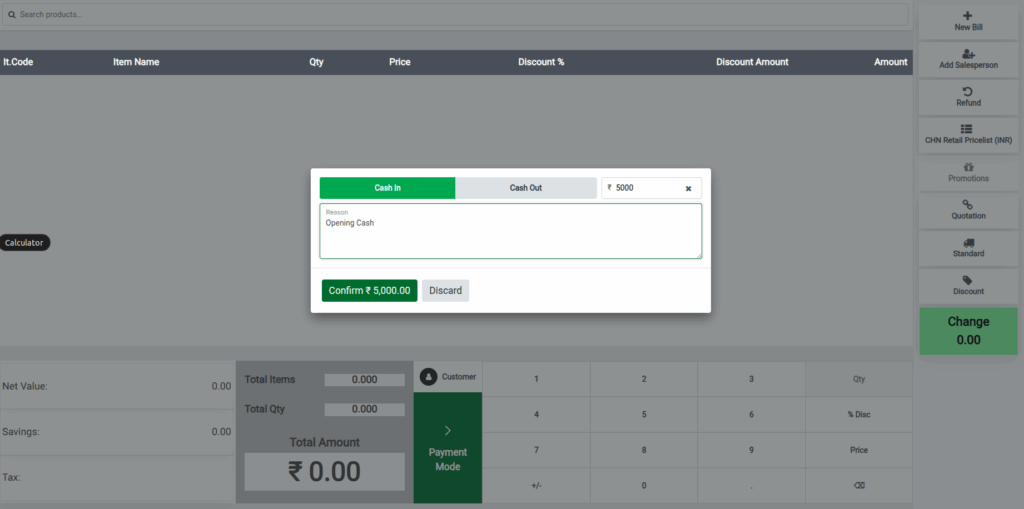
The Cash In option is used when you need to add cash to the register. This could happen if you forgot to enter the opening cash amount during session start. To record a Cash In, simply enable the Cash In option in the Cash In/Out popup. Enter the amount you wish to add to the cash register, and provide a reason for the entry, such as “Opening Cash”.
Once you’ve filled in the details, the system will display the Confirm button with the correct amount. Click Confirm to complete the process. You’ll see a confirmation message, such as:“Successfully made a cash in of Rs 5000.”
After that, you can switch back to Cash Out and complete the process by clicking the Confirm button. The system will show a message confirming the cash out transaction.
Verifying Cash Movements During Session Closing
At the end of your business day, when you’re ready to close the session, click the Close Session option in the top menu. A Closing Session popup will appear with a breakdown of your financials.
Under the Cash Payment Method section, you will see both the Cash In and Cash Out amounts. For Example +POS/00374-in-Opening Cash 5000 and -POS/00374-out-Opening Cash Adjustment 5000.
You can quickly verify the total amount of cash in the register and confirm that no discrepancies exist before finalizing the session.

