How to use Branch Selling Quantity in Odoo POS?
It will allow only the specified quantity assigned to each branch for that particular order to be sold.
It Prevents over-selling by limiting sales to available stock. It Ensures that each branch only sells the quantity it has configured for that particular order.
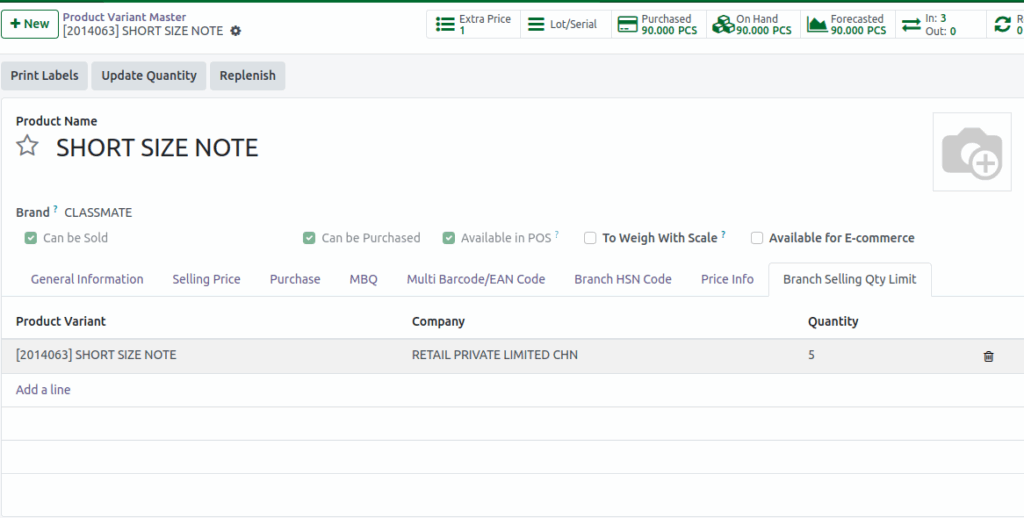
Branch Selling Quantity for Products
- If the product is configured for branch selling quantity.
- It applies to all lots/serial numbers.
- This ensures stock limits are respected for each product variation.
Adding Products to the POS Cart
Then open the POS system, Products can be added to the POS cart in three ways:
- Type the product code (e.g., /2010058).
- Scan the lot barcode.
- Scan any of the multi barcodes.

Branch Selling Quantity Rules
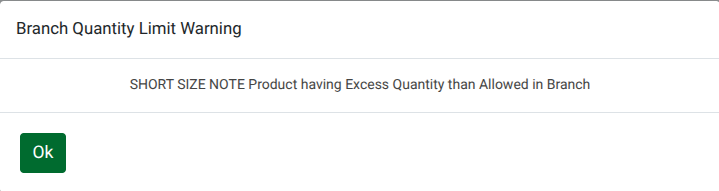
If the product is configured for Branch Selling Quantity. Then the entered Quantity must not exceed the branch stock. If the quantity exceed the branch stock, an error message will appear “Product having excess qty than allowed in branch” when clicking payment mode. This ensures the branch only sells available stock.
If the branch selling quantity limit is configured as 5, and you try to sell more than 5 quantity, a warning message will appear. Even if the on-hand quantity is greater than 5, the warning will still be displayed.
Finalizing the Sale in POS
Verify the pricing details in POS Cart. Click Payment Mode, choose the appropriate payment method. Click Validate
to complete the transaction, and the bill receipt will be generated.
