How to print and view the details for Reprint in Odoo POS
Reprinting a bill is sometimes necessary because customers may lose their receipt or staff may need to check a past sale. In Odoo POS, the reprint process is easy once you know where to look. This explains the billing flow in Odoo POS and the process of viewing or printing a duplicate copy of any completed order directly from the POS screen.
Processing a sale in Odoo POS
Begin by opening the POS and adding products to the cart. You can add items by typing the product code, scanning the barcode, or scanning any related multi-barcode.Adjust the quantities as needed for each item and select the customer. Once the order is ready, go to the payment screen by clicking the Payment Mode button or using the shortcut key F4.
On the payment screen, select the preferred payment method. Finally, complete the transaction by clicking Validate or pressing alt + v. Then the system will automatically generate the bill receipt for the sale.
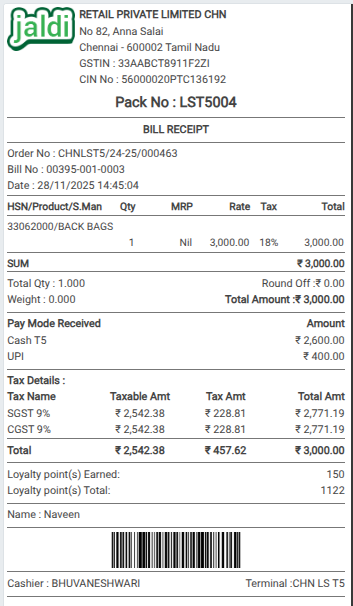
Accessing the Reprint Option in Odoo POS
To reprint a previous bill, go to the Refund section from the POS cart screen. This Refund screen is used for both return processing and bill reprints. You can search the Bill Receipt either by entering the Receipt Number or by typing the Customer Name in the search bar. Once the search is done, the transaction will appear on screen.
In Odoo POS, only users with the right permissions can reprint bills. This means the cashier needs to switch their role to Head Cashier before printing a duplicate copy. The role can be changed directly from the role selection area in the POS.
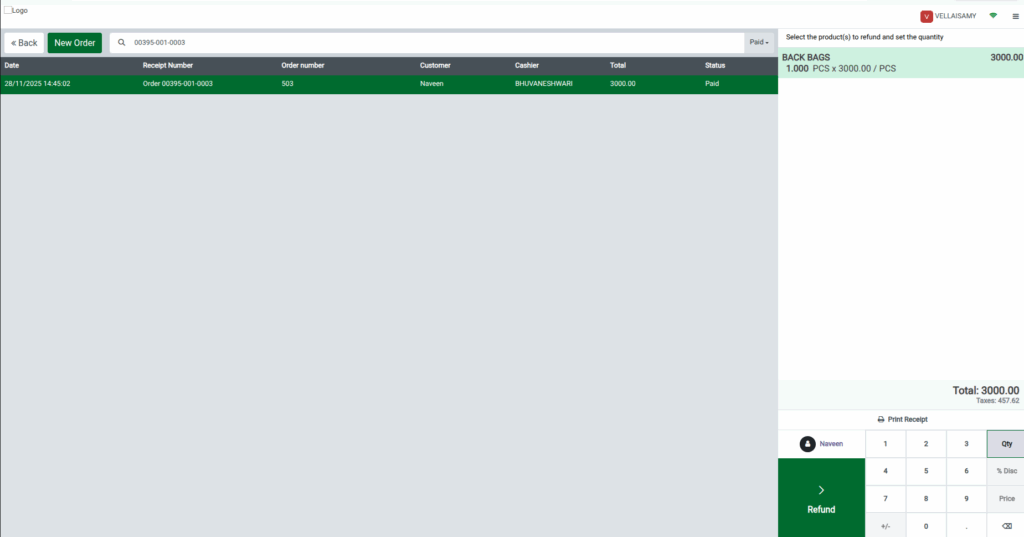
Printing the Duplicate Copy
After switching roles and locating the order, select it and choose the Print Receipt option. When a bill is reprinted in Odoo POS, the system keeps the original layout and displays every detail exactly as it appeared during the sale, adding only a “Duplicate Copy” label to the bill receipt heading to clearly indicate that it is a reprint.
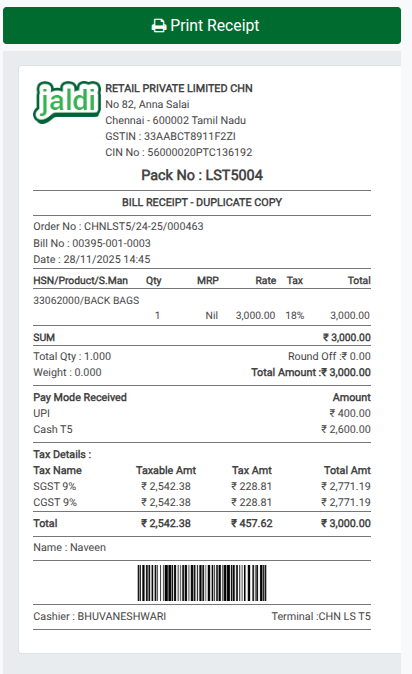
The top of a reprinted bill displays the store name and address, GST number and the company logo on the top left.
The Reprint displays key identification details such as the Order Number, Bill number and the original date and time of the transaction. Below that, the receipt lists the purchased products along with their HSN code, quantity, MRP, Rate, Tax, and total amount, allowing customers and staff to easily review the items.
A summary section then shows the total quantity, total weight and final total amount and any rounding difference, giving a quick overview of the sale. The Pay Mode Received section shows the payment method used by the customer and the amount paid with each payment method and any change returned, providing a clear record of the transaction.
The Tax Details section displays the taxable amount along with the breakdown of CGST, SGST, and IGST, giving a clear view of the total tax applied. Then, if Customer details are available displayed below this section.
At the bottom, the system displays the cashier’s name and the terminal used, helping track who handled the sale and ensuring complete transparency in the reprinted receipt.
