How to Search Products in Odoo POS Terminal
Searching for products efficiently in the Odoo POS terminal is important for smooth checkout and faster sales. Odoo POS allows searching by product codes or barcodes, and it supports different types of barcodes to make the process easier and more accurate.
Opening the POS Terminal
To start, open the POS Terminal application. When prompted, enter the opening cash amount in the
Opening Cash Control popup window. Once the terminal is open, you are ready to search and add products to the cart.
Searching Products Using Codes or Barcodes
You can search for a product either by entering a product code or by scanning barcodes. To search by code, click on the search bar or press Shift on your keyboard to open the search field. Enter the product code with a leading slash (for example,/102049100). Select the product from the search results. Note that product name search is not supported in this system.

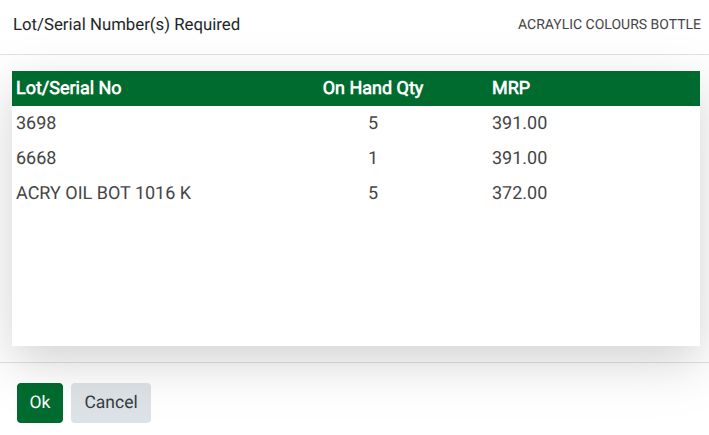
After selecting a product, a Lot Selection popup may appear. Choose the appropriate lot and click OK. The product will then be added to the cart automatically.
Types of Barcodes for Searching
Odoo POS supports three types of barcodes for product search
- Barcode/EAN Code,
- Multi Barcode/EAN Code
- Lot Barcode.
Barcode/EAN Code is a unique identifier for a product, stored in the Product Master under the General Information tab. To search, scan or enter the barcode, select the product from the results, choose the lot in the popup, and click
OK.

Multi Barcode/EAN Code allows the same product to have multiple barcodes, which is useful for packaging variations or different suppliers. These barcodes are stored in the Multi Barcode tab of the Product Master. Scan or enter a multi barcode, select the product, choose the lot in the popup, and the product will be added to the cart.

Lot Barcode is specific to a batch or lot of a product and is stored in the Lot Master under the Lot Barcode field. This is useful for tracking production or expiration batches. When using a lot barcode, scan or enter the code, click the product line in the search results, and the product is added to the cart immediately. No lot selection popup appears in this case.

