How to Process Customer Returns in iDempiere
The Customer Return window in iDempiere records returned products coming back into the warehouse from a customer. It is used in retail after a Customer RMA has been approved, such as damaged or wrong-item returns from a store or walk-in customer.
Completing a Customer Return updates stock on hand, keeps traceability to the originating RMA, and enables the credit memo and inventory confirmation steps that follow.
Process Flow Diagram

Business Rules
- Customer Return must reference a completed and approved Customer RMA.
- At least one return line is required before the document can be completed.
- Returned quantity cannot exceed the approved RMA line quantity.
- Inventory on hand updates only after the Customer Return is completed.
- Return invoice generation requires the Customer Return to be completed first.
- Pending Ship/Receipt confirmations must be processed before completion, if required.
- Completed Customer Return documents are read-only and retain RMA traceability.
Configuration Steps
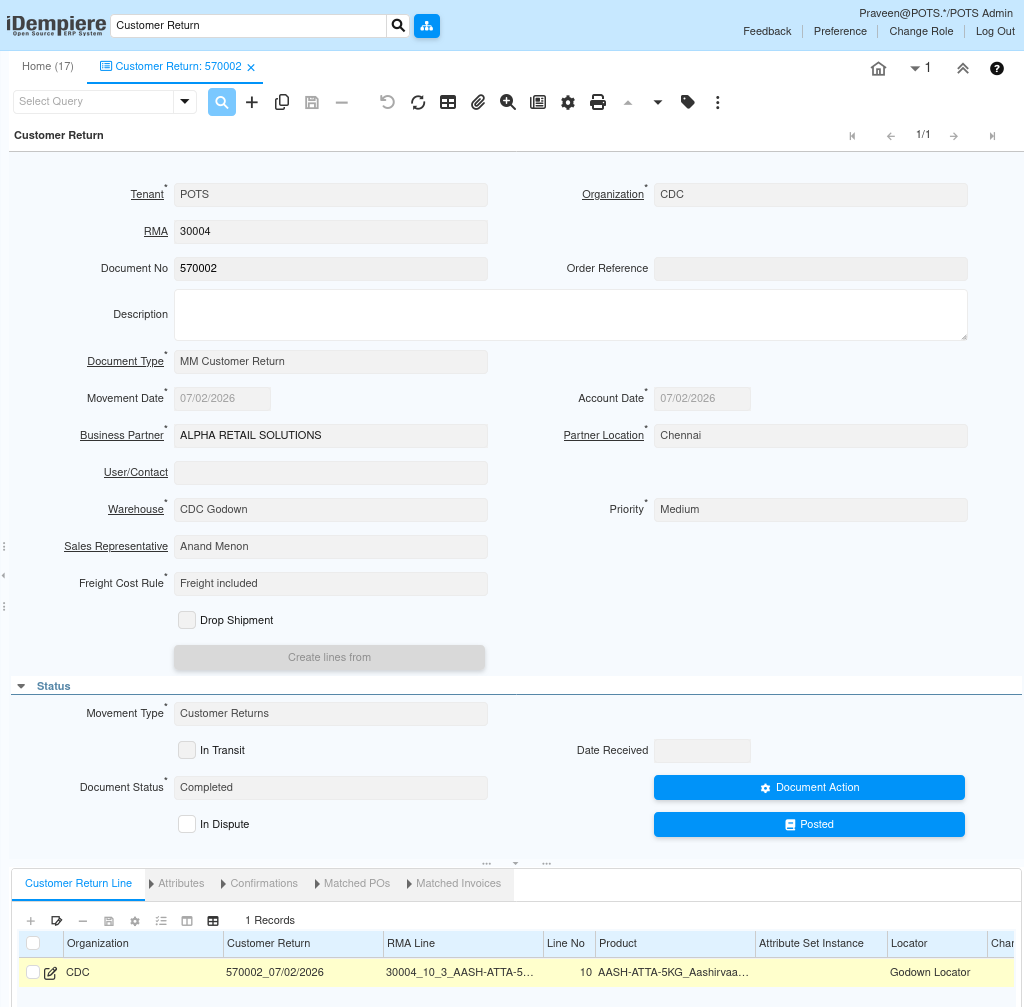
Step 1: Create the Customer Return Header
Create a new Customer Return, select the approved RMA, and confirm the Business Partner, Partner Location, and Warehouse are correctly populated from the RMA.
| Field | Sample Value | Description |
| RMA | 30004 | Approved Customer RMA this return fulfills |
| Document Type | MM Customer Return | Identifies the transaction as a customer return |
| Business Partner | ALPHA RETAIL SOLUTIONS | Customer returning the goods |
| Partner Location | Chennai | Delivery/return location of the Business Partner |
| Warehouse | CDC Godown | Warehouse receiving the returned stock |
| Freight Cost Rule | Freight Included | How freight cost is handled on the return |
| Priority | Medium | Processing priority of the return document |
Step 2: Generate Return Lines from Shipment/Receipt
Click Create Lines From on the Customer Return header, select the approved RMA and returned product, then click Create Lines from Shipment/Receipt.
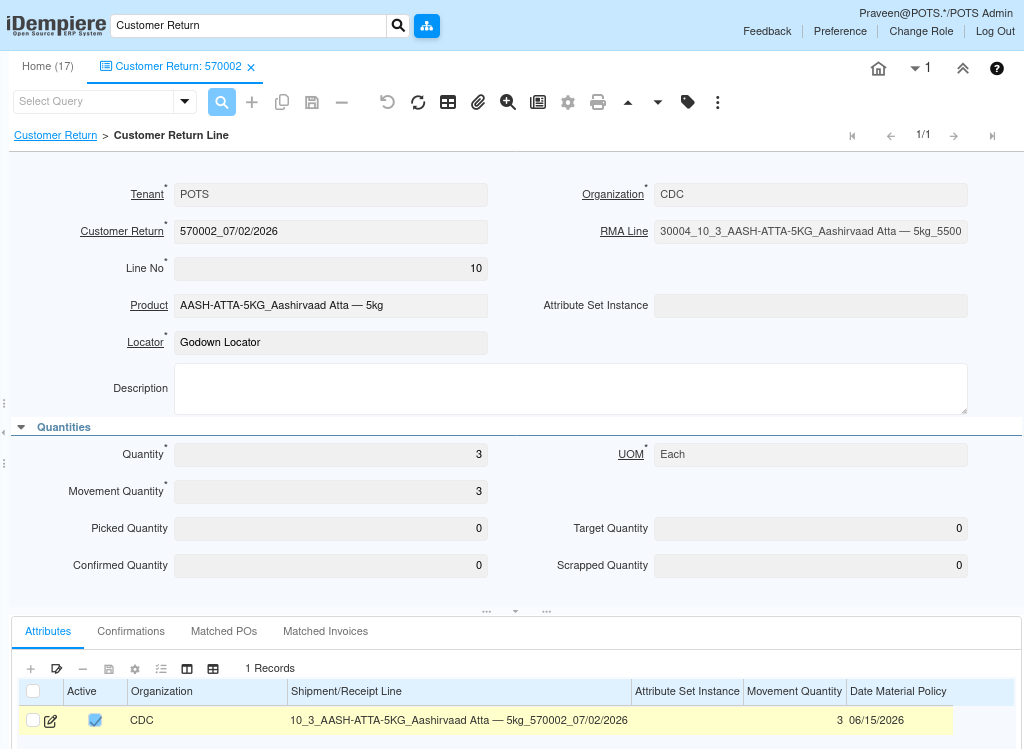
Step 3: Review the Customer Return Line
Open the Customer Return Line tab and verify the Product, Locator, Quantity, and RMA Line reference before proceeding.
| Field | Sample Value | Description |
| Product | AASH-ATTA-5KG_Aashirvaad Atta – 5kg | Returned inventory item |
| Locator | Godown Locator | Warehouse location receiving the returned stock |
| Quantity | 3 | Number of units received back into inventory |
| UOM | Each | Unit of Measure for the returned quantity |
| RMA Line | 30004_10_3_AASH-ATTA-5KG | Reference to the approved Customer RMA line |
Step 4: Complete the Customer Return
Select Document Action → Complete. The Document Status changes to Completed and the document becomes read-only.
| Note: Once completed, returned quantity (e.g. 3 units of Aashirvaad Atta – 5kg) is added back to CDC Godown stock. |
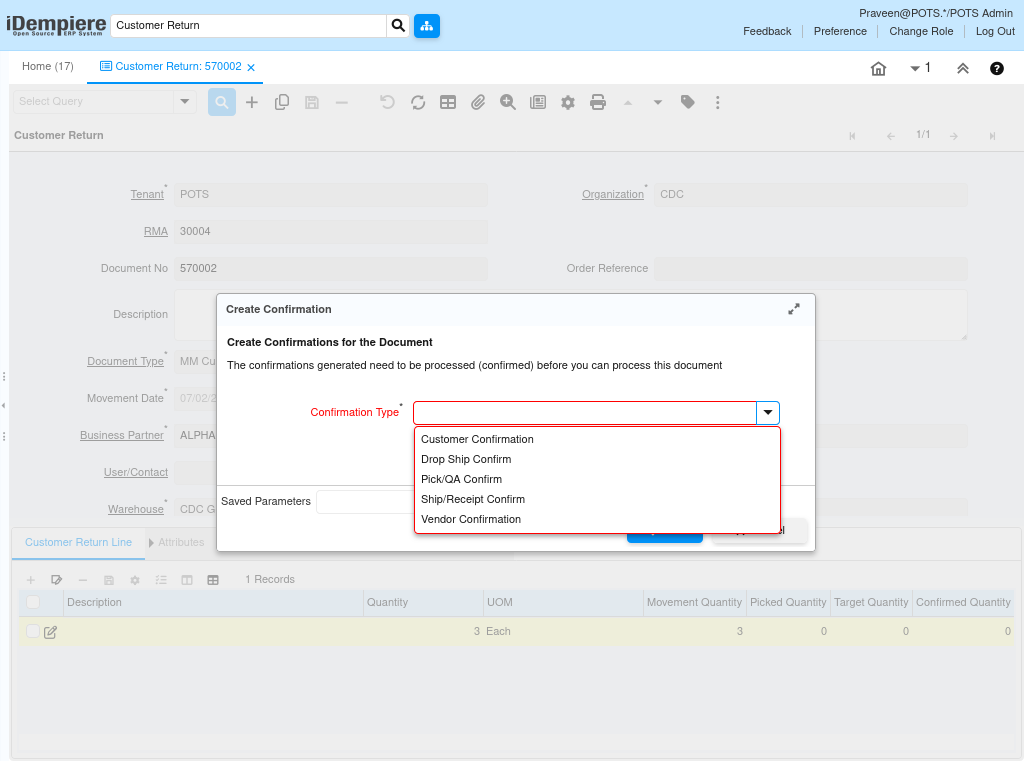
Step 5: Create Inventory Confirmation (Optional)
From Document Action, run Create Confirmation, choose the appropriate Confirmation Type, and click OK to generate the confirmation document.
| Field | Sample Value | Purpose |
| Confirmation Type | Ship/Receipt Confirm | Verifies the physical shipment/receipt quantity |
| Confirmation Type | Customer Confirmation | Confirms the return with the customer |
| Confirmation Type | Pick/QA Confirm | Records picking and quality inspection results |
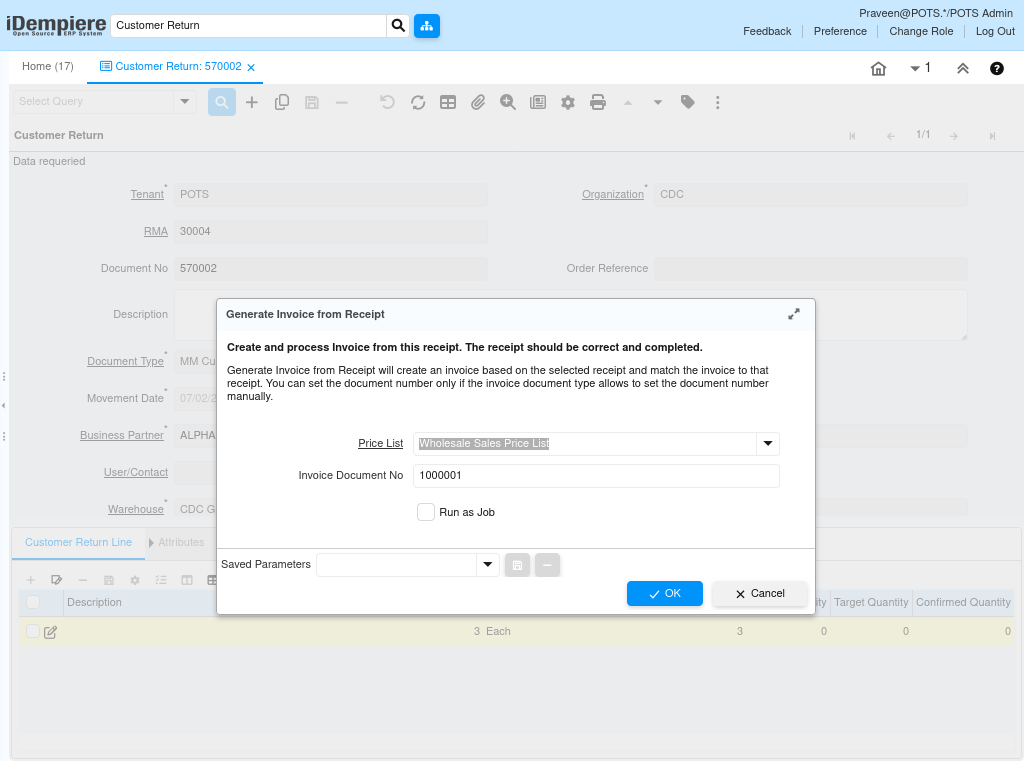
Step 6: Generate Invoice from Receipt
Run Generate Invoice from Receipt, select the Price List, optionally set the Invoice Document No, then click OK to create the AR Credit Memo.
| Field | Sample Value | Description |
| Price List | Standard Sales Price List | Price list used to value the credit memo |
| Invoice Document No | 1000001 | Document number of the generated credit memo |
Step 7: Review the Generated Credit Memo
Open the Sales Invoice and Credit/Debit Memo window, verify the invoice line, totals, and tax, then confirm the document is Posted.
| Field | Sample Value | Description |
| Target Document Type | AR Credit Memo | Identifies the invoice as a customer credit memo |
| Business Partner | ALPHA RETAIL SOLUTIONS | Customer being credited |
| Price List | Standard Sales Price List | Price list applied to the credit memo |
| Payment Rule | Mixed POS Payment | How the credit will be settled |
| Total Lines | 840.00 | Line total before tax, in INR |
| Grand Total | 991.20 | Total credit amount including CGST/SGST, in INR |
Common Issues and Resolutions
| Issue | Cause | Resolution |
| No RMA available | Customer RMA has not been completed | Complete the Customer RMA before creating the Customer Return |
| No return lines generated | Selected RMA has no approved return quantity | Verify the RMA contains approved quantities before Create Lines From |
| Return quantity mismatch | Entered quantity exceeds approved RMA quantity | Match the return quantity to the approved RMA line |
| Unable to complete document | No return line exists on the document | Add at least one return line before completing |
| Confirmation pending error | Required Ship/Receipt confirmation not processed | Process the pending confirmation before completing the return |
| Invoice not generated | Customer Return not yet completed | Complete the Customer Return before running Generate Invoice from Receipt |
| Incorrect tax on credit memo | Wrong Price List or product tax category | Verify the Price List and tax category configured on the product |
| Locator not found | Warehouse locator not configured | Configure a locator for the warehouse before receiving the return |
Next Steps
- Customer Return Invoice (Credit Memo) posting and review.
- Customer refund processing, if applicable.
- Inventory confirmation review and closure.
- Financial posting verification.
- Return analysis and reporting.