How to create a standard sales order in iDempiere
A Standard Order is the most commonly used sales document in iDempiere, recording a customer’s request to purchase products and serving as the foundation for inventory allocation, shipment, invoicing, and payment collection.
It captures customer details, products, pricing, taxes, delivery preferences, and payment conditions for each transaction.
Once completed, the Standard Order enables the downstream fulfillment cycle: shipment creation, customer invoicing, and payment receipt — directly impacting inventory and accounts receivable.
Process Flow

Business Rules
- Business Partner must be configured as a Customer before creating a Standard Order.
- At least one Order Line with a valid Product is required.
- Warehouse must be selected on the header and is carried to each Order Line.
- Price List determines product pricing automatically on each Order Line.
- Delivery Rule controls when shipment can be generated.
- Invoice Rule controls when the Customer Invoice is generated.
- Payment Rule and Payment Term determine how and when the customer settles the bill.
- The order must be Completed before shipment or invoice Processing can begin.
- Tax is derived automatically from the product Tax Category on each Order Line.
- Discount % reduces the Unit Price to calculate the Line Amount.
Configuration Steps
Step 1: Create the Standard Order Header
The header captures the customer, document type, dates, and invoice addressing details that apply to the entire order.
- Open the Sales Order window and click New Record.
- Set Target Document Type to Standard Order, enter Date Ordered, Date Promised, Business Partner, Partner Location, and User/Contact, then save.
| Field | Sample Value | Mandatory | Description |
| Organization | CDC | Yes | Organization Processing the sales transaction |
| Document No | <50017> | Auto | Auto-generated document number |
| Target Document Type | Standard Order | Yes | Defines this as a Standard Sales Order |
| Date Ordered | 26/06/2026 | Yes | Date the customer placed the order |
| Date Promised | 26/06/2026 | Yes | Delivery date committed to the customer |
| Business Partner | ASWIN ASSOCIATES | Yes | Customer placing the order |
| Invoice Partner | ASWIN ASSOCIATES | Auto | Billing party, derived from Business Partner |
| Partner Location | Chennai | Yes | Customer delivery address |
| Invoice Location | Chennai | Auto | Billing address, derived from Partner Location |
| User/Contact | Rajesh | No | Customer contact for the order |
| Invoice Contact | Rajesh | Auto | Contact for invoice, derived from User/Contact |
| Description | Aashirvaad Atta Distribution Order | No | Free-text description for the order |

Step 2: Configure Delivery Settings
Delivery settings control how and when products are shipped, which warehouse supplies the inventory, and how freight is handled.
Set Delivery Rule, Warehouse, Delivery Via, Freight Cost Rule, and Priority in the Delivery section of the header.
| Field | Sample Value | Mandatory | Description |
| Delivery Rule | Availability | Yes | Controls when shipment can be created |
| Warehouse | CDC Godown | Yes | Source warehouse supplying inventory for this order |
| Priority | Medium | Yes | Processing urgency for the order |
| Delivery Via | Pickup | Yes | Delivery method for this order |
| Freight Cost Rule | Freight included | Yes | How freight cost is handled on this order |
| Drop Shipment | Unchecked | No | Enable only when vendor ships directly to customer |
Delivery Rule Options
| Delivery Rule | When Shipment is Allowed |
| After Payment | Shipment created only after payment is received |
| Availability | Deliver available inventory immediately |
| Complete Line | Deliver only when full line quantity is available |
| Complete Order | Deliver only when all lines are fully available |
| Force | Ignore availability and force shipment creation |
| Manual | User manually controls shipment quantities |
Delivery Via Options
| Delivery Via | Description |
| Delivery | Company delivers products to the customer |
| Pickup | Customer collects products from the warehouse |
| Shipper | Third-party transporter delivers the products |
Freight Cost Rule Options
| Freight Cost Rule | Description |
| Calculated | Freight calculated automatically based on weight or volume |
| Customer Account | Freight charged through the customer’s transporter account |
| Fix price | Fixed freight charge applied to the order |
| Freight included | Freight cost included in the product price |
Step 3: Configure Invoicing and Payment Settings
Invoicing settings determine when the customer receives their invoice, which price list applies, and how payment is collected.
Set Invoice Rule, Price List, Sales Representative, Payment Rule, Payment Term, and Currency in the Invoicing section.
| Field | Sample Value | Mandatory | Description |
| Invoice Rule | After Delivery | Yes | Controls when the Customer Invoice is generated |
| Price List | Standard Sales Price List | Yes | Determines unit pricing for each Order Line |
| Currency | INR | Yes | Transaction currency for the order |
| Sales Representative | Ganesh Prabhu | No | Salesperson responsible for the order |
| Payment Rule | On Credit | Yes | Customer payment method |
| Payment Term | Immediate | Yes | When payment is due |
| Promotion Code | Blank | No | Applicable promotion code if any |
Invoice Rule Options
| Invoice Rule | When Invoice is Generated |
| After Delivery | Invoice created after shipment is completed |
| After Order delivered | Invoice created after the full order is delivered |
| Customer Schedule after Delivery | Invoice follows the customer’s agreed billing schedule |
| Immediate | Invoice created immediately when the order is completed |
Payment Rule Options
| Payment Rule | Description |
| Cash | Immediate cash payment at point of sale |
| Check | Payment through cheque |
| Credit Card | Payment through debit or credit card |
| Direct Debit | Automatic bank debit |
| Mixed POS Payment | Multiple payment methods in one transaction |
| On Credit | Payment collected later per agreed payment terms |
Payment Term Options
| Payment Term | Description |
| Immediate | Payment due immediately |
| Net 15 Days | Payment due within 15 days |
| Net 30 Days | Payment due within 30 days |
| Net 45 Days | Payment due within 45 days |
| Weekly Settlement | Weekly payment cycle |
| Monthly Settlement | Monthly payment cycle |
| Yearly Settlement | Annual settlement |
| 45 days end of month | Payment due 45 days after month-end |
Step 4: Add Order Lines
Order Lines define the products, quantities, pricing, discounts, and taxes that make up the customer order.
- Open the Order Line tab and click New Record. Select the Product; Price, List Price, and Tax are derived automatically.
- Enter Quantity, verify Discount %, and confirm Line Amount.
| Field | Sample Value | Mandatory | Description |
| Line No | 10 | Auto | Sequence number for the order line |
| Product | AASH-ATTA-5KG_Aashirvaad Atta – 5kg | Yes | Product being sold to the customer |
| Warehouse | CDC Godown | Auto | Derived from the order header |
| Quantity | 2 | Yes | Number of units ordered |
| UOM | Each | Auto | Unit of measure for the product |
| Price | 280.00 | Auto | Selling price from the Price List |
| Unit Price | 280.00 | Auto | Effective price per unit after discount |
| List Price | 285.00 | Auto | Original product price before discount |
| Tax | CGST/SGST 18% | Auto | Tax derived from the product Tax Category |
| Discount % | 1.75 | No | Discount applied to reduce the unit price |
| Line Amount | 560.00 | Auto | Quantity multiplied by Unit Price |
| Delivered Quantity | 0 | Auto | Quantity shipped so far |
| Reserved Quantity | 0 | Auto | Quantity reserved in the warehouse |
| Quantity Invoiced | 0 | Auto | Quantity already billed |
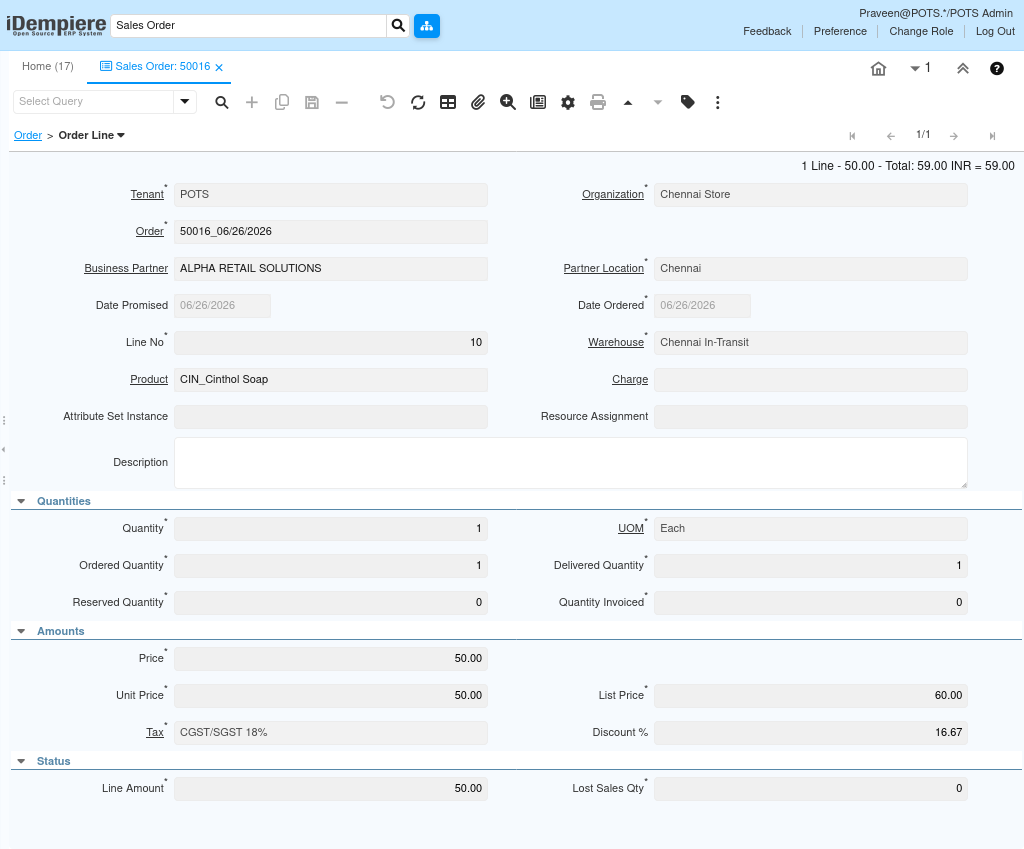
Step 5: Execute Document Action
Document Action controls the lifecycle of the Standard Order. The three primary actions are Prepare, Complete, and Void.
- Click the Document Action button to open the action dialog.
- Select the required action from the dropdown and click the confirm button to apply it.
| Field | Sample Value | Mandatory | Description |
| Document Action | Complete | Yes | Action selected in the Document Action dialog |
Document Action Options
| Document Action | Resulting Document Status | When to Use |
| Prepare | In Progress | Validates the order and reserves inventory without finalizing; use to check for errors before committing |
| Complete | Completed | Finalizes the order and makes it available for shipment and invoicing; this is the standard action for confirmed customer orders |
| Void | Voided | Permanently cancels the order; no shipment or invoice can be generated; use when the order is no longer required |
Common Issues and Resolutions
| Issue | Cause | Resolution |
| Business Partner not available | Customer Master not configured | Create the Business Partner and enable the Customer flag. |
| Price not populating on Order Line | Price List not assigned | Verify Price List on the order header and ensure the product has a price entry. |
| Tax not derived on Order Line | Product Tax Category not configured | Assign a Tax Category to the product in Product Master. |
| Unable to complete the order | No Order Lines added | Add at least one valid product line before completing. |
| Incorrect Grand Total | Discount or pricing error on Order Line | Review Unit Price, Discount %, and Tax on each line. |
| Delivery Rule blocking shipment | Availability rule with no stock | Verify warehouse stock using the Storage Detail report. |
| Invoice not generated after delivery | Invoice Rule set to Immediate instead of After Delivery | Update Invoice Rule on the order to match the billing requirement. |
| Order cannot be edited after Prepare | Document is In Progress | Reactivate or Void and recreate if changes are needed. |
Next Steps
- Generate Shipment or Material Delivery once inventory is confirmed.
- Generate Customer Invoice after delivery based on the Invoice Rule.
- Record Customer Payment against the invoice.
- Review order status using Sales Order reports.
- Track Delivered Quantity and Quantity Invoiced on each Order Line.