How to create a warehouse Order in iDempiere
Introduction
Warehouse Order is a Sales Order document type in iDempiere built for counter pickup, also known as Will Call. It fits retail counters, cash-and-carry outlets, and walk-in service points where customers take goods immediately.
Completing a Warehouse Order ships the goods and reduces stock right away, but does not create an invoice. Billing happens later through a separate invoicing run, keeping fulfilment and receivables reporting cleanly separated.
Process Flow

Business Rules
- Warehouse Order ships goods automatically on completion, without generating an invoice.
- Stock is not reserved before completion since goods leave the counter immediately.
- Invoicing is processed separately after the order is completed.
- Payment Rule can be Cash or On Credit, based on the Business Partner setup.
- Credit limit checks apply automatically when the customer is on credit terms.
- Tax is calculated on each line using the Product Tax Category.
- Voiding a completed Warehouse Order automatically reverses the linked shipment.
- Intercompany counter-orders are created automatically when inter-org trading is active.
Configuration Steps
Step 1: Create a New Order with Business Partner Details
Click New, set Target Document Type to Warehouse Order, select the Business Partner, Partner Location, and User/Contact, then confirm Date Ordered.
| Field | Sample Value | Description |
| Target Document Type | Warehouse Order | Sets the pickup-and-ship-now flow |
| Business Partner | Alpha Retail Solutions | Customer collecting goods at the counter |
| Partner Location | Chennai | Delivery/tax location for the sale |
| User/Contact | Karthik | Contact person for the transaction |
| Date Ordered | 06/25/2026 | Date the counter sale is recorded |
Step 2: Set Delivery and Warehouse Details
Set Warehouse to the counter’s stock location, Delivery Via to Pickup or Delivery as applicable, and leave Drop Shipment unchecked for standard counter sales.
| Field | Sample Value | Description |
| Warehouse | CDC Godown | Stock location the sale ships from |
| Delivery Rule | Availability | Controls when the shipment is generated |
| Delivery Via | Delivery | Method the goods leave the counter |
| Drop Shipment | Unchecked | Confirms goods ship from the retail warehouse |
Step 3: Set Invoicing and Payment Fields
Payment and price list fields determine how the order is priced now and billed later, without forcing immediate invoicing.
| Field | Sample Value | Description |
| Price List | Standard Sales Price List | Determines line pricing for the order |
| Currency | INR | Transaction currency from the Price List |
| Payment Rule | On Credit | Cash or credit basis for the sale |
| Payment Term | Immediate | Due terms applied to the later invoice |
| Sales Representative | Deepak Anand | Staff member handling the counter sale |

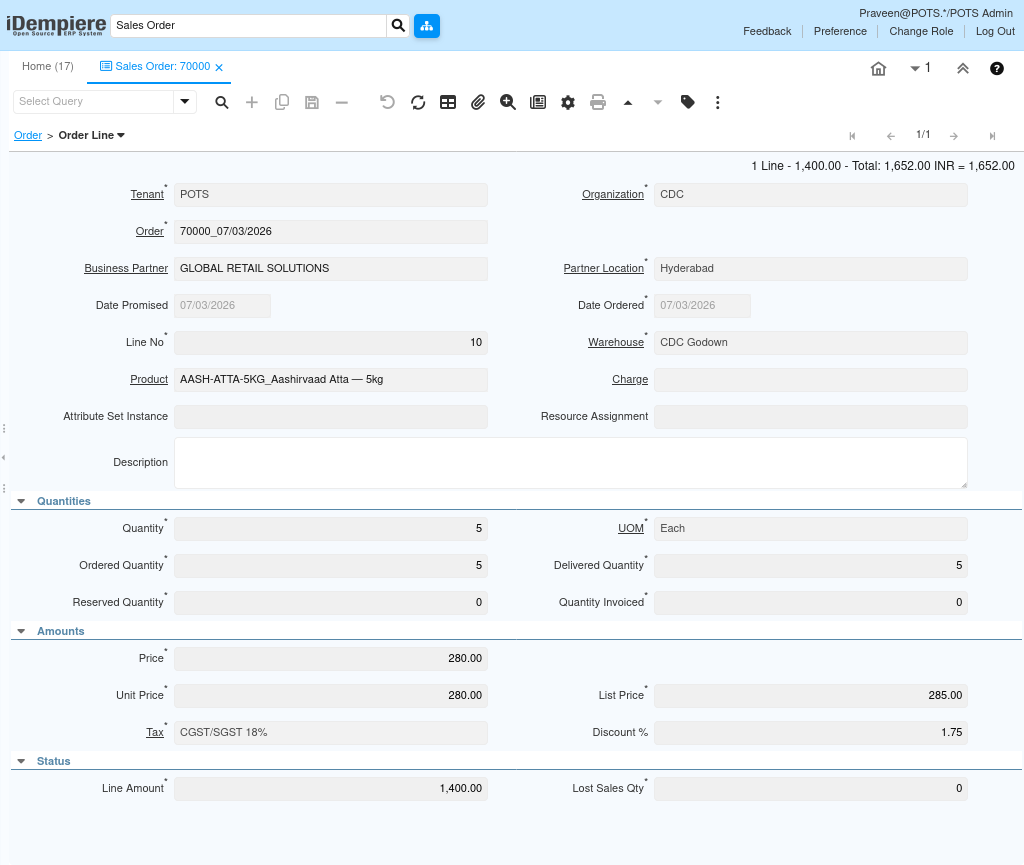
Step 4: Add Order Lines
Add each Product with Quantity and UOM, verify Unit Price against the List Price, and confirm the applicable Tax rate on the line.
| Field | Sample Value | Description |
| Product | AASH-ATTA-5KG_Aashirvaad Atta – 5kg | Item picked up by the customer |
| Quantity | 5 | Units taken at the counter |
| UOM | Each | Unit of measure for the line |
| Unit Price | 280.00 | Price applied after any discount |
| Tax | CGST/SGST 18% | Tax rate applied to the line |
| Line Amount | 1,400.00 | Total for the line before tax |
Step 5: Complete the Order
Click Document Action, choose Complete, and confirm. The system runs credit checks, calculates tax, and generates a completed shipment in one step.
| Field | Sample Value | Description |
| Document Action | Complete | Triggers validation, shipment, and posting |
| Document Status | Completed | Confirms the order has processed successfully |
| Grand Total | 1,652.00 | Final amount to be invoiced later |
Common Issues and Resolutions
| Issue | Cause | Resolution |
| Shipment not generated on Complete | Wrong Document Type selected on the order | Confirm Target Document Type is set to Warehouse Order |
| Invoice created unexpectedly | Credit Order type used instead of Warehouse Order | Reselect Warehouse Order as the Document Type |
| Order blocked at Complete | Business Partner credit limit exceeded | Increase credit limit or switch Payment Rule to Cash |
| Stock not deducted after completion | Product not marked as stocked, or Warehouse missing | Verify Product setup and Warehouse assignment |
| Tax not calculated on line | Tax Category missing on Product or partner is tax exempt | Assign the correct Tax Category to the Product |
| Shipment left unreversed after Void | Shipment was edited manually outside the order | Always Void through Document Action, not manual edits |
| Wrong counter-order Organization | Inter-Org document type setup is incorrect | Review Organization and Inter-Org document type mapping |
| Incorrect line pricing | Business Partner linked to the wrong Price List | Update Price List on the Business Partner or order header |
Next Steps
- Configure the Generate Invoices process for completed Warehouse Orders.
- Set up Payment Receipt entry for cash counter sales.
- Review shipment/delivery note printing for pickup confirmation.
- Check Sales Order and Inventory reports for Warehouse Order activity.