How to Configure Registration Attributes in iDempiere
Registration Attributes is the iDempiere window that defines the information collected when a customer registers a product, such as IMEI Number or Warranty Expiry Date.
Businesses use it in Asset Management to standardise registration fields across products like mobile devices, appliances, and other warranted goods.
Configured attributes drive what appears in the Registration window, supporting warranty tracking, asset identification, and after-sales service.
Process Flow

Business Rules
- Registration Attributes define metadata only; actual values are not stored here.
- Every attribute must have a Reference that determines the expected value type.
- Attributes can be assigned to specific products through the Product Assignment tab.
- Only active attributes are available for use during registration.
- The Sequence field controls the display order of attributes.
- Self-Service marks attributes that customers can complete during self-registration.
- Attributes are retrieved ordered by Sequence and cached for performance.
Prerequisites
- Product configured and available for registration attribute assignment.
- Organization configured for the attribute record.
- Reference (data type) decided for each attribute, such as String, Date, or Yes-No.
Configuration Steps
Step 1: Create a Registration Attribute Record
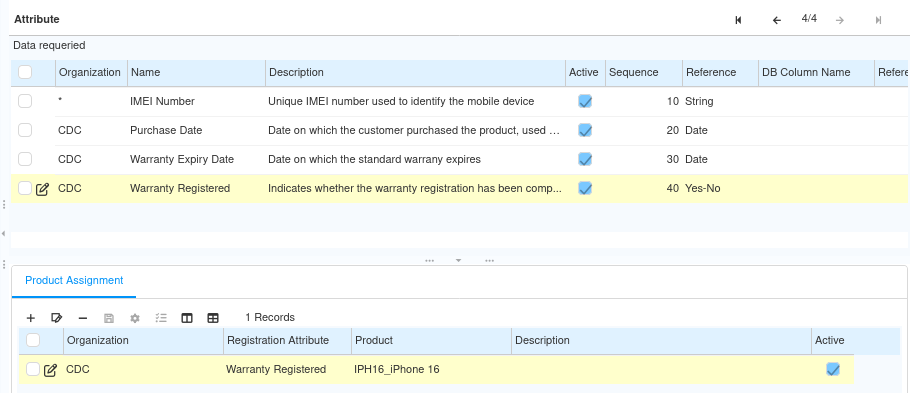
Each attribute defines a single piece of information to collect during product registration, such as IMEI Number.
Click New in the header grid, enter a Name and Description that describe the information being collected, then continue configuration.
| Field | Sample Value | Purpose |
| Name | IMEI Number | Identifies the attribute being collected |
| Description | Unique IMEI number used to identify the mobile device | Explains the attribute to administrators |
Step 2: Set the Reference Data Type
The Reference determines what kind of value is expected when the attribute is entered later during registration.
Select the Reference that matches the attribute, for example String for IMEI Number, Date for expiry dates, or Yes-No for status flags.
| Field | Sample Value | Purpose |
| Reference | String | Sets the expected data type for the attribute value |
| Reference | Date | Used for attributes like Purchase Date or Warranty Expiry Date |
| Reference | Yes-No | Used for status attributes like Warranty Registered |
Step 3: Configure Sequence and Self-Service
Sequence controls the order attributes appear in, and Self-Service flags attributes customers can complete themselves.
Enter a numeric Sequence, for example 10, and check Self-Service if the attribute should be available for customer self-registration.
| Field | Sample Value | Purpose |
| Sequence | 10 | Controls the display order of the attribute |
| Self-Service | Checked | Allows the attribute to be completed during customer self-registration |
| Active | Checked | Enables the attribute for use during registration |
Step 4: Assign the Attribute to Products
Only products assigned to an attribute are expected to use it during registration, allowing different products to have different requirements.
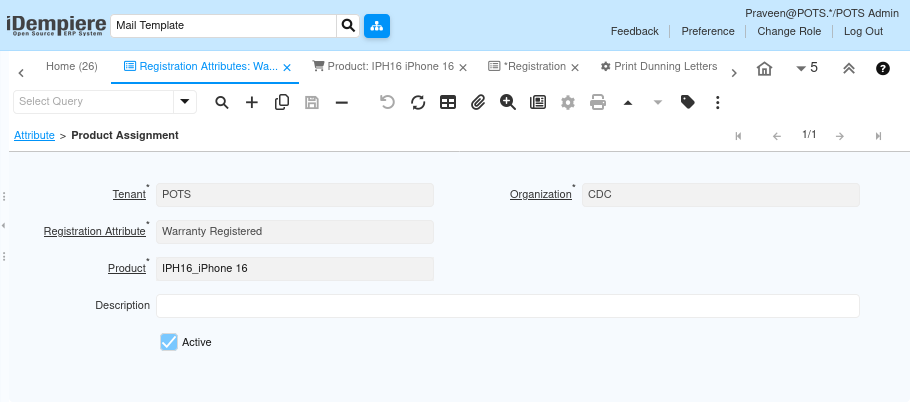
Open the Product Assignment tab, click New, select the Product, for example Apple iPhone 16, and save the row.
| Field | Sample Value | Purpose |
| Registration Attribute | Warranty Registered | Attribute being mapped to a product |
| Product | IPH16_iPhone 16 | Product expected to collect this attribute |
| Active | Checked | Enables this product assignment |
Step 5: Save and Verify
Saving confirms the attribute and its product mapping are ready for use in customer registrations.
Save the header record and the Product Assignment tab, then confirm the attribute appears when creating a Registration for the assigned product.
Common Issues and Resolutions
| Issue | Cause | Resolution |
| Attribute not appearing during registration | Attribute not assigned to the product | Add the product mapping in the Product Assignment tab |
| Incorrect data type accepted | Wrong Reference selected | Review and correct the Reference before saving |
| Attribute unavailable | Active checkbox is unchecked | Enable the Active checkbox on the attribute |
| Display order incorrect | Sequence value missing or duplicated | Adjust the Sequence values for correct ordering |
| Attribute not usable by customer | Self-Service checkbox is unchecked | Enable Self-Service for customer-facing attributes |
| Attribute assigned to wrong product | Incorrect product selected in Product Assignment | Correct the product mapping and save |
| Attribute values appear missing | Values entered in the wrong window | Enter actual values in Registration → Value tab, not here |
Next Steps
- Create a Registration record for the customer and product.
- Enter the actual attribute values in the Registration → Value tab.
- Use the registration information for warranty tracking, asset identification, and service management.