How to Configure Credit Orders in iDempiere
The Credit Order is a document type on the iDempiere Sales Order window built for customers who buy on approved credit. It ships and invoices the order in one step instead of two separate transactions.
It shortens the order-to-cash cycle, keeps stock and invoicing in sync, and drives collections through the customer’s payment schedule.
Process Flow

Business Rules
- Credit Order requires the Business Partner to have an approved credit limit and payment terms.
- Payment Rule and Payment Terms default from the Business Partner record automatically.
- Order cannot complete if the customer exceeds their assigned credit limit.
- Completing the order auto-generates and completes a matching Shipment document.
- Completing the order auto-generates and completes a matching AR Invoice.
- Stock is not reserved in advance; it is shipped immediately on completion.
- The invoice inherits the payment schedule generated from the order’s payment terms.
- Tax is calculated on the invoice line using the tax category linked to the product.
Prerequisites
- Business Partner configured with Credit Limit and Payment Terms.
- Business Partner Location (ship-to / bill-to address) configured.
- Sales Price List configured with product prices (e.g. Promotional Sales Price List).
- Warehouse and Locator configured for the shipping organization.
- Document Type “Credit Order” active for the Sales Order window.
- Tax Category and Tax Rate configured for the products sold.
- Sales Representative (User) set up for order attribution.
Configuration Steps
Step 1: Configure the Business Partner Credit Profile
Open Business Partner, set the Credit Limit and Payment Terms, and confirm an active Business Partner Location exists for shipping and billing.
| Field | Sample Value | Description |
| Business Partner | FIVE TECHNOLOGIES PRIVATE LIMITED | Customer buying on credit |
| Partner Location | Chennai Office | Ship-to / bill-to address |
| User/Contact | Harish Kumar | Customer contact for the order |
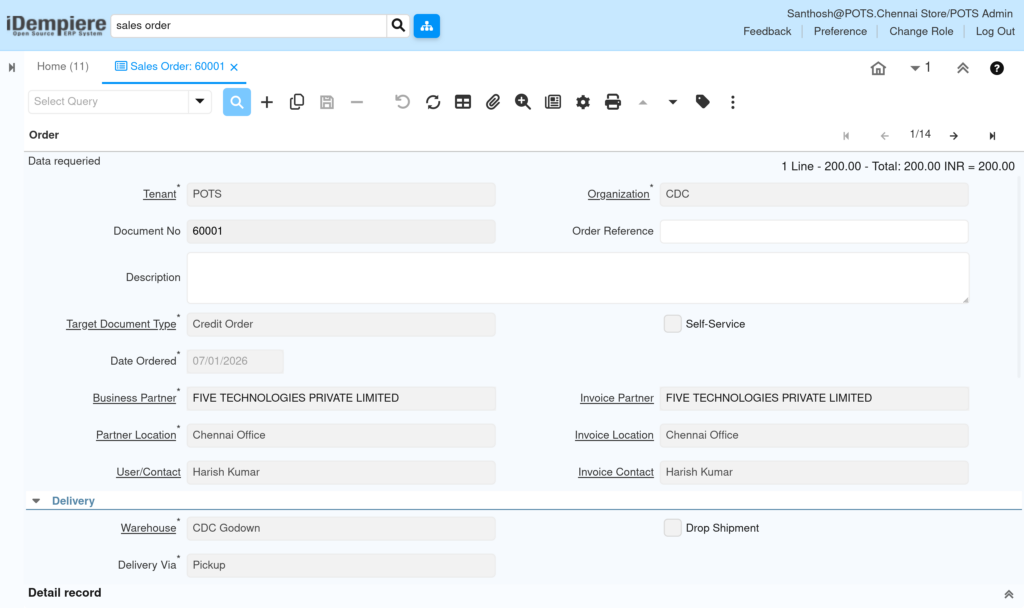
Step 2: Create the Sales Order with Credit Order Document Type
- Create a new Sales Order, select the Business Partner, and set Target Document Type to Credit Order.
- Payment Rule and Payment Terms populate automatically from the customer.
| Field | Sample Value | Description |
| Target Document Type | Credit Order | Drives auto ship and invoice on completion |
| Warehouse | CDC Godown | Source warehouse for the shipment |
| Delivery Via | Pickup | How goods reach the customer |
| Price List | Promotional Sales Price List | Price source for order lines |
| Currency | INR | Transaction currency |
| Sales Representative | Aravind Kumar | Order owner for reporting |

Step 3: Enter Order Lines
- Add the product, quantity, and confirm Unit Price and Tax.
- List Price shows the price list reference; Unit Price is what the customer is actually charged.
| Field | Sample Value | Description |
| Product | 1000000_Men’s shoe | Item being sold |
| Quantity | 1 | Units ordered |
| UOM | Each | Unit of measure |
| List Price | 100.00 | Reference price from price list |
| Unit Price | 200.00 | Actual selling price per unit |
| Tax | CGST 1.5% | Tax rate applied to the line |
| Line Amount | 200.00 | Quantity × Unit Price |

Step 4: Complete the Order
Click Complete on the order. The system checks the credit limit, builds the payment schedule, then auto-creates and completes the Shipment and the AR Invoice.
| Field | Sample Value | Description |
| Document Status | Completed | Confirms the order processed successfully |
| Document No | 60001 | System-generated order number |
| Grand Total | 200.00 | Total order value including tax |
Step 5: Review the Auto-Generated Shipment
Open the linked Shipment from the order. Confirm the Locator, Movement Quantity, and Document Type match the sale before closing the transaction.
| Field | Sample Value | Description |
| Document Type | MM Shipment Indirect | Delivery document type |
| Warehouse | CDC Godown | Warehouse stock is shipped from |
| Locator | Godown Locator | Storage bin the stock is picked from |
| Movement Quantity | 1 | Quantity physically shipped |
| Sales Order Line | 60001_07/01/2026_10_200 | Link back to the originating order line |


Step 6: Review the Auto-Generated Invoice
Open the linked Invoice, confirm Payment Rule, Grand Total, and Document Status show Completed, then verify the Paid flag once payment terms are settled.
| Field | Sample Value | Description |
| Document Type | AR Invoice | Customer-facing billing document |
| Order | 60001_07/01/2026 | Source order reference |
| Payment Rule | Cash | How the customer settles this invoice |
| Document Status | Completed | Confirms invoice posted successfully |
| Grand Total | 200.00 | Amount billed to the customer |
| Paid | Checked | Indicates payment has been received |


Common Issues and Resolutions
| Issue | Cause | Resolution |
| Payment Rule blank on order | Business Partner has no default Payment Rule set | Set Payment Rule and Payment Terms on the Business Partner record |
| Shipment not created automatically | Target Document Type left as Standard Order | Set Target Document Type to Credit Order before completing |
| Wrong selling price on line | Incorrect Price List selected on order header | Select the correct Price List before adding order lines |
| Invoice not linked to shipment | Order completed before shipment confirmation processed | Re-check the Shipment/Receipt Line reference on the invoice line |
| Discount % shows unexpected negative value | Unit Price entered above the Price List value | Confirm Unit Price against the intended Price List entry |
Next Steps
- Configure Payment Terms window for staged due dates.
- Set up Dunning rules for overdue Credit Order invoices.
- Review Price List Version for seasonal or promotional pricing.
- Configure Warehouse and Locator for additional retail outlets.