How to use Deliver Assets process in iDempiere
Introduction
Deliver Assets is a standard iDempiere process that electronically emails purchased or subscribed assets to customers, using records maintained in the Asset window.
It is used in after-sales and customer asset management, run manually or as a scheduled job after assets are created from Sales Orders or service transactions.
The process updates asset delivery status, logs mail history, and sends guarantee-expiry reminders, directly affecting customer communication and asset reporting accuracy.
Process Flow Diagram
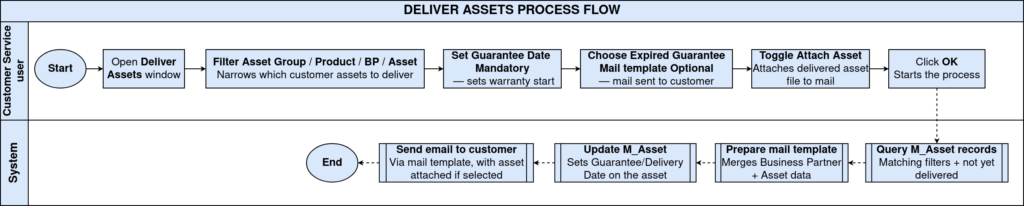
Business Rules
- Guarantee Date is mandatory and defaults to the current system date.
- Assets are delivered only when their Guarantee Date is on or after the entered Guarantee Date.
- Expired assets receive a reminder mail only if Expired Guarantee Mail is selected.
- At least one selection filter (Asset Group, Product, Business Partner, or Asset) is required.
- Selecting a specific Asset overrides all other selection filters.
- Attach Asset sends the mail as HTML and includes available Product Download files.
- Run as Job executes the process in the background without blocking the session.
- Delivery is skipped when the asset’s linked user has no valid email address.
- Each successful delivery is logged as an Asset Delivery record and updates the Asset.
Prerequisites
- Business Partner configured with a linked User having a valid email address.
- Asset record created and linked to a Product and Business Partner.
- Mail Text template configured for product delivery and/or guarantee expiry.
- SMTP Host and Request Email configured at the Client (Tenant) level.
- Product Download configured on the Product, if attachments are required.
- Asset Group configured, if filtering deliveries by group.
Navigation
Menu → Assets → Customer Service → Deliver Assets
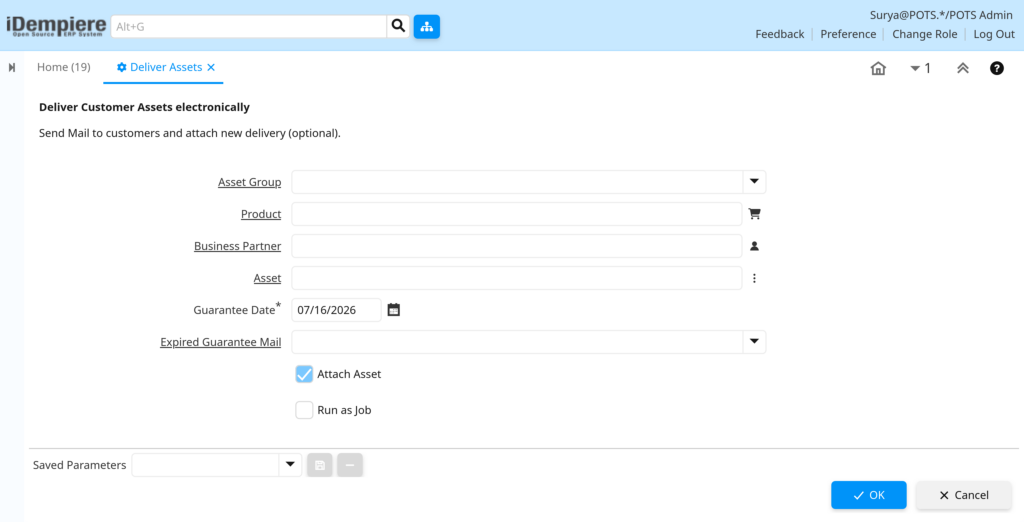
Opening the window displays the “Deliver Customer Assets electronically” process parameter screen, where users define selection criteria and delivery options before running the process.
Configuration Steps
Step 1: Define the Selection Criteria
This determines which assets are included in the run, either individually or in bulk.
Instructions
Enter Asset Group, Product, or Business Partner to select multiple assets, or choose a specific Asset to deliver only that record. At least one filter is required to run the process.
| Field | Sample Value | Description |
| Asset Group | Electronics | Groups related assets for bulk selection |
| Product | Laptop – Model X | Filters assets by product |
| Business Partner | ABC Retail Ltd | Filters assets by customer |
| Asset | AST-000123 | Selects a single specific asset, overrides other filters |
Step 2: Set the Guarantee Date
This determines whether an asset’s guarantee is treated as valid or expired.
Instructions
Confirm or update the Guarantee Date field. Assets with a Guarantee Date on or after this value are treated as valid and delivered; earlier dates are treated as expired.
| Field | Sample Value | Purpose |
| Guarantee Date | 07/15/2026 | Reference date used for the guarantee validity check |
Step 3: Configure Expired Guarantee Mail
This enables automatic reminder emails for assets whose guarantee has expired.
Instructions
Select a Mail Text template in Expired Guarantee Mail. Leave it blank to skip expired assets entirely instead of sending a reminder.
| Field | Sample Value | Purpose |
| Expired Guarantee Mail | Guarantee Expired Notice | Mail template sent to customers whose asset guarantee has expired |
Step 4: Enable Attach Asset
This controls whether product download files are attached to the delivery email.
Instructions
Check Attach Asset to send the mail as HTML and attach available Product Download files. Uncheck it to send a plain text notification only.
| Field | Sample Value | Purpose |
| Attach Asset | Checked | Sends HTML mail with product download attachments |
Step 5: Choose Execution Mode
This determines whether the process runs immediately or in the background.
Instructions
Check Run as Job to process large selections asynchronously without blocking the session. Leave it unchecked for immediate execution on smaller selections.
| Field | Sample Value | Purpose |
| Run as Job | Unchecked | Runs the process synchronously in the current session |
Step 6: Execute the Process
This triggers delivery emails and updates the asset delivery records.
Instructions
Click OK to run the process. Review the result message showing the count of assets sent and any errors encountered.

Common Issues and Resolutions
| Issue | Cause | Resolution |
| No Tenant SMTP Info | SMTP Host is not configured at the Client level | Configure SMTP Host in the Client (Tenant) window |
| No Tenant Request User | Request Email is not set at the Client level | Set Request Email in the Client (Tenant) configuration |
| No Asset User | Asset record has no linked User (AD_User) | Link a valid User to the Asset record |
| No Asset User Email | Linked User has no email address | Add a valid email address to the User record |
| No Subject / No Product Mail Text | Mail Text template is missing or has an empty Mail Header | Configure the Mail Text template with a valid subject |
| Invalid Email | User email address fails format validation | Correct the email address on the User record |
| Not Delivered – SMTP Error | SMTP server rejected or failed to send the mail | Verify SMTP credentials, port, and authorization on the Client |
| Restrict Selection Error | No selection filter entered before running the process | Provide at least one of Asset Group, Product, Business Partner, or Asset |
Next Steps
- Configure Mail Text templates for product delivery and guarantee reminders.
- Verify SMTP settings in the Client (Tenant) window.
- Review Asset Delivery records to confirm successful transmissions.
- Set up Product Download files for assets requiring attachments.