How to use Customer Assets Report in iDempiere
Introduction
The Customer Assets report is a standard iDempiere process that lists the assets owned by business partners along with their total asset delivery count.
It is used in Customer Relationship Management and after-sales support to check which assets a customer owns, their warranty status, and delivery history before handling a service request.
The report supports warranty validation, service planning, and customer asset reporting by consolidating guarantee dates, in-service dates, and delivery data in one view.
Process Flow Diagram
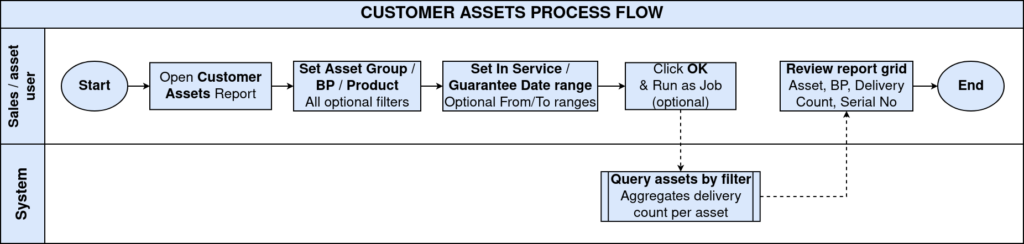
Business Rules
- Only Assets linked to a Business Partner (customer-owned assets) appear on this report.
- Delivery Count shows the total recorded deliveries or shipments for each asset.
- In Service Date and Guarantee Date can be filtered using From and To date ranges.
- Asset Group, Business Partner, User/Contact, and Product are optional filter criteria.
- Leaving all filters blank returns assets for all business partners.
- Summary mode shows consolidated totals instead of individual asset rows.
- Large datasets can be processed in the background using Run as Job.
- Saved Parameters store frequently used filter combinations for reuse.
Prerequisites
- Business Partner configured with a valid Location and Address.
- Asset created and linked to the Business Partner as a Customer Asset.
- Asset Group configured and assigned to the Asset.
- Product configured and linked to the Asset record.
- In Service Date and Guarantee Date populated on the Asset for accurate warranty tracking.
- Delivery or Shipment transactions recorded against the Asset for Delivery Count.
Navigation
Menu → Assets → Customer Service → Customer Assets
Opening the window shows a parameter screen with Asset Group, Business Partner, User/Contact, Product, In Service Date, Guarantee Date, and Run as Job. Running the process opens a Report View grid of customer assets.
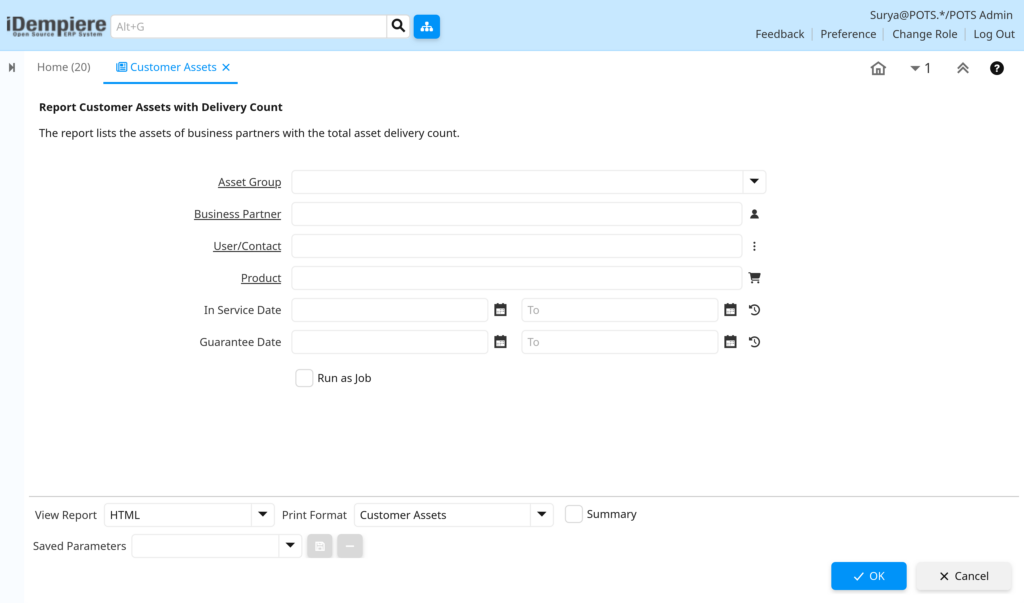
Configuration Steps
Step 1: Open the Customer Assets Report
Navigate to the report to begin reviewing customer-owned assets and delivery counts.
Instructions
From the menu, open Customer Assets. The parameter screen appears with the report description at the top.
Step 2: Filter by Asset Group (Optional)
Narrows the report to a specific category of assets, such as Electronics.
Instructions
Select an Asset Group from the dropdown to limit results to that category, or leave blank for all groups.
Step 3: Filter by Business Partner (Optional)
Limits the report to assets owned by a specific customer.
Instructions
Enter or search for a Business Partner to view only their assets, or leave blank for all customers.
Step 4: Filter by User/Contact or Product (Optional)
Further narrows results to a specific contact person or product.
Instructions
Select a User/Contact and/or Product to focus the report on a specific customer contact or item.
Step 5: Set In Service Date and Guarantee Date Ranges (Optional)
Filters assets by when they went into service or when their warranty is valid.
Instructions
Enter From/To dates for In Service Date and Guarantee Date to review assets within a specific warranty window.
Step 6: Choose Run as Job (Optional)
Determines whether the report runs immediately or as a background job.
Instructions
Check Run as Job for large customer bases to avoid session timeouts.
Step 7: Execute and Review the Report
Runs the report and displays customer asset details with delivery count.
Instructions
Select View Report format and Print Format, then click OK. The Report View opens listing each asset with its Business Partner and delivery data.
Field Reference Table
| Field | Sample Value | Description |
| Asset Group | 1000000_Electronics | Category used to filter assets |
| Business Partner | VISION TECHNOLOGIES | Customer who owns the asset |
| User/Contact | Praveen | Specific contact linked to the asset |
| Product | IPH16_iPhone 16 | Product associated with the asset |
| In Service Date | 07/15/2026 | Date the asset was placed into service |
| Guarantee Date | 07/15/2027 | Date the asset’s warranty coverage ends |
| Delivery Count | 0 | Total recorded deliveries for the asset |
| Serial No | 356789123456789 | Unique serial number of the asset |
| Search Key | AST-IPH16-0001 | Unique identifier for the asset record |
| Partner Location | No.38 OMR Tech Park, Perungudi, Chennai, 600096 | Delivery/service address of the Business Partner |

Common Issues and Resolutions
| Issue | Cause | Resolution |
| Report returns no rows | Asset is not linked to a Business Partner, or filters are too narrow | Verify the Asset record is linked to a Business Partner and relax filters |
| Delivery Count always shows 0 | No shipment or delivery transaction recorded against the asset | Confirm the related Shipment document references the Asset |
| Guarantee or In Service Date is blank | Dates were not entered on the Asset record | Update the Asset record with correct In Service and Guarantee dates |
| Wrong Partner Location displayed | Business Partner has multiple locations and a different default is used | Review and correct the Business Partner’s default location |
| Report runs slowly | No filters applied across a large customer base | Apply Business Partner or Asset Group filters, or enable Run as Job |
| Product column is blank | Asset is not linked to a Product record | Link the correct Product on the Asset record |
| Saved Parameters not appearing | Parameters were not saved for the current user/role | Save the parameter set using the Saved Parameters option before reuse |
| Window not accessible to user | Role does not have access to the report | Grant window access to the Role |
Next Steps
- Review the Asset Workfile to confirm asset and warranty details.
- Use the Business Partner window to verify customer location and contact data.
- Create a Service Request referencing the customer asset if support is needed.
- Review Customer Shipment records if Delivery Count appears incorrect.