How Post Depreciation Entry Works in iDempiere
Introduction
Post Depreciation Entry is the iDempiere Fixed Assets window used to record and post periodic depreciation for company assets. It is used during month-end or period-end closing in retail and back-office finance operations.
The window links to previously calculated Depreciation Expense lines and, once completed, generates accounting entries against the configured Accounting Schema, directly impacting Fixed Asset reporting and General Ledger balances.
Process Flow Diagram

Business Rules
- Document Type must be Fixed Assets Depreciation to create a valid entry.
- Depreciation Entry auto-selects unprocessed Depreciation Expense lines matching Org, Schema, and Account Date month.
- Only unprocessed Depreciation Expense lines are linked to the entry header.
- The accounting Period for the Account Date must be open before the document can be prepared.
- Completing the entry processes each linked depreciation line individually.
- The document is automatically closed after successful completion.
- Changing Date Acct or Accounting Schema on an unprocessed entry re-selects matching lines automatically.
- Deleting an entry unlinks its Depreciation Expense lines instead of deleting them.
Prerequisites
- Asset defined and active in the Asset window with a valid depreciation method.
- Depreciation Expense records (Depreciation Workfile) already calculated for the period.
- Accounting Schema configured with Fixed Asset and Depreciation accounts.
- Document Type Fixed Assets Depreciation configured for the Organization.
- General Ledger Period open for the intended Account Date.
- Organization configured for the store or business unit posting depreciation.
Navigation
Menu → Assets → Depreciation Processing → Post Depreciation Entry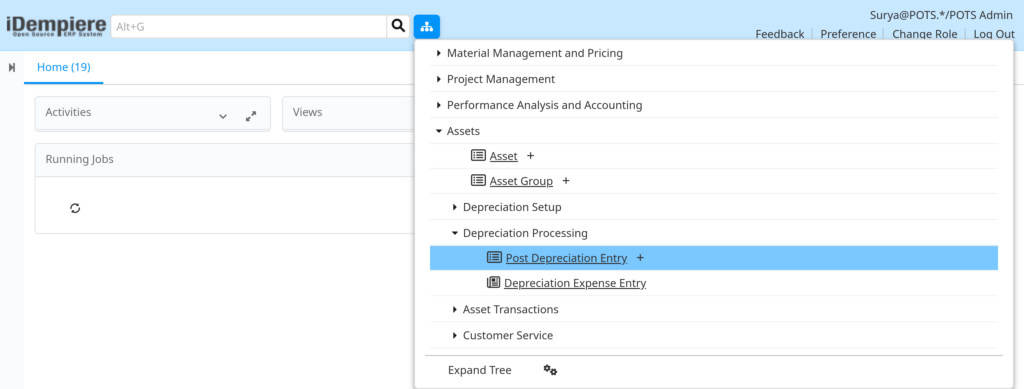
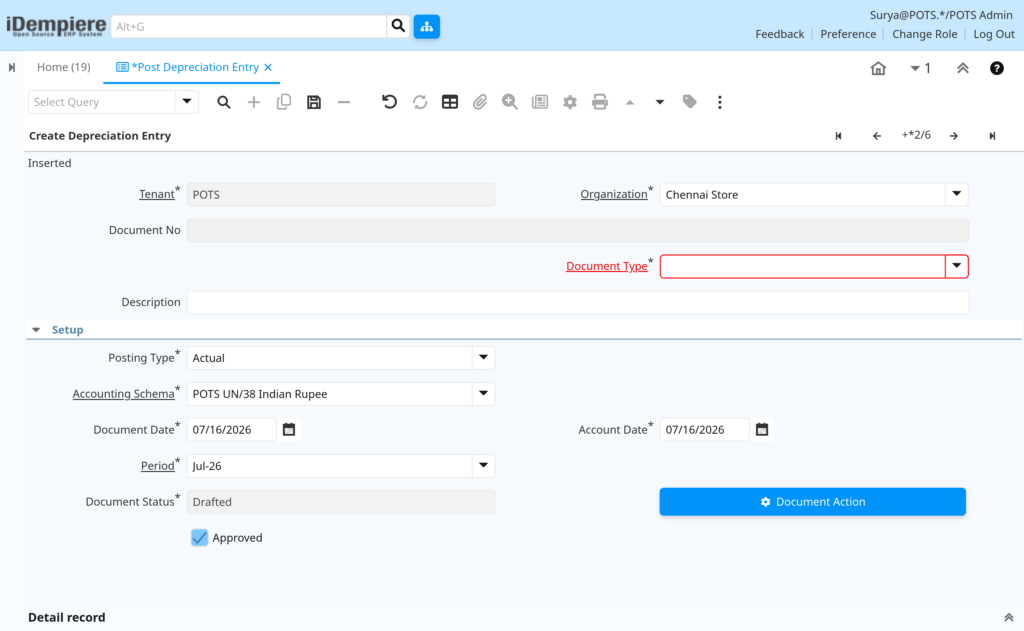
Opening the window displays the Create Depreciation Entry header form on top and a Records tab below listing the Depreciation Expense lines automatically selected for that Organization, Schema, and period.
Configuration Steps
Step 1: Create the Depreciation Entry Header
The header identifies the Organization, Accounting Schema, and accounting period for which depreciation will be posted.
Instructions
Select Organization, Document Type, Posting Type, Accounting Schema, Document Date, and Account Date, then save. The Period field is derived automatically from the Account Date.
Field Reference Table
| Field | Sample Value | Description |
| Organization | Chennai Store | Business unit for which depreciation is being posted. |
| Document Type | Fixed Assets Depreciation | Defines the document as a depreciation posting entry. |
| Posting Type | Actual | Indicates the entry posts actual accounting values. |
| Accounting Schema | POTS UN/38 Indian Rupee | Schema controlling the currency and accounts used. |
| Document Date | 07/14/2026 | Date the depreciation document is created. |
| Account Date | 07/14/2026 | Date used to determine the accounting period and matching lines. |
| Period | Jul-26 | Accounting period auto-derived from the Account Date. |
| Document Status | Drafted | Current workflow status of the depreciation entry. |

Step 2: Review Auto-Selected Depreciation Lines
After saving the header, iDempiere automatically links unprocessed Depreciation Expense records that match the Organization, Accounting Schema, and Account Date month.
Instructions
Open the Records tab and confirm the expected Asset lines appear. If no lines appear, verify the Depreciation Workfile was calculated for the period.

Step 3: Verify Depreciation Line Details
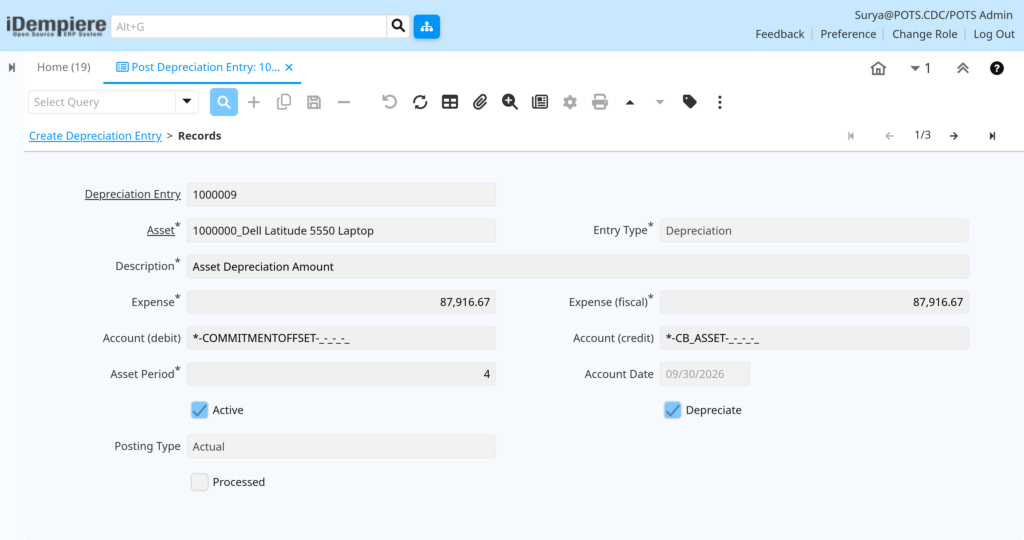
Each line represents one asset’s depreciation expense for the period and must be checked before completion.
Instructions
Review Asset, Entry Type, Expense, Expense (fiscal), and the debit/credit accounts on each line. Confirm the Active checkbox is enabled for lines that should be posted.
Field Reference Table
| Field | Sample | Purpose |
| Asset | 1000002_Daikin 2 Ton Inverter Air Conditioner | Identifies the fixed asset being depreciated. |
| Entry Type | Depreciation | Classifies the line as a depreciation transaction. |
| Expense | 83.33 | Depreciation expense amount for the accounting book. |
| Expense (fiscal) | 83.33 | Depreciation expense amount for fiscal/tax reporting. |
| Account (debit) | *-COMMITMENTOFFSET-_-_-_ | Account debited for the depreciation expense. |
| Account (credit) | *-CB_ASSET-_-_-_ | Accumulated depreciation account credited on posting. |
| Asset Period | 2 | Depreciation period number in the asset’s useful life. |
| Active | Checked | Determines whether the line is available for posting. |
| Depreciate | Checked | Confirms the line is flagged for depreciation processing. |
| Processed | Unchecked | Indicates the line has not yet been posted. |
Step 4: Complete and Post the Depreciation Entry
Completing the document processes every linked line, creates the accounting entries, and closes the depreciation entry.
Instructions
Click Document Action, select Complete, and confirm. iDempiere validates the period, processes each Depreciation Expense line, and sets the document status to Closed.
Note: Once completed, depreciation lines are marked Processed and can no longer be edited or deleted directly; use standard reversal procedures for corrections.Common Issues and Resolutions
| Issue | Cause | Resolution |
| No lines appear in Records tab | No unprocessed Depreciation Expense records exist for the Org, Schema, and period. | Run the Asset Depreciation Workfile / Calculate Depreciation process first. |
| Error on Complete: period not open | GL Period for the Account Date is closed. | Open the required period in the Period Control window. |
| Document stuck in Drafted status | Mandatory header fields are missing or Approved is unchecked. | Complete all mandatory fields, approve, then run Complete. |
| Unexpected lines selected | Date Acct on Depreciation Expense lines differs from the entry’s Account Date month. | Verify the Account Date matches the intended expense month. |
| Duplicate depreciation entries created | A new header was created instead of reusing an existing unprocessed entry. | Reuse the existing unprocessed entry for the same Org, Schema, and period. |
| Accounting entries not visible in GL | Entry completed but background accounting posting has not run. | Run Post Immediate or wait for the scheduled accounting posting process. |
| Cannot delete a processed line | The line is already linked to Fact_Acct accounting entries. | Use standard document reversal instead of direct deletion. |
| Expense and Expense (fiscal) differ | Asset uses separate book and fiscal depreciation methods. | Review the Asset’s fiscal depreciation configuration if this is unexpected. |
Next Steps
- Review the Fixed Asset Register for updated accumulated depreciation.
- Verify the Depreciation Workfile / Calculate Depreciation process for the next period.
- Run Post Immediate to confirm GL Journal entries were created.
- Reconcile Fixed Asset accounts using the Financial Report window.