How to Configure Asset Disposal in iDempiere
Asset Disposal is the iDempiere document used to retire a fixed asset when it is sold, scrapped, traded, or otherwise removed from active use.
Businesses use it to close out equipment such as washing machines or store fixtures, recording the disposal amount and reason against the original asset cost.
Completing the document updates the Asset status, adjusts depreciation balances, and generates accounting entries automatically.
Process Flow
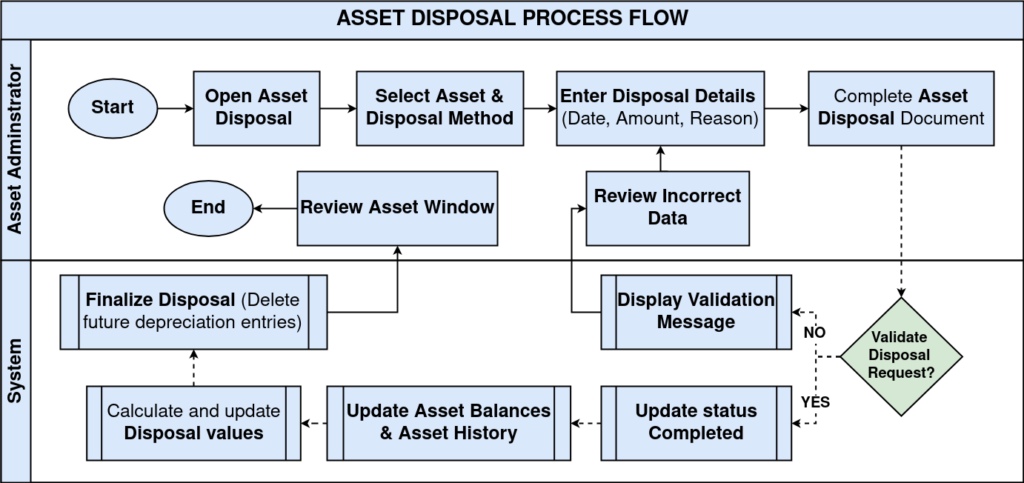
Business Rules
- The accounting period must be open before the disposal document can complete.
- Asset cost and accumulated depreciation are refreshed from the depreciation workfile.
- Disposal cannot process if depreciation was already posted on or after the disposal date.
- Disposal cannot process if unprocessed depreciation entries exist before it.
- Simple and Trade disposal methods follow the same processing logic.
- Selecting Trade does not automatically create or populate an Asset Trade record.
- Completing the document changes Asset Status from Activated to Disposed.
- Completion creates an Asset Change record and removes future depreciation entries.
Prerequisites
- Asset created and currently in Activated status.
- Depreciation Workfile exists for the asset, if the asset is depreciated.
- Fixed Assets Disposal document type configured.
- Accounting period open for the disposal accounting date.
Configuration Steps
Step 1: Create the Asset Disposal Document
This establishes the disposal transaction against an existing asset before any values are calculated.
Navigate to Financial Management → Assets → Asset Disposal, click New, then select the Organization, Document Type, and Asset, and set the disposal dates.
| Field | Sample Value | Purpose |
| Organization | Chennai Store | Store or org unit that owns the asset |
| Document Type | Fixed Assets Disposal | Identifies the disposal document process |
| Asset | 1000020_Washing Machine | Asset being disposed |
| Document Date | 08/01/2026 | Business transaction date |
| Account Date | 08/01/2026 | Date used for accounting entries and period validation |
| Disposed Date | 08/01/2026 | Date the asset is physically disposed |
Step 2: Select the Disposal Method
The disposal method determines how the system processes the removal of the asset.
Choose the method that matches the transaction. Simple and Trade share the same disposal processing path in standard iDempiere.
| Field | Sample Value | Purpose |
| Disposed Method | Trade | Disposes the asset; processed the same as Simple |
| Disposed Method | Simple | Standard disposal of the asset |
| Disposed Method | Preservation | Changes Asset Status to Preservation instead of Disposed |
| Disposed Method | Partial Retirement | Disposes only part of the asset value |
Step 3: Enter Disposal Amount and Reason
The disposal amount and reason capture the transaction value and business context for the removal.
Enter the Disposal Amount and, optionally, the Disposed Reason. For Simple and Trade, this amount is reset to the Asset Cost automatically during completion.
| Field | Sample Value | Purpose |
| Disposal Amount | 60,000.00 | Asset value being removed from the books |
| Disposed Reason | Sold / Scrapped / Destroyed / Theft / Charity | Informational reason for the disposal |
Step 4: Review Calculated Fields
These fields confirm the depreciation values that will be posted once the document completes.
Review the Asset Cost, Accumulated Depreciation, Expense, and Accumulated Depreciation (Delta) before completing the document.
| Field | Sample Value | Purpose |
| Asset Cost | 60,000.00 | Original acquisition cost, loaded automatically |
| Accumulated Depreciation | 5,000.00 | Depreciation already posted before disposal |
| Expense | 55,000.00 | Book value removed; Disposal Amount minus Depreciation Delta |
| Accumulated Depreciation (Delta) | 5,000.00 | Portion of accumulated depreciation removed |
Step 5: Complete the Document
Completion triggers period validation, depreciation checks, the asset status update, and accounting generation.
Click Document Action → Complete. Confirm the Document Status changes to Completed and the Asset Status updates to Disposed.


Common Issues and Resolutions
| Issue | Cause | Resolution |
| AssetAlreadyDepreciated error | Depreciation already posted for the disposal date or later | Use a later disposal date or reverse the conflicting depreciation entry |
| Accounting Period Closed | The period for the account date is closed | Open the accounting period or use a valid account date |
| Pending Depreciation Exists | Unprocessed depreciation entries exist before the disposal | Complete or remove pending depreciation entries before disposal |
| Unsupported Disposed Method | Method value does not match a supported implementation | Verify the reference list value matches the deployed code |
| Asset Trade field stays empty | Standard Trade method does not populate Asset Trade | Expected standard behavior, not an error |
| Disposal Amount changes after completion | Simple and Trade methods reset the amount to Asset Cost | Expected behavior; confirm Asset Cost before completing |
Next Steps
- Post the disposal accounting document if not automatically posted.
- Review the generated accounting facts for the disposal.
- Confirm the Asset Status is Disposed and review Asset History for the change record.