How to Configure Registration in iDempiere
Registration is the iDempiere window that records a customer-owned product or asset, linking a Business Partner, Contact, Product, and Asset into a single record.
Businesses use it to capture warranty registrations, such as an Apple iPhone 16 sold to a customer, along with product-specific details like IMEI number and warranty dates.
The stored registration and its values support future warranty claims, customer service, and asset lifecycle reference.
| Note: This functionality is marked Deprecated and not fully implemented in standard iDempiere; it is retained mainly for backward compatibility. |
Process Flow

Business Rules
- A new Registration record automatically defaults Registered to Yes.
- Registration Attributes available for entry are based on the selected Product’s assignment.
- Opening the Value tab automatically creates missing Registration Value records for the product.
- Only Registration Attributes assigned to the selected Product are considered for values.
- New Registration Value rows are initialized as placeholders until the user enters a value.
- Registration Values are stored as text regardless of the attribute’s Reference type.
- Self-Service mode returns only attributes that are both Active and Self-Service enabled.
Prerequisites
- Business Partner and Contact configured for the customer.
- Product configured and available for selection.
- Registration Attributes assigned to the Product in the Registration Attributes window.
- Asset configured (optional, for registrations linked to a specific serialized unit).
Configuration Steps
Step 1: Create a Registration Record
The registration record identifies the customer product registration and defaults Registered to Yes.
Navigate to Asset Management → Registration, click New, and enter a Name and Description for the registration.
| Field | Sample Value | Purpose |
| Name | REG-IPH16-0001 | Unique identifier for the registration record |
| Description | Apple iPhone 16 warranty registration | Summarizes the purpose of the registration |
Step 2: Link Business Partner and Contact
The registration must identify the customer and the specific contact person tied to the product.
Select the Business Partner, then choose the User/Contact associated with that partner.
| Field | Sample Value | Purpose |
| Business Partner | VISION TECHNOLOGIES | Customer who owns the registered product |
| User/Contact | Praveen | Individual contact associated with the registration |
Step 3: Select Product and Asset
The Product determines which Registration Attributes apply, and the Asset links the record to a specific serialized item.
Select the Product, optionally select the related Asset, and set the In Service Date for the registered item.
| Field | Sample Value | Purpose |
| Product | IPH16_iPhone 16 | Determines the Registration Attributes retrieved for this record |
| Asset | INV-IPH16-0001_Apple iPhone 16 | Links the registration to a specific serialized asset |
| In Service Date | 08/01/2026 | Date the product entered service for the customer |
| Registered | Checked | Confirms the registration is active for this product |

Step 4: Save Registration and Generate Registration Values
Saving triggers the system to retrieve the Product’s assigned Registration Attributes and create the missing Value records.
Click Save. Open the Value tab; rows for each attribute assigned to the Product appear automatically, ready for data entry.
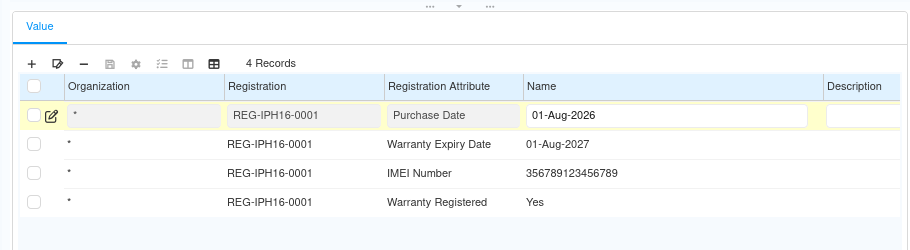
Step 5: Enter Registration Values
Actual registration details, such as IMEI number and warranty dates, are captured per attribute in the Value tab.
Open each Value row and enter the actual data in the Name field, then save the tab.
| Registration Attribute | Value | Purpose |
| Purchase Date | 01-Aug-2026 | Date the customer purchased the product |
| Warranty Expiry Date | 01-Aug-2027 | Date the standard warranty expires |
| IMEI Number | 356789123456789 | Unique device identifier for the registered product |
| Warranty Registered | Yes | Confirms warranty registration is complete |
Common Issues and Resolutions
| Issue | Cause | Resolution |
| No Registration Values appear | Registration Attributes not assigned to the selected Product | Assign the attributes to the Product in the Registration Attributes window |
| Missing values on an older registration | New attributes were assigned to the Product after the registration was created | Reopen the Value tab so the system creates the missing value records |
| Date attribute accepts free text | Registration Values are stored as text regardless of the Reference type | Manually verify the date format when entering values |
| Self-Service attributes are missing | Attribute is not marked Active and Self-Service | Enable Active and Self-Service on the Registration Attribute |
| Registered flag unexpectedly Yes | New registrations default Registered to Yes | Uncheck Registered manually if it does not apply |
| Asset not linked to registration | Asset field left blank on the header | Select the correct Asset record for the serialized unit |
Next Steps
- Maintain Registration Values for future warranty and service updates.
- Associate the Registration with the corresponding Asset for lifecycle tracking.
- Use the stored registration information during customer support and warranty claims.