TO CREATE A GOODS RECEIVED NOTES(VOID/REVERSE)
Sometimes, after a GRN is created, a mistake is found.GRN (Void/Reverse) means cancelling or undoing a goods receipt to fix mistakes and keep inventory and accounts accurate.
Who Can Access
- Back Office
- Cashier
- Purchase Manager
- Manager
- Admin
What User Can Do
- To show Void GRN
- To show Reverse GRN
- Couldn’t edit,update documents
Pre-Requisite Activities
- Ensure the GRN is not used in any other transaction
- Check Inventory Movement
- Cancel linked transactions
- Check User Permissions
BUSINESS RULES
- GRN should not be invoiced
- Stock should not be moved or consumed
- Quality Inspection / QC Results must be cleared
- Approval / Authorisation is required
- Reason for reversal must be recorded
USER INTERFACE
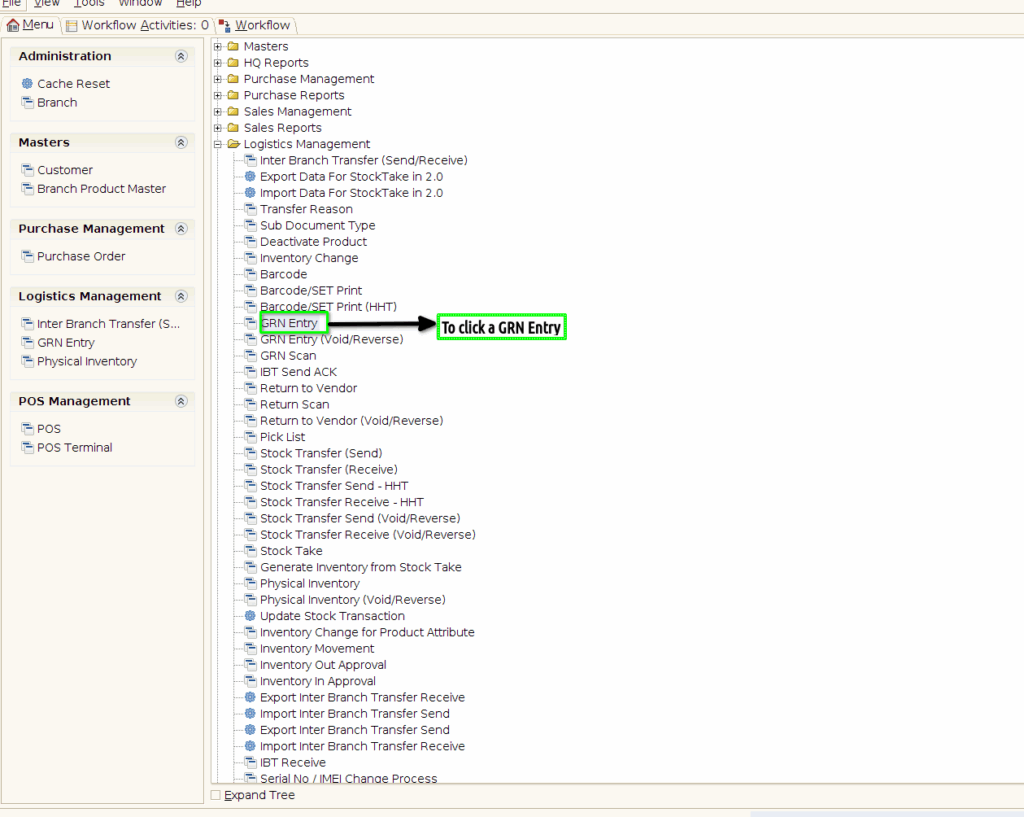
Step 1:To click a menu and to show the modules then to select a GRN Entry.
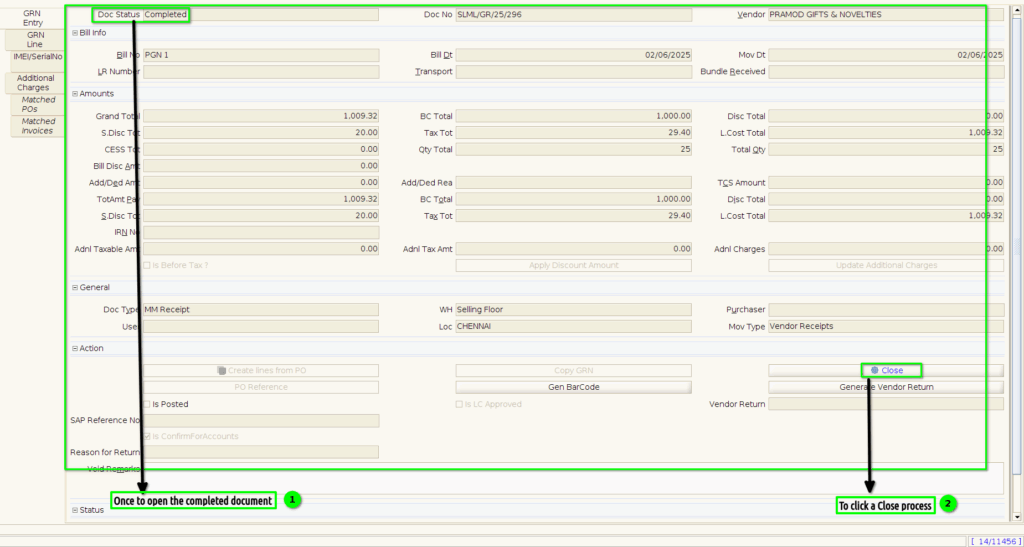
Step 2: Once to open a completed document and to click a close process.
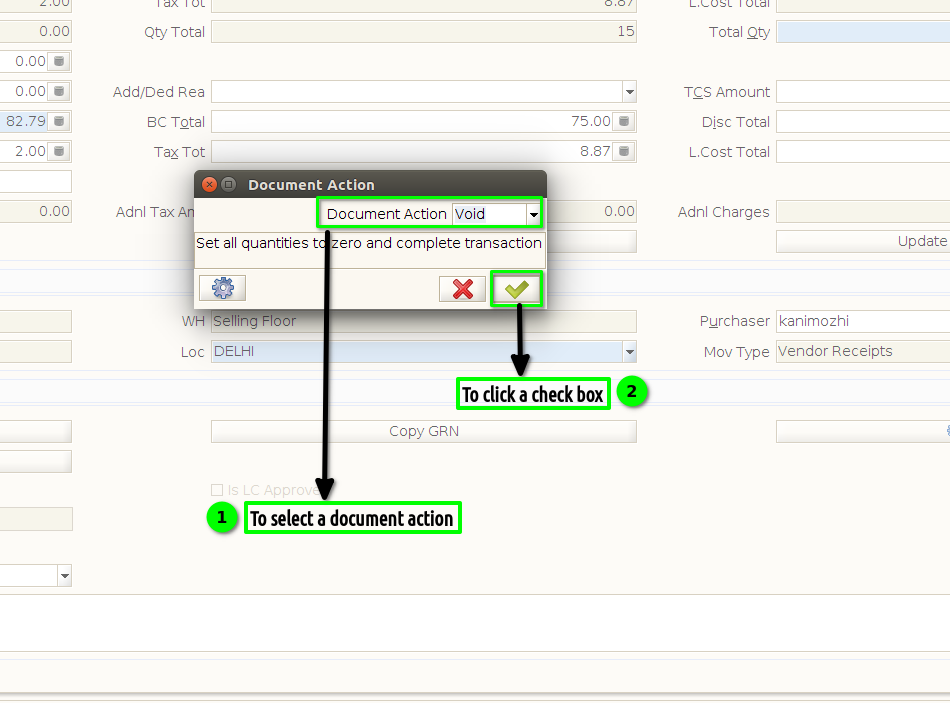
Step 3:Then to select a document action->Void.Finally to click a check box.

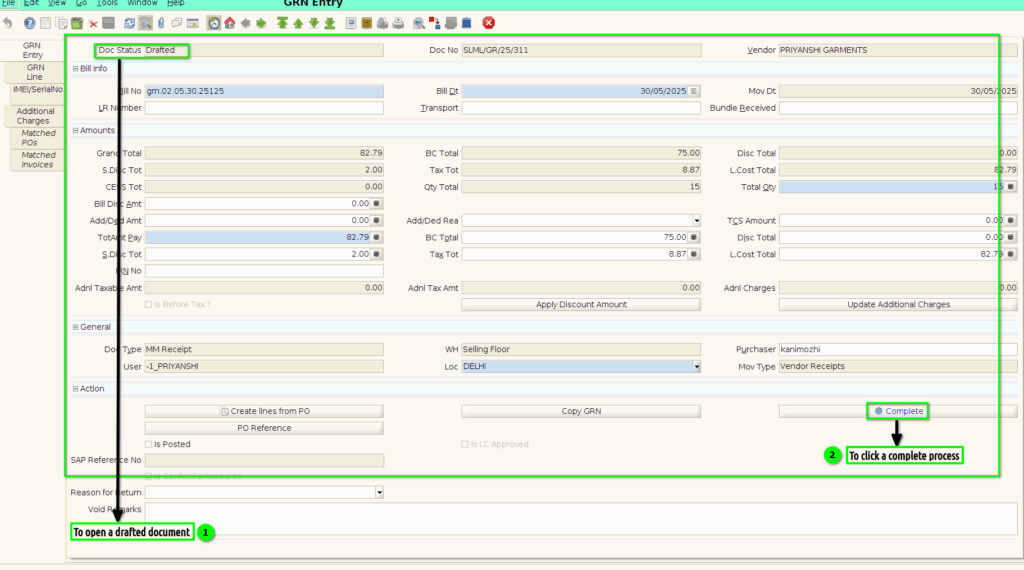
Step 4:Again to open the Drafted document and to click a complete process.
Step 5: Then to select a document action->Void.Finally to click the check box.
Step 6: To click a menu and to show the modules.Then to click GRN Entry(Void/Reverse).
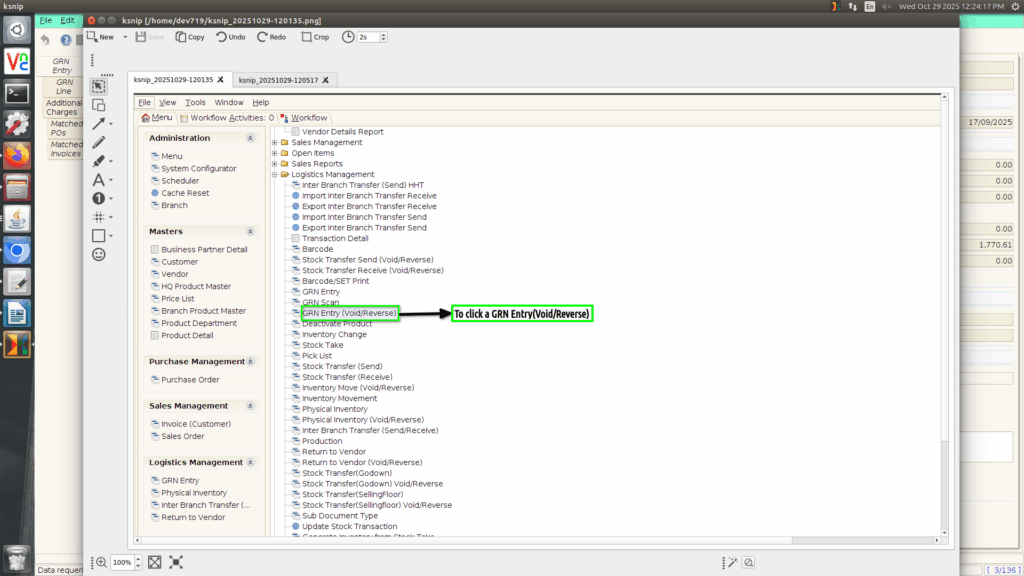
Step 7: Once to void the GRN in GRN screen and then to click a GRN Entry(void/reverse)screen.Only to show the GRN document voided/Reversed status document details.GRN Entry(Void/Reverse) screen couldn’t create,edit,update.

Training Videos
FAQ
SOP