How Business Partner Organization Process works in iDempiere
Introduction
Business Partner Organization is a process window in iDempiere used to change or verify which Organization owns a Business Partner and its related records, such as locations, contacts, and bank accounts.
It is used during multi-organization setup, business restructuring, or data cleanup, whenever a Business Partner was created under the wrong Organization.
Reassigning ownership changes which Organization can view, report on, and process transactions for the affected Business Partners, so it directly affects data visibility and reporting accuracy.
Process Flow Diagram

Business Rules
- Organization is a mandatory field before the process can run.
- Selecting a Business Partner Group reassigns every partner in that group.
- Selecting a single Business Partner reassigns only that record.
- Business Partner Group and Business Partner should not both be used together.
- Related records (Location, Contact/User, Bank Account) move with the Business Partner.
- Only records currently owned by a different Organization are updated.
- Records already owned by the selected Organization are left unchanged.
- The process can run immediately or be scheduled using Run as Job.
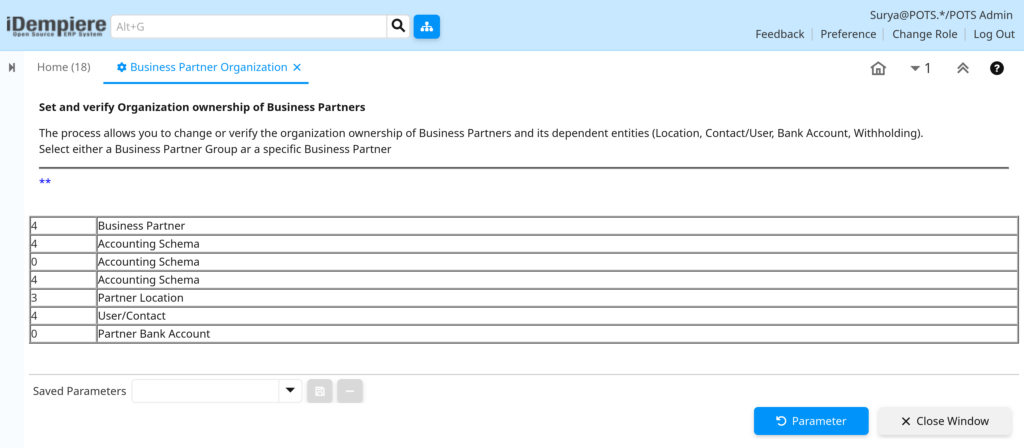
- The result log shows how many records were updated per related table.
Prerequisites
- Organization already configured in the system.
- Business Partner records already created.
- Business Partner Group configured, if group-based reassignment is required.
- User role has access rights to the Business Partner Organization window.
Navigation
Menu → Partner Relations → Business Partner Rules → Business Partner Organization
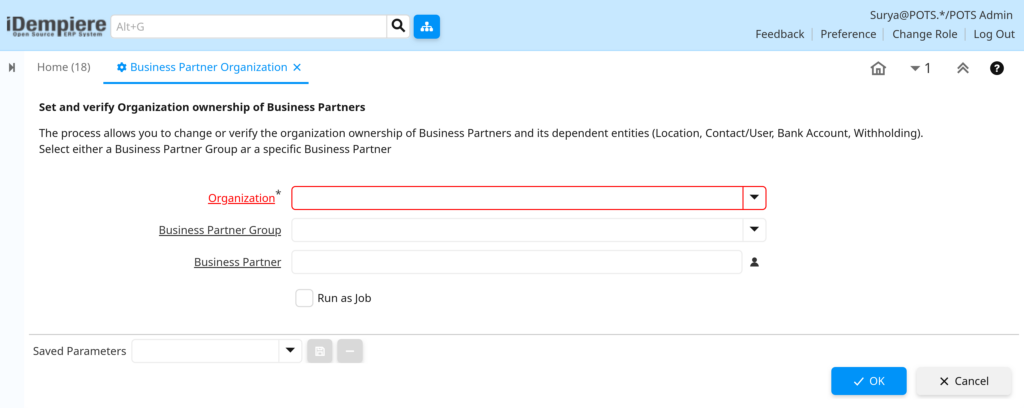
Opening the window displays a process parameter screen with fields for Organization, Business Partner Group, and Business Partner, along with a Run as Job checkbox and OK / Cancel buttons.
Configuration Steps
Step 1: Select the Target Organization
The Organization field defines which Organization will own the selected Business Partners once the process runs.
Instructions
- Click the Organization field and choose the destination Organization from the list.
| Field | Sample Value | Description |
| Organization | HQ Organization | Organization that will own the reassigned records |
Step 2: Choose the Reassignment Scope
The scope decides whether the change applies to a whole Business Partner Group or to one Business Partner only.
Instructions
- Select a Business Partner Group to update all partners in that group, or
- Select a single Business Partner to update only that record.
| Field | Sample Value | Description |
| Business Partner Group | Customer | Reassigns every Business Partner in the selected group |
| Business Partner | C&W Metal Products | Reassigns only the selected Business Partner |
Step 3: Decide How the Process Should Run
Run as Job lets large reassignments run in the background instead of holding up the user session.
Instructions
- Leave Run as Job unchecked to run the process immediately.
- Check Run as Job to schedule the process as a background job for large groups.
| Field | Sample Value | Description |
| Run as Job | Unchecked | Runs the process immediately in the current session |
Step 4: Run the Process
Running the process applies the Organization change to the Business Partner and its related records.
Instructions
- Click OK to execute the reassignment, or Cancel to close without making changes.
Step 5: Review the Result Log
The result log confirms how many records were actually updated for each related table.
Instructions
- Check the result grid for the updated count next to each entity.
| Field | Sample Value | Description |
| Business Partner | 0 | Number of Business Partner records reassigned |
| Accounting Schema | 0 | Number of Customer, Vendor, or Employee accounting records reassigned |
| Partner Location | 0 | Number of Business Partner locations reassigned |
| User/Contact | 0 | Number of contacts or users reassigned |
| Partner Bank Account | 0 | Number of bank accounts reassigned |
Common Issues and Resolutions
| Issue | Cause | Resolution |
| All result counts show zero | The Business Partner already belongs to the selected Organization | Confirm the current Organization of the records before running the process |
| Organization field shows a validation error | Organization was left blank | Select an Organization before clicking OK |
| More Business Partners changed than expected | A Business Partner Group was selected instead of a single partner | Use the Business Partner field for a single, isolated change |
| Withholding or Contact Interest records unchanged | These tables use general ownership and are not tied to a specific Organization | This is expected behavior; no action needed |
| Reassigned Business Partner not visible to users | User role does not have access to the new Organization | Add the Organization to the affected role’s access list |
| Process takes a long time for large groups | A Business Partner Group with many members was selected | Enable Run as Job to process the change in the background |
| Accounting Schema count stays at zero for a partner | The partner has no Customer, Vendor, or Employee accounting record | Confirm the accounting setup exists for that partner before running |
Next Steps
- Review Organization access for user roles after reassignment.
- Verify Accounting Schema setup for the affected Business Partners.
- Configure or review Business Partner Group for future bulk changes.
- Check reports and document types tied to the new Organization.