How Validate Business Partner Process Works in iDempiere
Introduction
The Validate Business Partner process in iDempiere checks and recalculates the financial figures stored against a customer or vendor record, including credit used, open balance, and lifetime value.
It is commonly used when business partner figures look incorrect, such as after data imports, manual corrections, document reversals, or bulk data changes. The process can validate one partner at a time or an entire partner group in a single run.
Running this process keeps customer and vendor balances accurate, which supports reliable credit checks, statements, aging reports, and financial reporting across sales and purchasing.
Process Flow Diagram

Business Rules
- Either a Business Partner or a Business Partner Group must be selected before starting the process.
- Selecting a specific Business Partner validates only that partner, regardless of the group shown.
- Selecting a Business Partner Group validates every active partner within that group.
- Only active business partner records are included when running the check by group.
- The process checks and re-allocates payments and invoices linked to each business partner.
- Credit used, open balance, and lifetime value are recalculated and saved on the business partner record.
- The process can run immediately or in the background using the Run as Job option.
- Recalculated figures overwrite the previously stored balance values on the business partner.
Prerequisites
- Business Partner record created and set up as a Customer, Vendor, or both.
- Business Partner Group configured and assigned, if validating by group.
- Business Partner record is Active.
- Invoices and payments already entered for the business partner, where applicable.
Navigation
Menu → Partner Relations → Business Partner Rules → Validate Business Partner
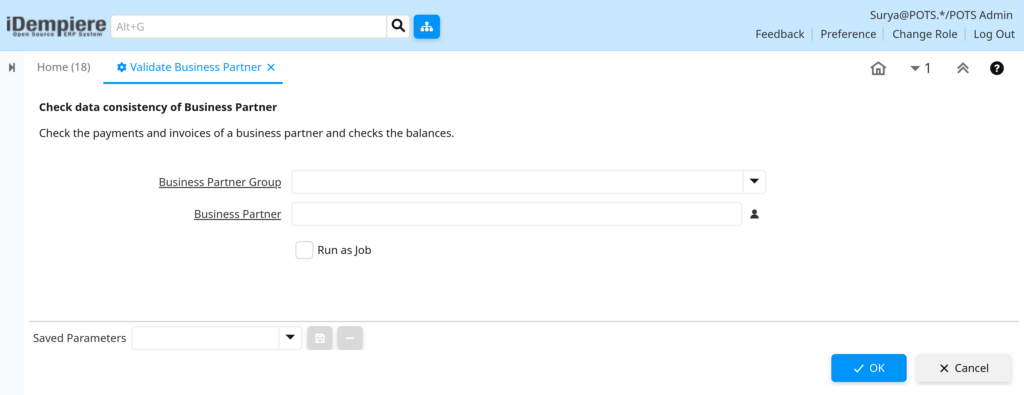
Opening the window displays a parameter screen with the Business Partner Group and Business Partner selection fields, a Run as Job option, and Start and Cancel buttons.
Configuration Steps
Step 1: Choose the Validation Scope
This step decides whether the process checks one business partner or an entire group of partners.
Instructions
Keep the default Business Partner Group, or select a specific Business Partner to narrow the check to a single record.
| Field | Sample Value | Description |
| Business Partner Group | Standard | Validates all active partners belonging to this group when no single partner is chosen. |
| Business Partner | Britannia Distributor — Chennai | Restricts the check to one specific customer or vendor record. |
Step 2: Select the Run Mode
This step controls whether results appear immediately or the process runs in the background.
Instructions
Leave Run as Job unchecked to see results right away, or check it to process large groups without waiting on screen.
| Field | Sample Value | Description |
| Run as Job | Unchecked | Runs the validation in the background instead of showing results on screen immediately. |

Step 3: Start the Process
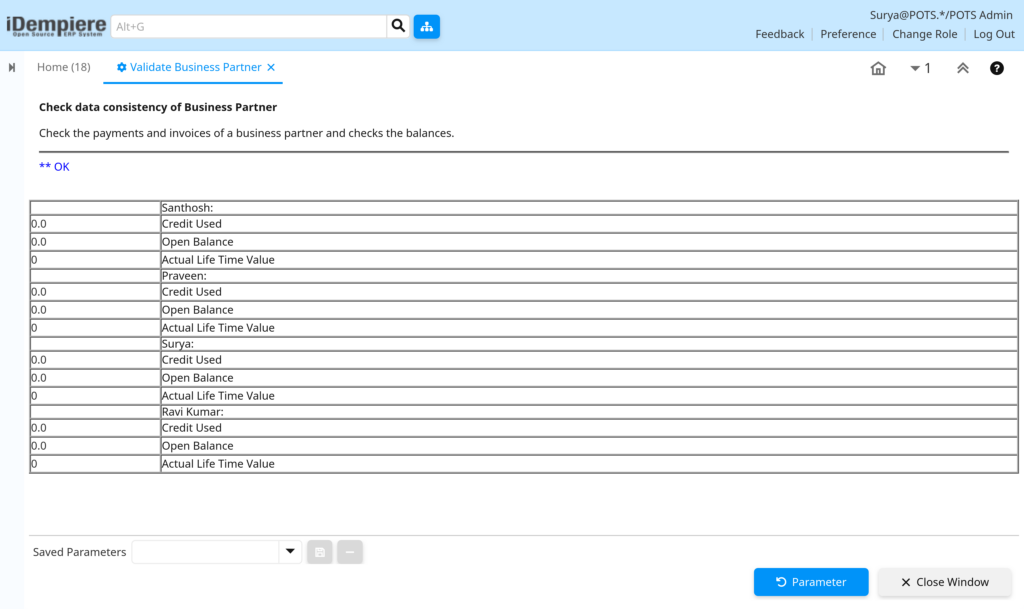
Starting the process triggers the balance check and displays the outcome for each business partner covered.
Instructions
Click Start to run the validation. Review the result list, then use Close Window or Parameter to run again with different values.
Step 4: Review the Results
This step confirms which figures were recalculated for each business partner processed.
Instructions
Check the Credit Used, Open Balance, and Actual Life Time Value shown for each business partner name in the result list.
| Field | Sample Value | Description |
| Business Partner Name | Britannia Distributor — Chennai | Identifies the customer or vendor the figures below belong to. |
| Credit Used | 0.0 | Total credit currently used by the business partner. |
| Open Balance | -708.000 | Net open amount across the business partner’s invoices and payments. |
| Actual Life Time Value | 0 | Total historical value recalculated for the business partner. |
Common Issues and Resolutions
| Issue | Cause | Resolution |
| Error message about the group not being selected | Both Business Partner and Business Partner Group fields were left empty | Select a specific Business Partner or a Business Partner Group before starting |
| Open Balance shows an unexpected negative value | Invoice or payment allocations were recorded incorrectly | Review the related invoices and payments, then re-run the validation |
| Figures do not change after running the process | Invoices and payments were already correctly allocated | No action needed; this confirms the business partner data is consistent |
| Process takes a long time for a large group | The selected group contains many partners with high transaction volume | Use the Run as Job option to process the group in the background |
| A business partner does not appear in the group results | The business partner record is marked Inactive | Activate the business partner record, then run the validation again |
| Credit Used value looks incorrect after running | Related sales orders or invoices are still in draft or unposted status | Complete and post the pending documents, then re-run the validation |
| No result line appears for a business partner | The business partner has no invoices or payments on record | Confirm the partner has transaction history; otherwise no action is required |
Next Steps
- Business Partner window – review the updated credit, balance, and lifetime value fields.
- Payment Allocation window – verify how individual payments were applied to invoices.
- Business Partner Group window – confirm partners are assigned to the correct group.
- Aging and Open Item reports – confirm the recalculated balances are reflected in reporting.