How Copy Role Process Works in iDempiere
Introduction
The Copy Role process in iDempiere lets an administrator duplicate the access permissions of one user role into another role in a single action.
It is used whenever a business needs to set up a new role with access similar to an existing one, such as creating a supervisor role based on a manager role.
Running this process replaces the destination role’s current access, so it directly affects which windows, processes, and reports users can reach afterward.
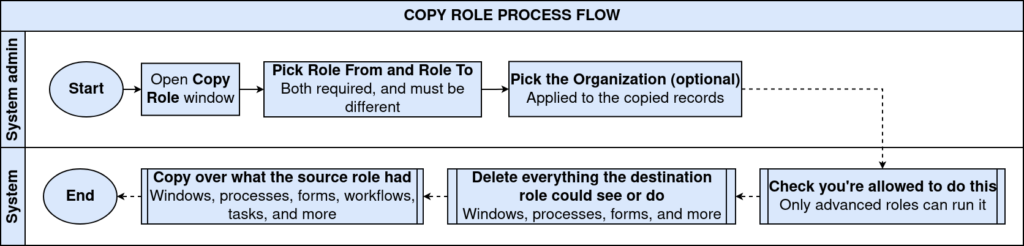
Process Flow
Business Rules
- Only users with an advanced role can run the Copy Role process.
- The source role and destination role must be different from each other.
- All existing access records of the destination role are removed before copying.
- Access is copied for windows, processes, forms, workflows, tasks, document actions, info windows, and included roles.
- Copying can be limited to one organization or applied across all organizations.
- The process can run immediately or be scheduled to run as a background job.
Prerequisites
- At least two roles already created in the system.
- The source role has the correct access already set up and verified.
- The user running the process is logged in with an advanced role.
- Organization structure configured, if the copy needs to be limited to one organization.
Navigation
Menu → System Admin → General Rules → Security → Copy Role
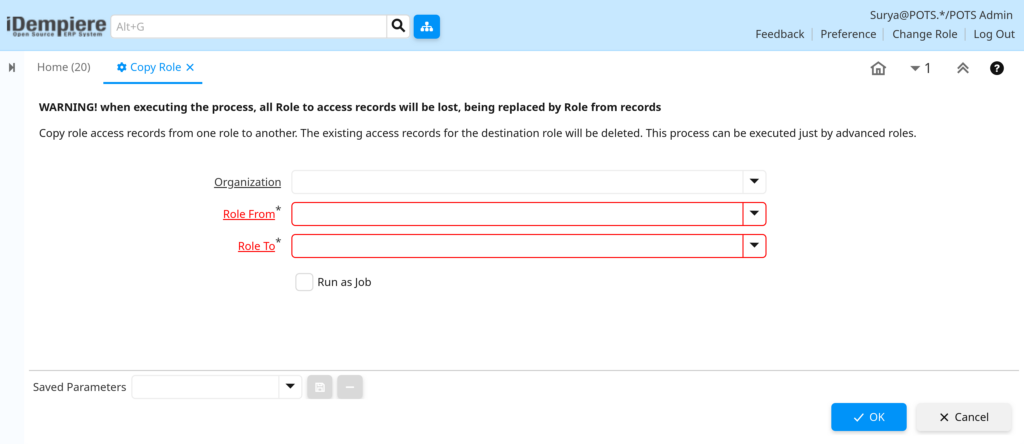
After opening the window, users first see a warning message explaining that access records will be replaced, followed by the Organization, Role From, Role To fields, and a Run as Job option.
Configuration Steps
Step 1: Review the Warning Message
This step confirms the user understands that copying will replace the destination role’s current access before any changes happen.
Instructions
Read the warning stating that the destination role’s access records will be lost and replaced. Confirm this is intended before continuing.
Step 2: Select the Organization (Optional)
This step limits the copy activity to a chosen organization when access setup should not apply company-wide.
Instructions
Choose an Organization to restrict the copy to that organization only. Leave the field blank to copy access across all organizations.
| Field | Sample Value | Description |
| Organization | Head Office | Restricts the copied access to a single organization |
Step 3: Select the Role From
The Role From holds the access permissions that will be duplicated, so it must already be set up correctly.
Instructions
Choose the role whose permissions should be copied. Ensure this role’s access is complete and accurate before proceeding.
| Field | Sample Value | Description |
| Role From | Sales Manager | Source role that provides the access to be copied |
Step 4: Select the Role To
The Role To is the destination role that will receive the copied access, replacing whatever access it currently has.
Instructions
Choose the role that should receive the copied access. Double-check this selection, since its current access will be replaced.
| Field | Sample Value | Description |
| Role To | Sales Supervisor | Destination role that receives the copied access |
Step 5: Choose Run as Job (Optional)
For roles with a large amount of access to copy, running the process as a job avoids waiting on-screen for it to finish.
Instructions
Enable Run as Job to let the process complete in the background. Leave it unchecked to run the process immediately.
| Field | Sample Value | Description |
| Run as Job | Unchecked | Runs the process in the background instead of immediately |
Step 6: Execute the Process
This final step carries out the copy and confirms the outcome to the user.
Instructions
Click OK to run the process. Review the confirmation message and log details once the process completes.
Note: This process cannot be undone automatically. Confirm the Role From and Role To selections carefully before clicking OK.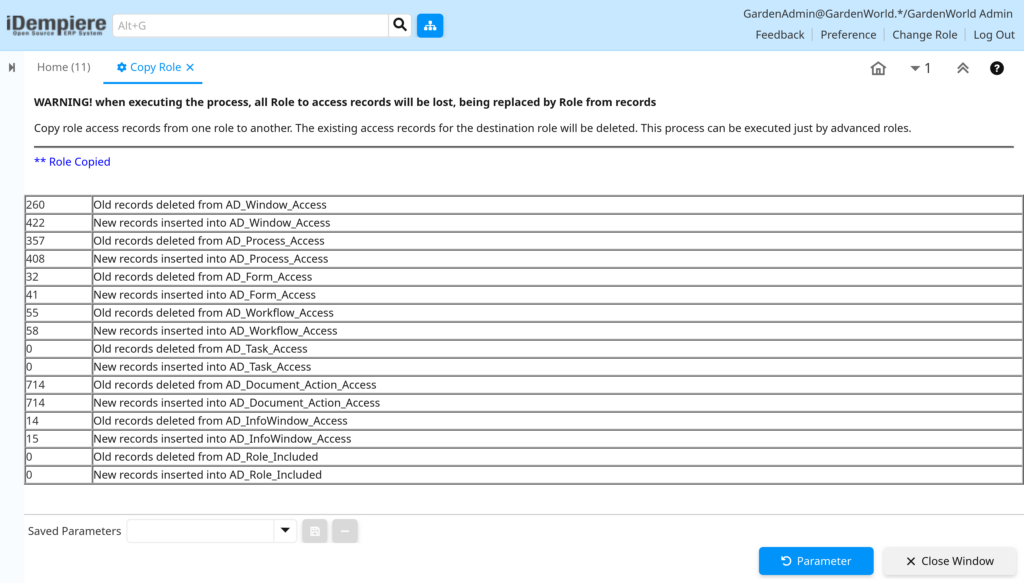
Common Issues and Resolutions
| Issue | Cause | Resolution |
| Error message states roles must be different | The same role was selected for both Role From and Role To | Select two different roles before running the process |
| Process does not run for a user | The logged-in role does not have advanced access rights | Run the process using an administrator or advanced role |
| Expected access missing after copying | The destination role’s prior access was removed before the copy | Verify the source role’s access is complete before running the process |
| Unrelated access lost from the destination role | All existing access of the destination role is replaced, not merged | Review or document destination role access before copying |
| No visible result after clicking OK | Run as Job was selected, so the process runs in the background | Check the process or job status window for completion |
| Copy applied to more organizations than expected | The Organization field was left blank, copying across all organizations | Select the specific organization when a limited copy is required |
| Users still cannot see expected windows after copying | Users assigned to the destination role are still using a cached session | Ask affected users to log out and log back in to refresh access |
Next Steps
- Open the Role window to review and fine-tune the copied access.
- Configure Window Access, Process Access, or Form Access individually for any exceptions.
- Assign the destination role to the appropriate users.
- Test access by logging in with a user assigned to the updated role.