How to Configure Password Rule in iDempiere
Password Rule is the iDempiere window that defines password complexity requirements, which are then assigned to the System Tenant to enforce them tenant-wide.
IT teams use it to require minimum length and character variety, and to block weak patterns such as sequences, repeated characters, or the user’s own name.
Once assigned and refreshed with a Cache Reset, every password change is validated against the rule, with all violated conditions reported together.
Process Flow
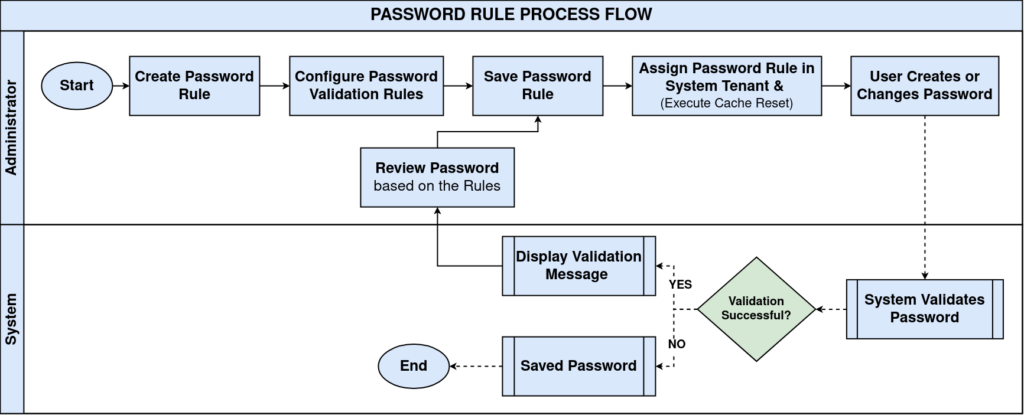
Business Rules
- A Password Rule defines the password validation requirements for the system.
- Password Rules are assigned from the System Tenant using the Password Policies field.
- Only one Password Rule can be assigned at a time.
- Password validation runs whenever a user password is changed.
- Violating any rule rejects the password and displays the corresponding message.
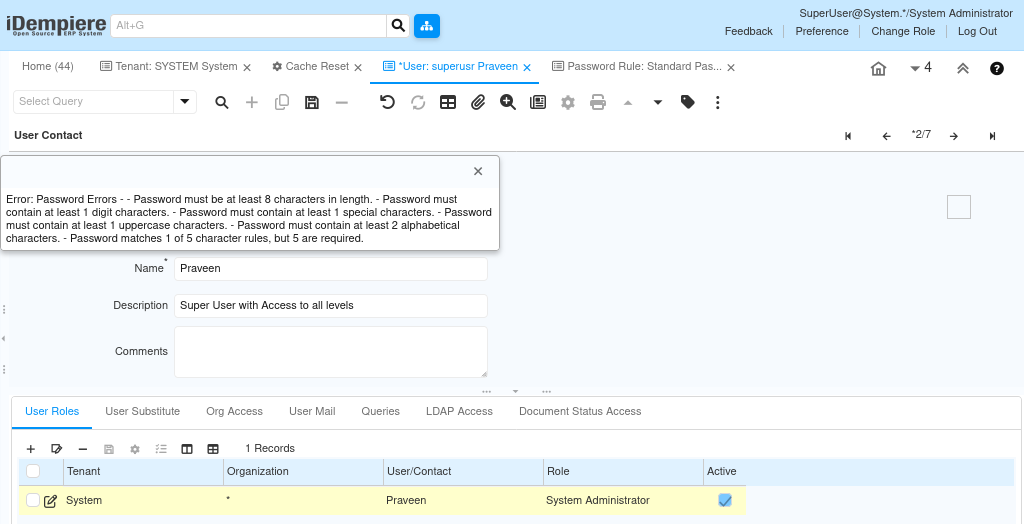
- Multiple violated rules are all displayed together in a single error.
- Rule changes require a Cache Reset and re-login to take effect.
Prerequisites
- System Administrator access to the System Tenant.
- The organization’s required password complexity standards defined.
- Access to run a Cache Reset after configuration changes.
Configuration Steps
Step 1: Create a Password Rule
This defines the character and pattern requirements a password must satisfy to be accepted.
Navigate to System Admin → General Rules → Password Rule, click New, enter a Name, and configure the length, character, and sequence fields.
| Field | Sample Value | Purpose |
| Name | Standard Password Policy | Identifies the password rule |
| Minimum Length | 8 | Minimum number of characters required |
| Maximum Length | 20 | Maximum number of characters allowed |
| Alphabetical Character | 1 | Minimum alphabetic characters required |
| Uppercase Character | 1 | Minimum uppercase letters required |
| Lowercase Character | 1 | Minimum lowercase letters required |
| Digit Character | 1 | Minimum numeric characters required |
| Non Alpha Numeric Character | 1 | Minimum special characters required |
| Alphabetical Sequence | 3 | Blocks consecutive alphabetical sequences such as abc |
| Numerical Sequence | 3 | Blocks consecutive numeric sequences such as 123 |
| QWERTY Sequence | 3 | Blocks keyboard sequences such as qwe |
| Repeat Character Regex | 3 | Blocks repeated consecutive characters such as AAA |
| Days Reuse Password | 90 | Intended to restrict reuse of recently used passwords |
| User Name Rule | Selected | Prevents passwords from containing the user’s identifier |
| Whitespace | Selected | Prevents passwords from containing whitespace characters |
| Active | Selected | Enables the Password Rule for use |

Step 2: Assign the Password Rule to the System Tenant
Only the rule assigned to the System Tenant’s Password Policies field is enforced across the application.
Open Tenant: SYSTEM System, select the Password Rule in Password Policies, save, and confirm the save changes dialog.
| Field | Sample Value | Purpose |
| Password Policies | Standard Password Policy | Links the System Tenant to the active password rule |

Step 3: Execute Cache Reset
Password Rule changes require a Cache Reset before they take effect system-wide.
Navigate to System Admin → Cache Reset, run the reset, then log out and log back in for the change to apply.
Step 4: Test Password Validation
This confirms the configured rules are correctly enforced when a user changes their password.
Open a User record, enter a new Password that intentionally violates a rule, attempt to save, and review the displayed validation error.
| Validation Rule | Sample System Message | Purpose |
| Minimum Length | Password must be at least 8 characters in length. | Rejects passwords shorter than the configured minimum |
| Maximum Length | Password must be no more than 20 characters in length. | Rejects passwords longer than the configured maximum |
| Character Composition | Password must contain at least 1 uppercase and lowercase characters. Matches 4 of 5 character rules, but 5 are required. | Confirms all required character types are present |
| Alphabetical Sequence | Password contains the illegal alphabetical sequence ‘abc’. | Blocks consecutive letter sequences |
| Numerical / QWERTY Sequence | Password contains the illegal numerical sequence ‘123’. Contains the illegal QWERTY sequence ‘123’. | Blocks predictable numeric and keyboard sequences |
| Repeat Character Pattern | Password matches the illegal pattern ‘AAA’. | Blocks repeated consecutive characters |
| User Name Rule | Password contains the user id ‘praveen’. | Blocks passwords containing the user’s identifier |
| Whitespace | Password cannot contain whitespace characters. | Blocks spaces within the password |
Common Issues and Resolutions
| Issue | Cause | Resolution |
| Password rejected during save | Password violates one or more configured rules | Review the validation message and update the password to satisfy all rules |
| Multiple validation messages displayed | Password violates more than one configured rule | Correct all reported violations before saving |
| Password Rule changes not applied | Cache Reset not executed after saving the Tenant | Save the System Tenant, execute Cache Reset, and sign in again |
| Using Dictionary validation inactive | No dictionary source configured | Configure a dictionary source if dictionary-based validation is required |
| Security Checklist flags password issues | No Password Policy assigned, or passwords not hashed | Assign a Password Rule and review the Home page Security Checklist widget |
Next Steps
- Assign the Password Rule to the System Tenant.
- Perform a Cache Reset.
- Test password validation by creating or changing a user’s password.
- Configure and test the Reset Password process if password resets are managed by administrators.