How to Use Reset Password in iDempiere
Reset Password is the iDempiere window administrators and users use to change account passwords, validated against the configured Password Rule.
IT teams use it to reset forgotten passwords, force temporary passwords to be replaced at next login, and update a user’s email details in the same step.
System Administrators can reset another user’s password without the old password, while users changing their own password must confirm their current one first.
Process Flow
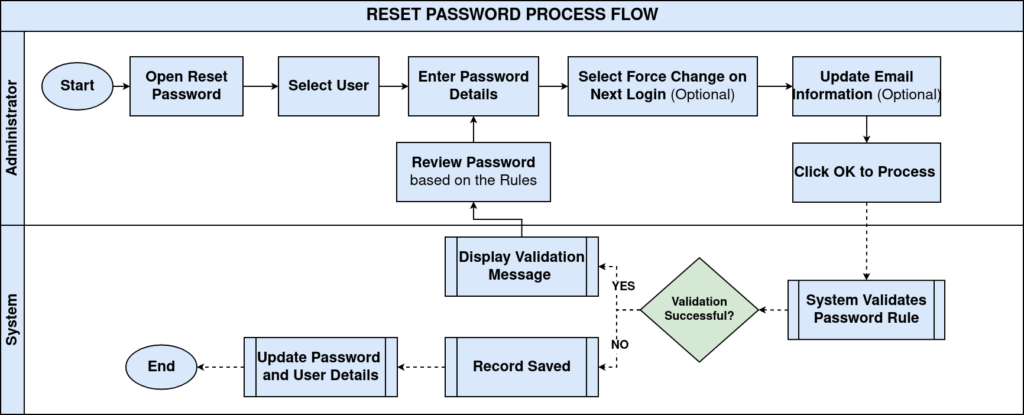
Business Rules
- Password changes are validated against the configured Password Rule.
- System Administrators can reset another user’s password without their current password.
- Users changing their own password must enter the correct current password.
- New Password and Confirm New Password values must match exactly.
- Passwords that fail the configured Password Rule are rejected.
- Force change on next login requires a new password immediately after the next login.
- Email Address and Email User can be updated in the same password reset operation.
- Email-only updates still require a valid password change to pass validation.
- Password history is automatically maintained after a successful password change.
Prerequisites
- Password Rule configured and assigned to the System Tenant.
- User record exists for the account being reset.
- Current password known, if the user is changing their own password.
Configuration Steps
Step 1: Administrator Resets Another User’s Password
This allows an administrator to reset an account without needing the existing password, useful for forgotten passwords.
Open Reset Password, select the User/Contact, leave Old Password blank, enter the New Password and Confirm New Password, then click OK.
| Field | Sample Value | Purpose |
| User/Contact | Praveen | The account whose password is being reset |
| Old Password | Blank | Not required when an administrator resets another user’s password |
| New Password / Confirm New Password | Matching new password values | Sets and confirms the replacement password |

Step 2: User Changes Their Own Password
This lets a logged-in user replace their password directly, requiring proof of the current password.
Open Reset Password, select your own user, enter the current password in Old Password, enter and confirm the New Password, then click OK.
| Field | Sample Value | Purpose |
| Old Password | Required | Confirms the user’s identity before allowing the change |
| New Password / Confirm New Password | Matching new password values | Sets and confirms the replacement password |
Step 3: Force Change on Next Login
This ensures a temporary password set by an administrator cannot be reused; the user must set their own password on first login.
After entering the new password, check Force change on next login, then save the record.
| Field | Sample Value | Purpose |
| Force change on next login | Checked | Requires the user to set a new password immediately after their next login |
Step 4: Update Email Information During Reset
This keeps email details current while performing the password change.
Enter a valid password change, then update New EMail and New EMail User as needed, and save. Email-only changes still require a valid password change to pass validation.
| Field | Sample Value | Purpose |
| New EMail | praveen.demo@example.com | Updates the user’s email address |
| New EMail User | praveen.demo | Updates the associated email user ID |

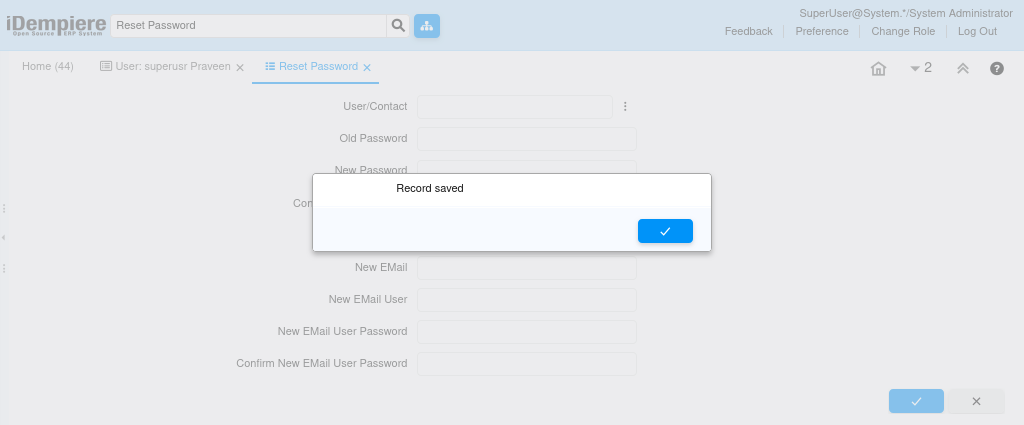
Step 5: Complete the Forced Change Login Flow
This is what the user experiences after Force change on next login has been set on their account.
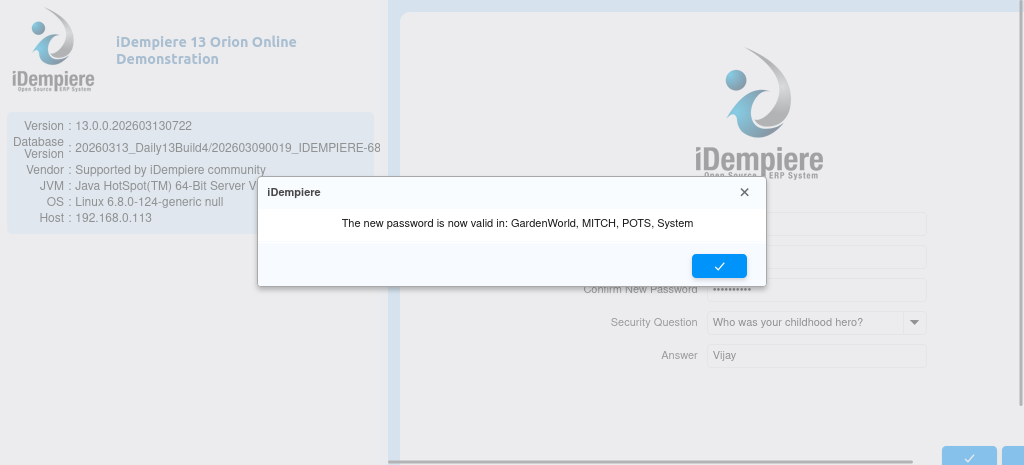
The user logs in with the temporary password; the system displays the Change Password page. The user enters the Old, New, and Confirm Password, selects a Security Question, enters an Answer, and submits.
| Field | Sample Value | Purpose |
| Security Question | Who was your childhood hero? | Security question selected during the forced change |
| Answer | Vijay | Answer recorded for the selected security question |
| Confirmation Message | The new password is now valid in: GardenWorld, MITCH, POTS, System | Confirms the password was updated across all listed Tenants |

Common Issues and Resolutions
| Issue | Cause | Resolution |
| Password rejected | Password does not satisfy the configured Password Rule | Ensure the password meets all configured complexity requirements |
| Password confirmation mismatch | New Password and Confirm New Password do not match | Enter identical values in both fields |
| Incorrect old password | Old Password field contains an incorrect current password | Enter the correct current password before changing it |
| Forced password change blocks login | Force change on next login was enabled for the account | Complete the password change process before accessing the application |
| Email changes not saved independently | Email-only updates still require password validation to pass | Update email information together with a valid password change |
Next Steps
- Continue using the application with the new password.
- Update personal information in the User window if required.
- Review the configured Password Rule if password validation requirements need to change.