How Role Access Update Process Works in iDempiere
Introduction
Role Access Update is a security process in iDempiere that refreshes the permissions assigned to a role for windows, forms, processes, and workflows.
It is used in System Administration whenever new menu items are added or role permissions need to be brought back in line with the current setup.
Running it keeps every role’s access accurate, so users open only the windows and processes their role is meant to use, without manual rework.
Process Flow

Business Rules
- Only roles that are not marked as Manual are refreshed by this process.
- Selecting a specific Role updates access rights for that role only.
- Leaving the Role field blank updates all non-manual roles for the current tenant.
- Running the process from the System tenant with no Role selected updates roles across all tenants.
- Turning on Reset Existing Access replaces all current access settings for the selected role.
- Leaving Reset Existing Access off keeps prior manual changes and only adds missing permissions.
- This process only refreshes permissions; it does not create or change business documents.
- Access changes take full effect only after affected users log out and log back in.
Prerequisites
- Role record already created in the Role window.
- Windows, forms, processes, or workflows already set up and ready to be assigned.
- System Administrator or equivalent security access to run the process.
- Role’s user level (Manual or Automatic) reviewed before running the update.
Navigation
Menu → System Admin → General Rules → Security → Role Access Update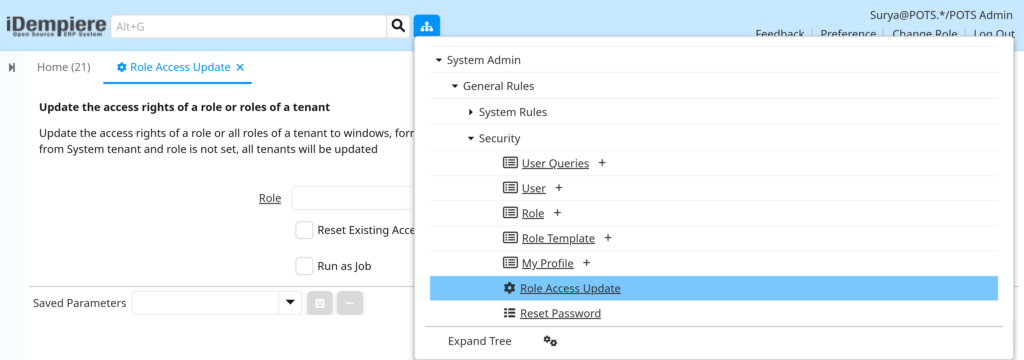
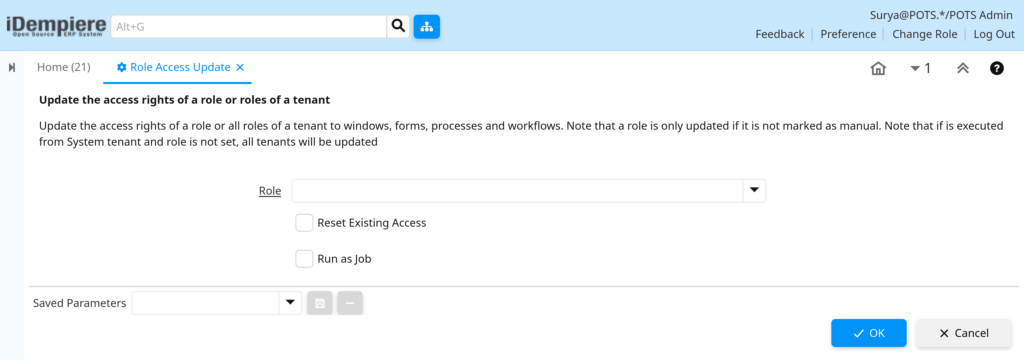
Opening the window shows a single entry screen with a Role field and two checkboxes. No records list is shown; the screen is used only to set parameters and start the process.
Configuration Steps
Step 1: Select the Role to Update
This step decides whether the refresh applies to one role or to every role in the tenant.
Instructions
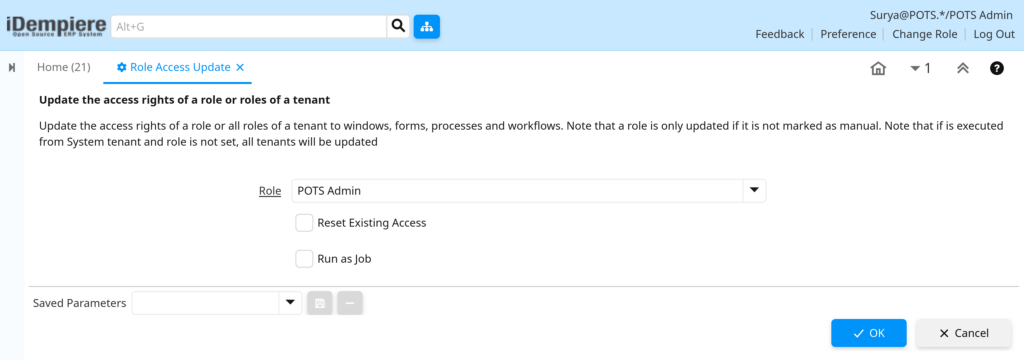
In the Role field, choose the role to refresh, such as POTS Admin. Leave the field blank to update every non-manual role for the current tenant.
| Field | Sample Value | Description |
| Role | POTS Admin | Role whose access rights will be refreshed |
Step 2: Decide Whether to Reset Existing Access
This step controls whether earlier manual adjustments to the role are kept or overwritten.
Instructions
Turn on Reset Existing Access to replace all access settings with current defaults. Leave it off to keep prior manual changes and add only the missing permissions.
| Field | Sample Value | Description |
| Reset Existing Access | Unchecked | Replaces all access when on; preserves manual changes when off |
Step 3: Choose Run as Job (Optional)
This step lets the update run in the background instead of holding up the screen until it finishes.
Instructions
Turn on Run as Job to queue the update as a background job. Leave it off to run the process immediately and view the result on screen.
| Field | Sample Value | Description |
| Run as Job | Unchecked | Runs immediately when off; queues as a background job when on |
Step 4: Start the Process
This step carries out the refresh using the Role and checkbox settings chosen above.
Instructions
Click Start to run the process. A confirmation log appears listing each role that was updated, or an explanation if no role qualified for an update.

Common Issues and Resolutions
| Issue | Cause | Resolution |
| New window or menu item is not visible to users | Role Access Update was not run after the change | Run Role Access Update for the affected role or all roles |
| Selected role’s access does not change after running | Role’s user level is set to Manual | Change the role to Automatic, or update access directly in the Role window |
| Manual access changes disappear after running | Reset Existing Access was turned on | Re-run with Reset Existing Access off, or reapply the manual settings |
| Users still cannot see updated access after the process finishes | Users have not refreshed their session | Ask users to log out and log back in |
| Roles in unrelated tenants get updated unexpectedly | Process was run from the System tenant with Role left blank | Log in to the specific tenant, or select a target Role before running |
| Process completes but no role is listed as updated | All existing roles are marked as Manual | Review and adjust the user level in the Role window |
| Background run shows no immediate result | Run as Job was turned on, so the update runs later | Check the Process Audit or Scheduler log for the job outcome |
Next Steps
- Review and set up the Role window to define window, form, and process access.
- Use Role Data Access for table and column level restrictions.
- Check Process Audit to confirm role updates completed as expected.
- Use Copy Role when a similar role needs to be created quickly.