How to Configure Import Confirmations in iDempiere
Introduction
Import Confirmations is a data import window in iDempiere used to bring shipment and receipt confirmation quantities into the system from an external file.
It supports warehouse and logistics teams who confirm picked, packed, or received quantities in bulk, instead of updating each Ship/Receipt Confirmation Line one at a time.
Once processed, the imported quantities update the matching Confirmation Line, keeping shipment and receipt records accurate for inventory and reporting.
Process Flow

Business Rules
- Import Confirmations only accepts lines linked to an existing Ship/Receipt Confirmation Line.
- Confirmed Quantity plus Scrapped Quantity plus Difference Quantity must equal the Target Quantity.
- Records without a Confirmation No are rejected with an error message.
- Organization is set from the record if present, otherwise from the process parameter.
- Only records marked Imported = N are picked up by the Import Confirmations process.
- Successfully processed records are marked Imported and Processed, and are not reprocessed.
- Unmatched or invalid confirmation lines are flagged Imported = E with an error description.
Prerequisites
- Ship/Receipt Confirmation Line already generated from a Shipment or Receipt.
- Import Loader Format created for the I_InOutLineConfirm table.
- Tenant and Organization configured for the importing company.
- Source file (CSV) prepared with confirmation data in the expected column sequence.
Navigation
Menu → System Admin → Data → Data Import → Import Confirmations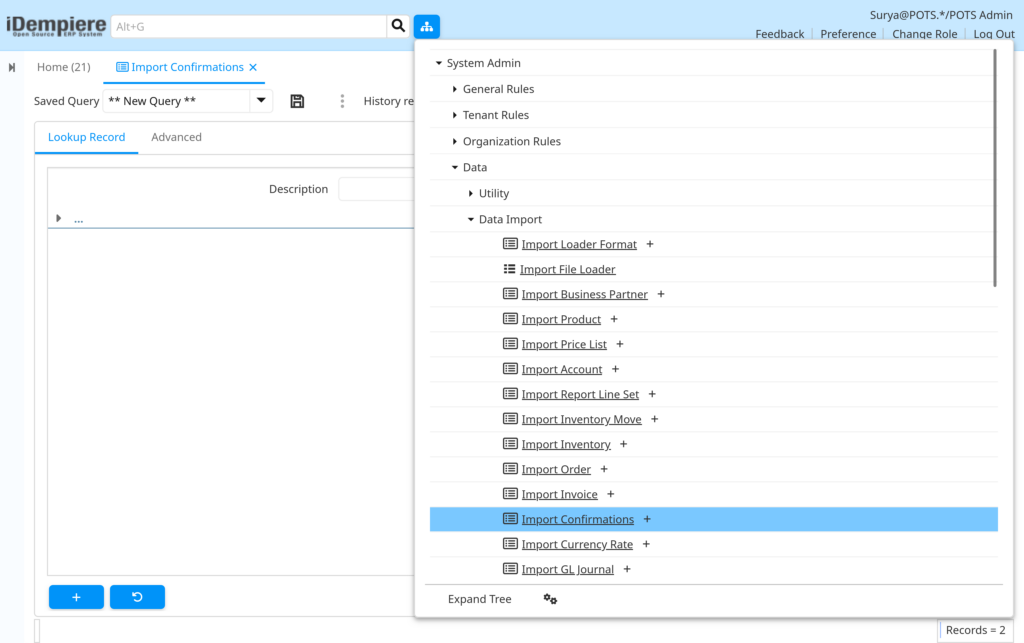
The window opens on the Confirmation Lines tab, listing every import record with its Imported and Processed status, linked Confirmation Line, quantities, and any Import Error Message.

Configuration Steps
Step 1: Create an Import Loader Format for Confirmation Data
This tells iDempiere how each column in the source file maps to the confirmation import table, so the file can be read correctly.
Instructions
Open Import Loader Format. Enter a Name and Description, select the I_InOutLineConfirm table, choose the Comma Separated format, and add one Format Field row per column in the file, in order.
| Field | Sample Value | Description |
| Name | Import Confirmations | Identifies the format for reuse |
| Table | I_InOutLineConfirm (Ship/Receipt Confirmation Import Line) | Target import table for confirmation data |
| Format | Comma Separated | File layout the loader expects |
| Format Field 10 | AD_Org_ID_Organization | Organization the confirmation belongs to |
| Format Field 20 | M_InOutLineConfirm_ID | Confirmation Line being updated |
| Format Field 30 | ConfirmationNo | Confirmation reference number |
| Format Field 40 | ConfirmedQty | Quantity confirmed as received or shipped |
| Format Field 50 | ScrappedQty | Quantity scrapped |
| Format Field 60 | DifferenceQty | Variance quantity |
| Format Field 70 | Description | Optional note on the confirmation |
Step 2: Load the Confirmation File Using Import File Loader
This moves the confirmation data from the file into the import table, using the format created in Step 1.
Instructions
Open Import File Loader, select the saved Import Format, choose the file encoding, and load the CSV file. Confirm the parsed values on screen match the source row before saving.
| Field | Sample Value | Description |
| Import Format | Import Confirmations | Format used to parse the uploaded file |
| Encoding | UTF-8 | Character set of the source file |
| A – Org ID | 1000001 | Organization reference from the file |
| B – Confirmation Line No | 1000001 | Confirmation Line to update |
| C – Confirmation No | 1000001 | Confirmation number from the source system |
| D – Confirmed Quantity | 2 | Quantity confirmed |
| E – Scrapped Quantity | 0 | Quantity scrapped |
| F – Difference | 0 | Variance quantity |
| G – Description | IMP-Imported Using Import File Loader | Note carried into the confirmation line |
Step 3: Review and Process Records in Import Confirmations
This gives a chance to check for errors before the confirmation quantities update live shipment or receipt records.
Instructions
Open Import Confirmations, Confirmation Lines tab. Review each record’s linked Confirmation Line, quantities, and Import Error Message. Correct any failed rows, then run the Import Confirmations process.
| Field | Sample Value | Description |
| Ship/Receipt Confirmation Line | 10_2_AASH-ATTA-5KG_Aashirvaad Atta – 5kg | The receipt or shipment line the record updates |
| Confirmation No | 1000001 | Confirmation number carried from the file |
| Confirmed Quantity | 2 | Quantity confirmed |
| Scrapped Quantity | 0 | Quantity scrapped |
| Difference | 0 | Variance between target and confirmed plus scrapped |
| Description | IMP-Imported Using Import File Loader | Reference note |
| Imported | Checked | Shows the record has been processed by the import |
| Processed | Checked | Shows the confirmation update completed |

Common Issues and Resolutions
| Issue | Cause | Resolution |
| Import Error Message shows Missing Confirmation No | ConfirmationNo left blank in the source file | Add a Confirmation No value and reload the file |
| Record flagged as invalid confirmation line | Confirmation Line number does not exist | Verify the Line No against the correct Ship/Receipt Confirmation |
| Quantity mismatch error on process | Confirmed, Scrapped, and Difference do not equal Target Quantity | Recalculate quantities so they add up to the Target Quantity |
| Records import into the wrong Organization | Org ID column left blank or incorrect | Set the correct Organization in the file or process parameter |
| File does not load correctly | Wrong file encoding selected | Re-select UTF-8, or the encoding matching the source file |
| Old records reappear after reimport | Previously imported rows not cleared | Enable the Delete Old Imported parameter before rerunning |
| Columns map to the wrong fields | Format Field sequence does not match file column order | Align the Sequence numbers in Import Loader Format with the file layout |
| Confirmation stays unprocessed | Record still marked Imported = N or E | Resolve the error shown and rerun the Import Confirmations process |
Next Steps
- Ship-Receipt Confirm window – view the confirmation line updated by the import.
- Material Receipt or Material Shipment window – check the quantity impact on the transaction.
- Import Loader Format window – adjust or reuse the mapping for future confirmation files.