How to run Import Stock Take process in Adempiere Retail to create Stock Take documents
Uploading stock count data (usually from an external file like Excel or CSV) into the inventory system, instead of entering it manually.
User Access
Who Can Access
- Back Office
- Cashier
- Purchase Manager
- Manager
- Admin
What User Can Do
- Prepare the Stock Take File
- Upload the File into the System
- Validate Imported Data
- Submit or Approve Imported Data
Pre-Requisite Activities
- Prepare Accurate Physical Count Data
- Format Data According to System Requirements
- Verify Item Master Data
- Check User Permissions
Business Rules
- File Format and Structure
- Data Accuracy
- User Authorization
- Post-Import Review
User Interface
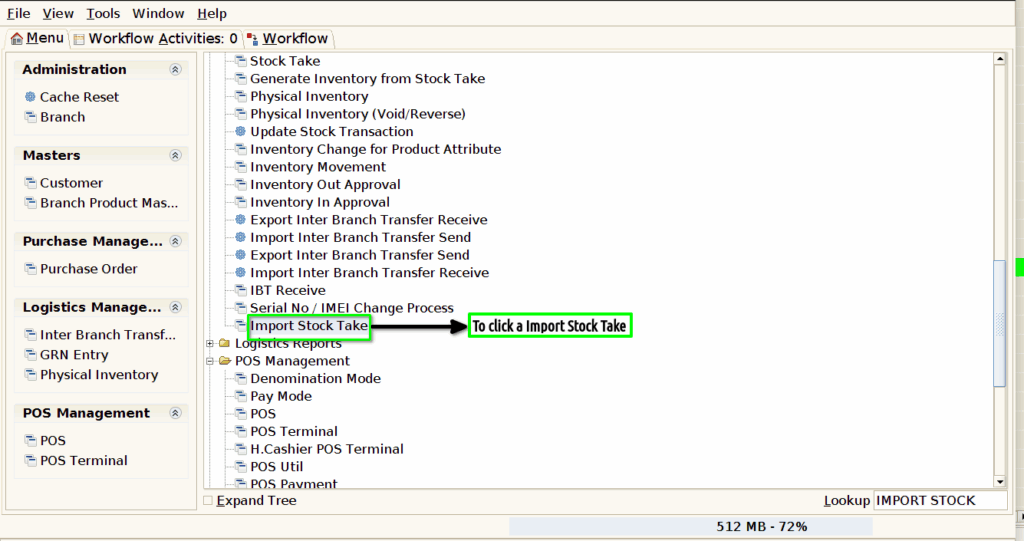
Step 1 : To Select a Branch in Menu.Then to click a Import Stock Take.
Step 2 :First to set file path then J2.0 to send the file for Excel format then to click the process for J1.0 application then to run the process and the to update Generate Inventory from stock take.
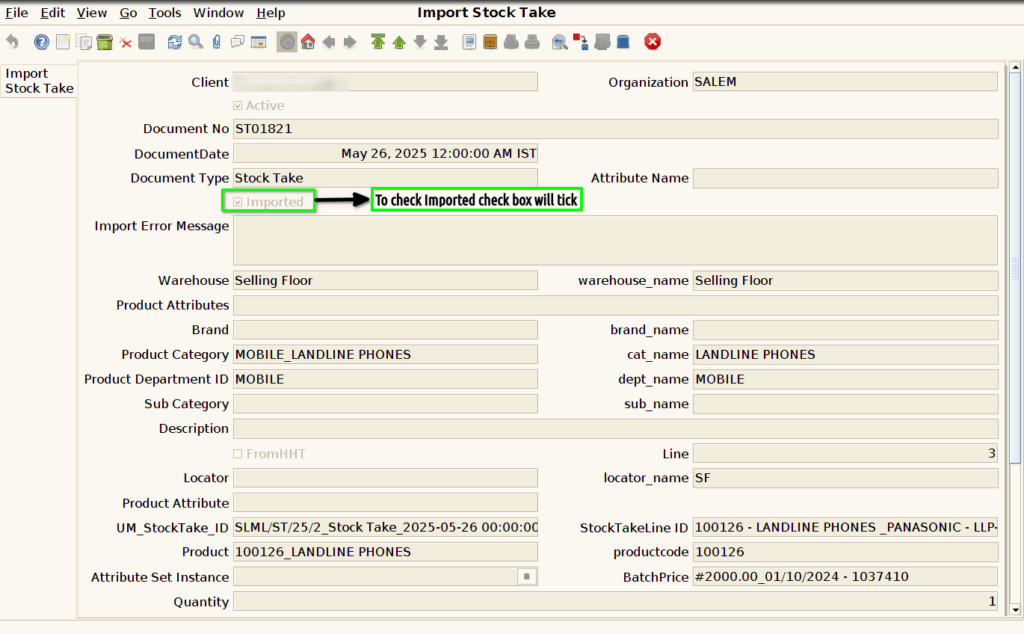
Again to click import stock take screen to update the file automatically.Then to check the document the file will successfully imported or not.Once to check the document imported check box will tic or not.