How to do Branches Setup in Branch screen of Adempiere Retail
Configuring branches means setting up and managing different store locations or business units within your system. This helps in organizing operations, tracking branch-wise sales, inventory, customers, and reports.
User Access
Who an Access
- Admin
- Cashier
- Back office
What User Can Do
- Create
- Active
- De-Active
- Update
Pre-Requisite Activities
- Branch Name
- Branch GST Number
Business Rules
- Based On the Branch Configure P.Tax% will apply product level
- Each branch must have a unique branch code or ID
- Branch GSTIN must match registered business details
- Inventory and pricing can be centralized or branch-specific
- Only authorized users can edit or delete branch settings
User Interface
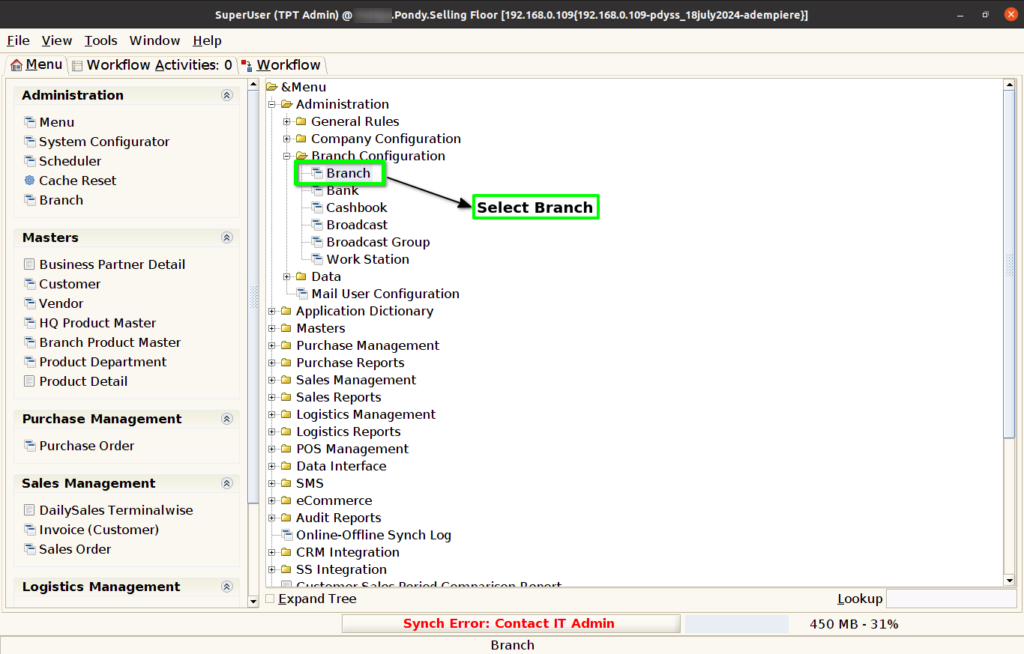
Step 1 : Select ‘Branch’ in Menu Branch Configuration -> Branch or Search Branch in Lookup.
Step 2 : Select Organization.

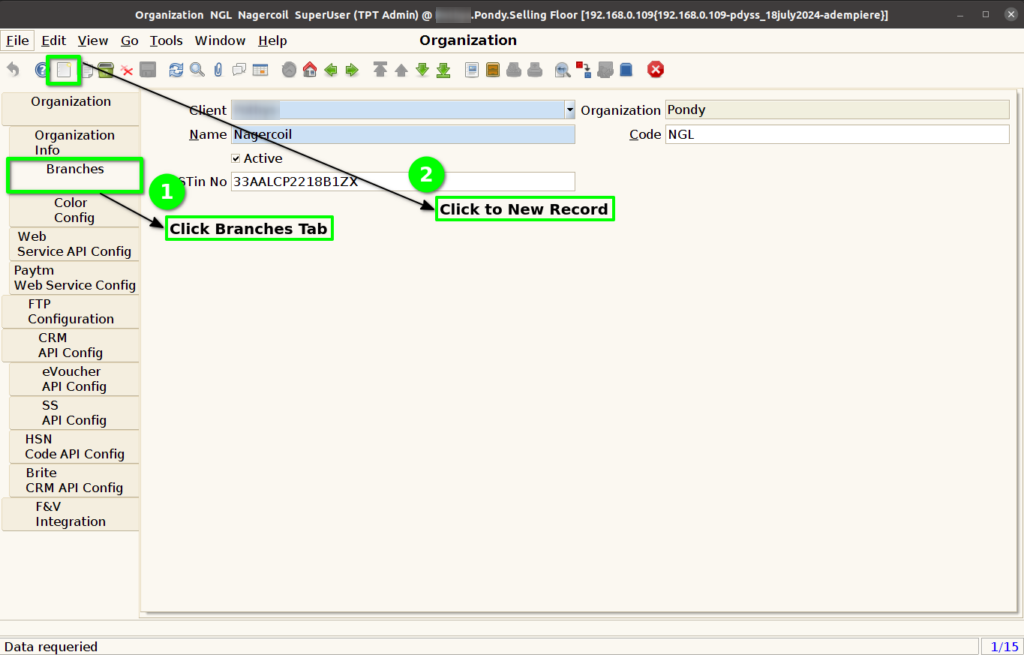
Step 3 : Click Branches Tab and Click New Button.
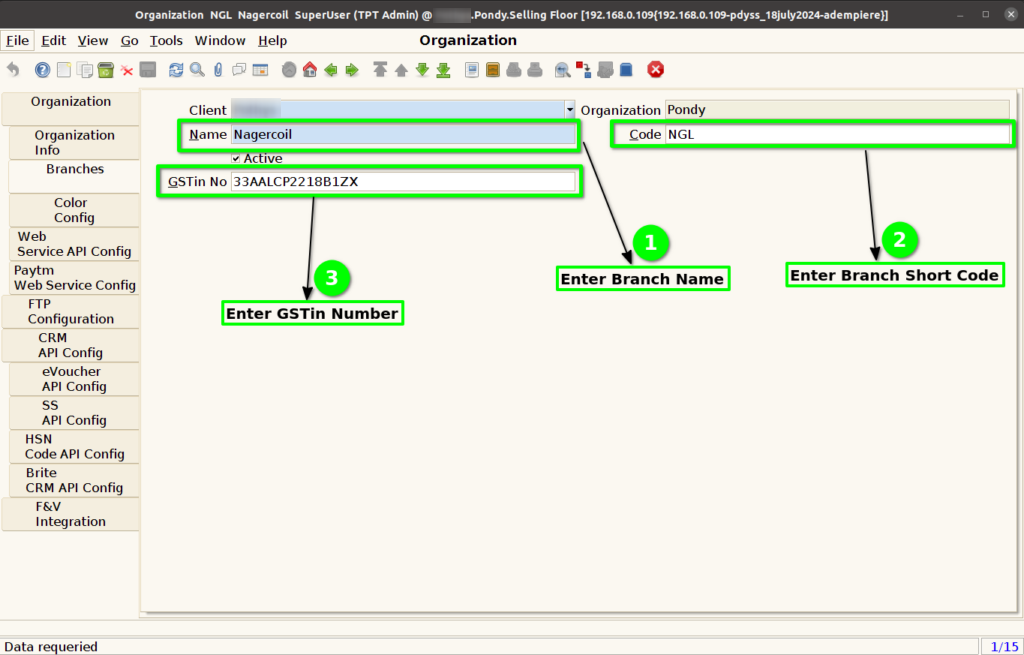
Step 4 : Enter Branch Name, Branch Short Code and Branch GSTin No.
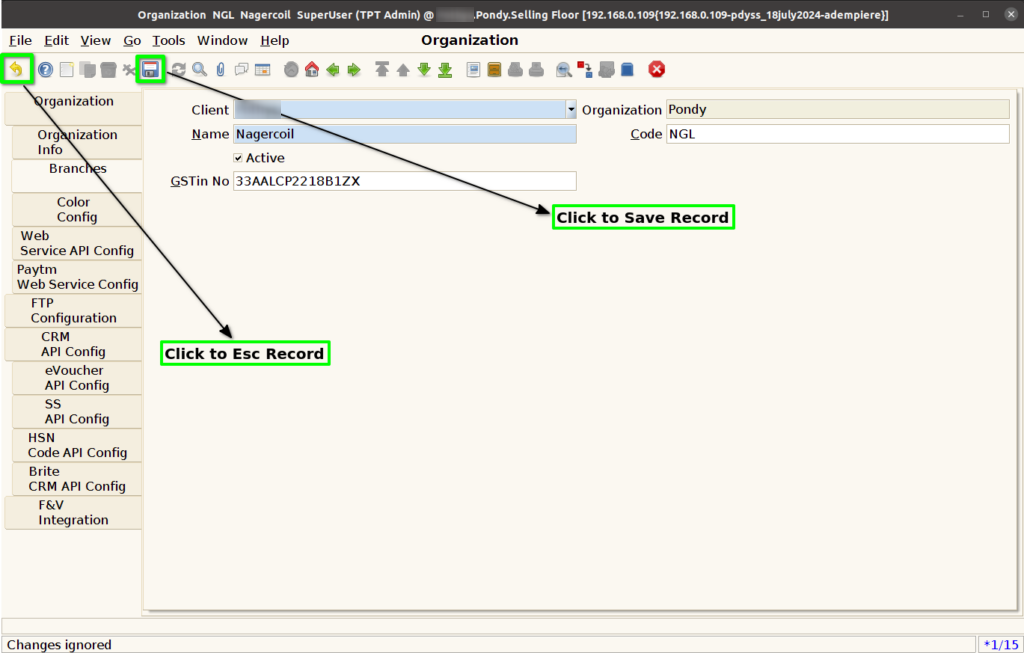
Step 5 : Click to Save Record.