How to Configure SMS setup in Branch screen of ADempiere Retail
SMS Setup refers to configuring the system to send automated SMS notifications (like order confirmations, OTPs, alerts, etc.) to customers or users based on specific triggers or actions.p
User Access
Who Can Access
- Admin
- Back Office
- Manager
What User Can Do
- Configure SMS gateway (API URL, credentials)
- Set message templates for various events (billing, OTP, delivery)
- Enable or disable SMS alerts for specific modules
Pre-Requisite Activities
- Register with an approved SMS gateway provider
- Obtain SMS API credentials and sender ID
- Finalize SMS content as per business communication needs
- Ensure customer mobile numbers are properly captured and valid
Business Rules
- SMS can only be sent if the mobile number is valid and not blank
- OTP messages must be time-bound and limited per session
- Templates must not exceed character limits (160 chars for 1 SMS)
- SMS logs should be maintained for audit and troubleshooting
User Interface
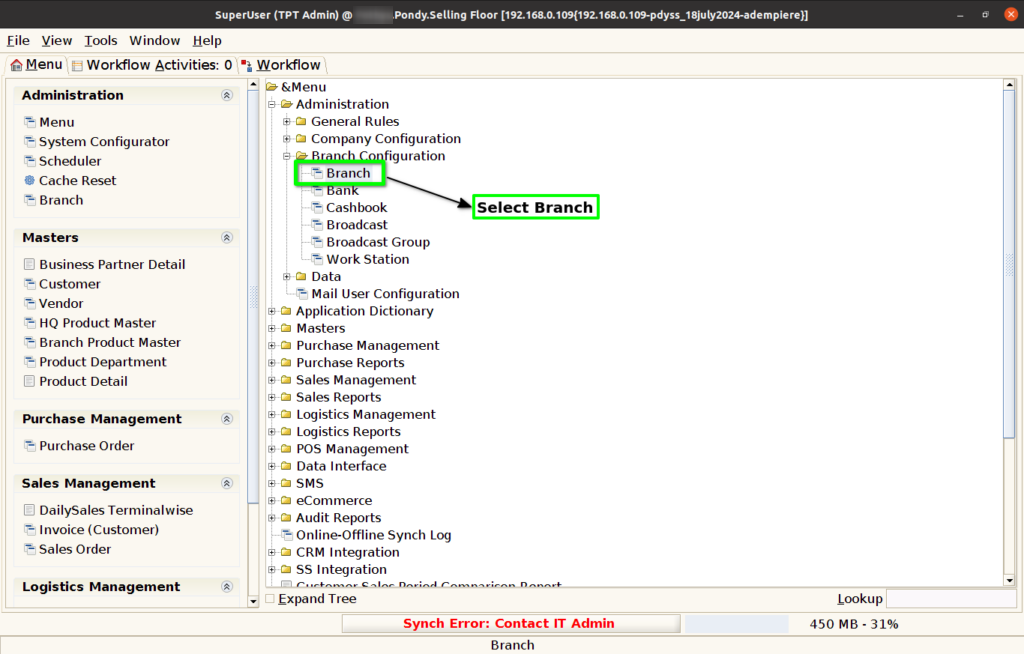
Step 1 : Select ‘Branch’ in Menu Branch Configuration -> Branch or Search Branch in Lookup.
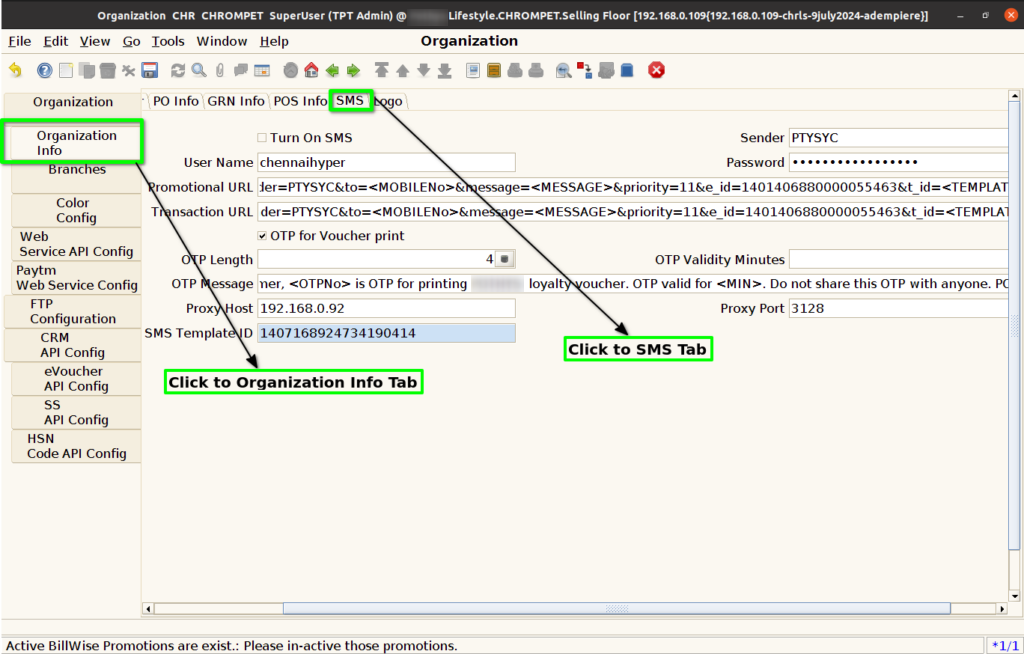
Step 2 : Select Organisation Info -> SMS Sub Tab.
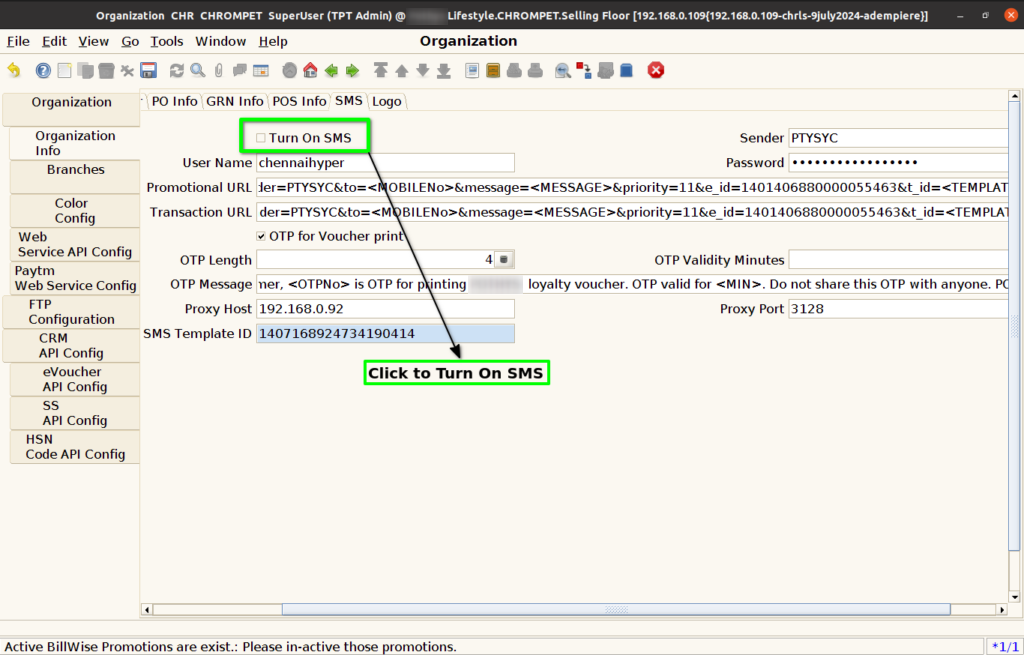
Step 3 : Check to enable Turn On SMS configuration for SMS.
Step 4 : Enter the below information for SMS Configure
- OTP Length – Enter OTP legth, based on OTP digits will receive as SMS
- OTP Validity Minutes – Based on OTP will validate
- Proxy Host – Through the proxy host SMS will sent
- Proxy Port – Enter Proxy Host Port Number.
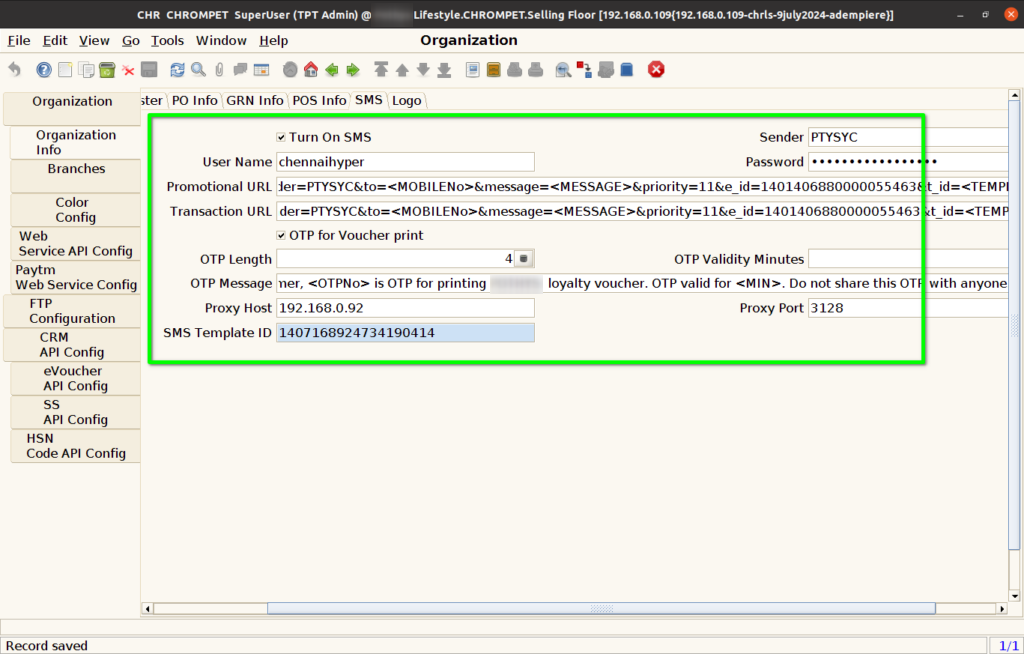
Step 4 : Click to Save Record.
