How to view HSN Code Wise Sales Tax Report with GST in Adempiere Retail
It’s a report that shows how much GST you collected for each product type, based on its HSN code, for tax and reporting purposes.
User Access
Who Can Access
- Admin
- Back Office
- Purchase Manager
- Manager
What User Can Do
- File GST Returns Accurately
- Analyze Tax Collected by Product Category
- Track Business Performance by HSN Code
Prerequisite Activities
- Assign Correct HSN Codes to All Products
- Map Correct GST Rates to HSN Codes
- Record All Sales with Tax Details
- Reporting Period
- Validate Sales Data
Business Rules
- Every Product Must Have a Valid HSN Code
- Include Only Completed and Valid Sales
- Handle Returns and Credit/Debit Notes Properly
- Data Integrity and Validation
User Interface
STEP 1: Click Sales Report Folder –> Accounts Report Folder –> HSN Code Wise Sales Tax Report with GST.

STEP 2: Choose Parameters From Date and To Date Mandatory.

STEP 3: Show Columns Details in Reports.
1.Click Date Wise Check Box Show Date Invoiced Column Date.
2.Tax Name.
3.HSN Code
4.Qty
5.Taxable Amt.
6.CGST.
7.IGST
8.SGST
9.CESS
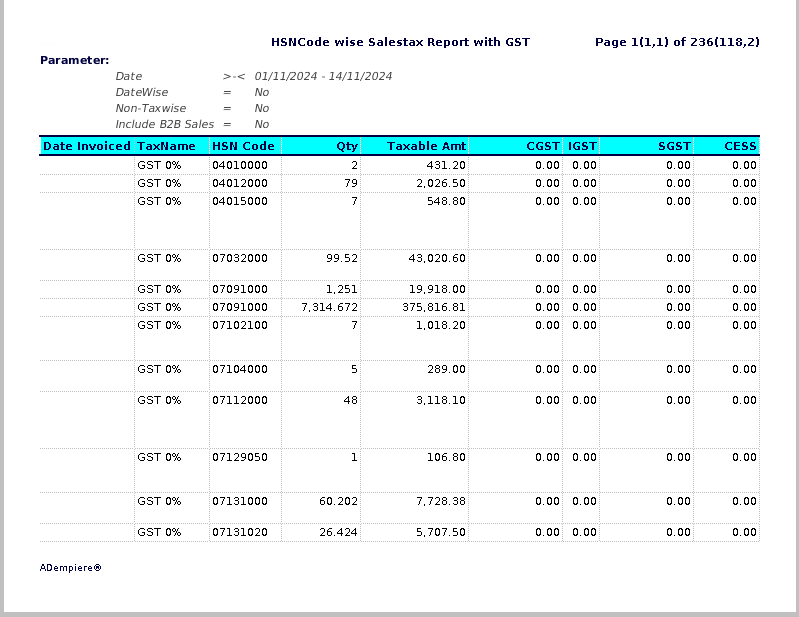
STEP 4: Show Columns Details in Reports.
10.UOM
11.Total Amount
12.HSN Description.
