How to create Dynamic Tax Configuration for Lifestyle in ADempiere Retail
Dynamic Tax Configuration allows the system to apply different GST percentages based on the transaction value (amount) during both purchase and sales. The logic ensures the correct GST rate is applied automatically, based on whether the amount falls under or above defined thresholds.
User Access
Who Can Access
- Back Office
- Purchase Manager
- Manager
- Admin
What User Can Do
- Define slab-wise GST rules for both Purchase and Sales:
- Automatically apply correct GST based on transaction value
- Map these tax rules in both PO (Purchase Order) and SO (Sales Order)
- Override tax manually if required and permitted
- Enable GST breakup in reports (CGST + SGST or IGST based on state)
Pre-Requisite Activities
- GST tax categories must be created (12%, 18%)
- System tax configuration engine must support conditional logic
- Define tax rule logic for Purchase and Sales separately
- Ensure item master is not hard-coded with fixed tax
- Vendor and customer masters must have proper state and GSTIN
- Map rules in master configuration or taxation setup screen
Business Rules
- GST will be auto-applied based on net transaction value
- If amount changes due to quantity or price update, GST recalculates
- Manual override should only be allowed for authorized roles
- IGST is applied for inter-state transactions, CGST+SGST for intra-state
- System should prevent saving if tax rule logic fails or is skipped
- Tax calculation must reflect accurately in invoices and ledger
User Interface
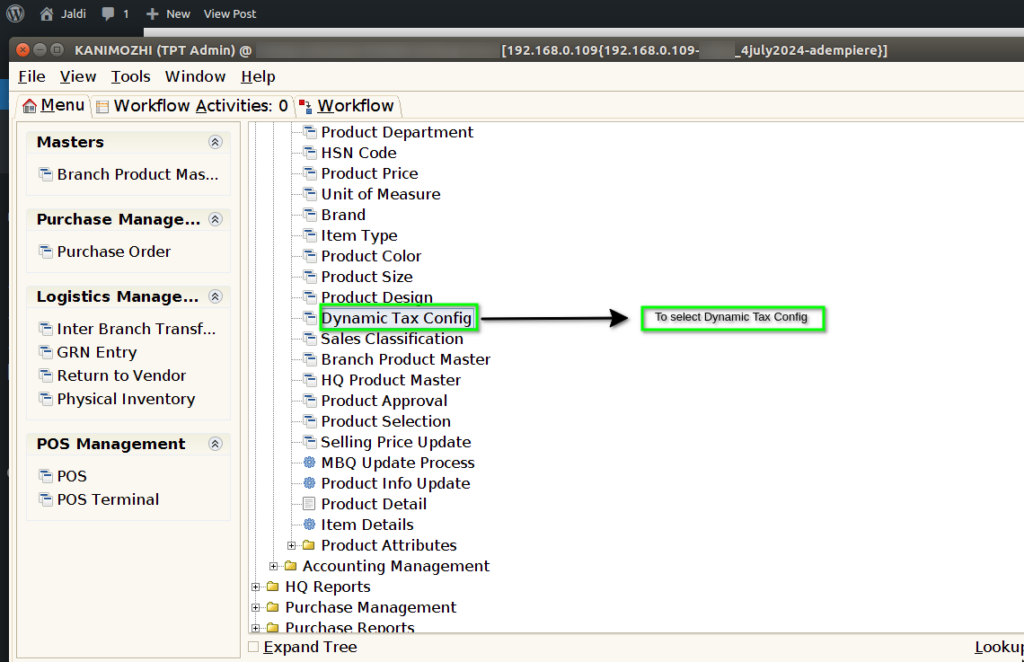
STEP 1: To select a Dynamic Tax Config.
STEP 2: To Open a New Document.

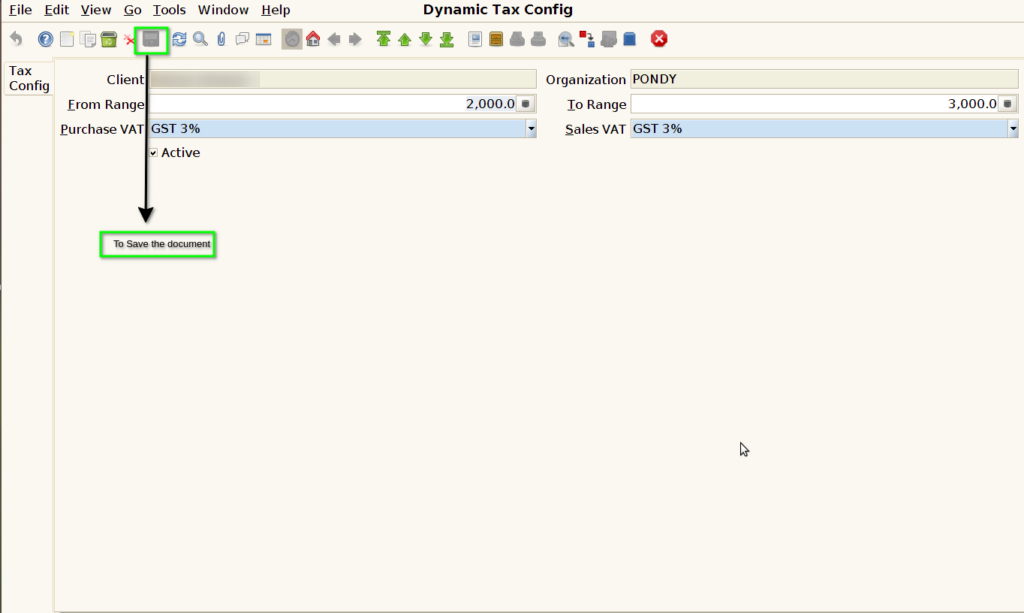
STEP 3: To enter the From Range & To Range . And then to enter the Sales VAT & Purchase VAT.

STEP 4: Finally to save the document.