How to view Scanned/Missed Stock Take Locator Detail in Adempiere Retail
A report that shows which stock items and locations (locators) were scanned (counted) and which were missed (not counted) during a stock take (inventory count).
User Access
Who Can Access
- Admin
- Manager
- Cashier
What User Can Do
- Identify which locations/items were counted and which were missed.
- Follow up on missed locations to complete the stock take.
- Improve accuracy of inventory records by addressing discrepancies.
Prerequisite Activities
- Stock locator areas
- Prepare stock take plan
- Ensure all scanning devices/software
- Assign roles and responsibilities
- Schedule stock take and communicate timelines .
Business Rules
- All stock locators must be predefined
- Each stock item must be assigned to a specific locator.
- Scanning devices must record the locator and item details accurately.
- Missed locators/items are those not scanned by the end of the stock take period.
- Report must clearly separate scanned and missed locators/items.
- Stock take data must be locked after completion to prevent unauthorized changes.
User Interface
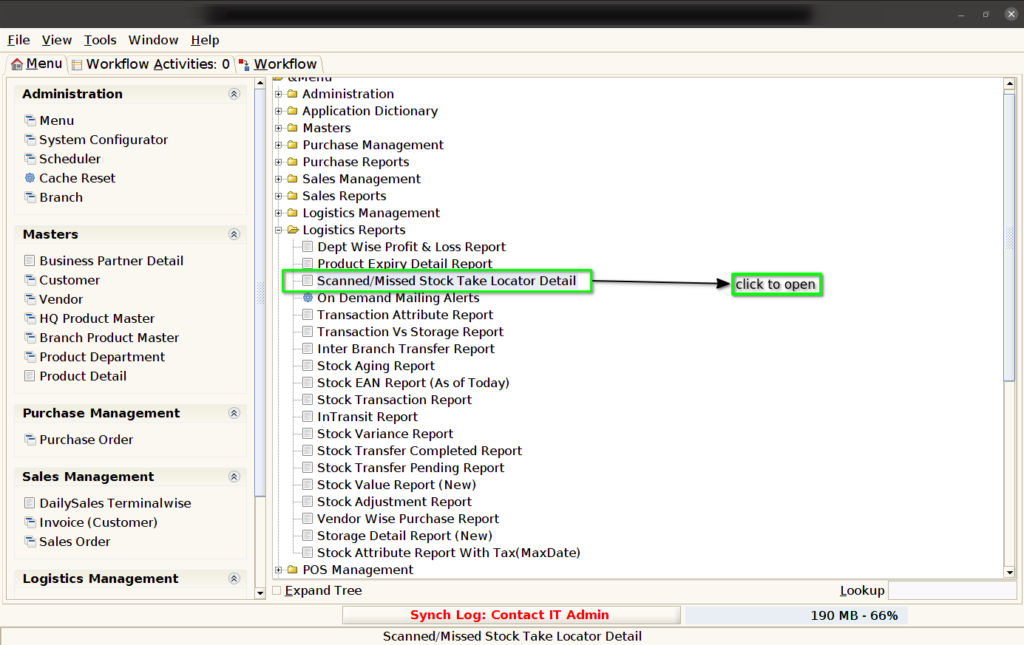
Step 1 : Select ‘Scanned/Missed Stock Take Locator Detail’ in Menu Logistics Reports -> Scanned/Missed Stock Take Locator Detail or Search Scanned/Missed Stock Take Locator Detail in Lookup.
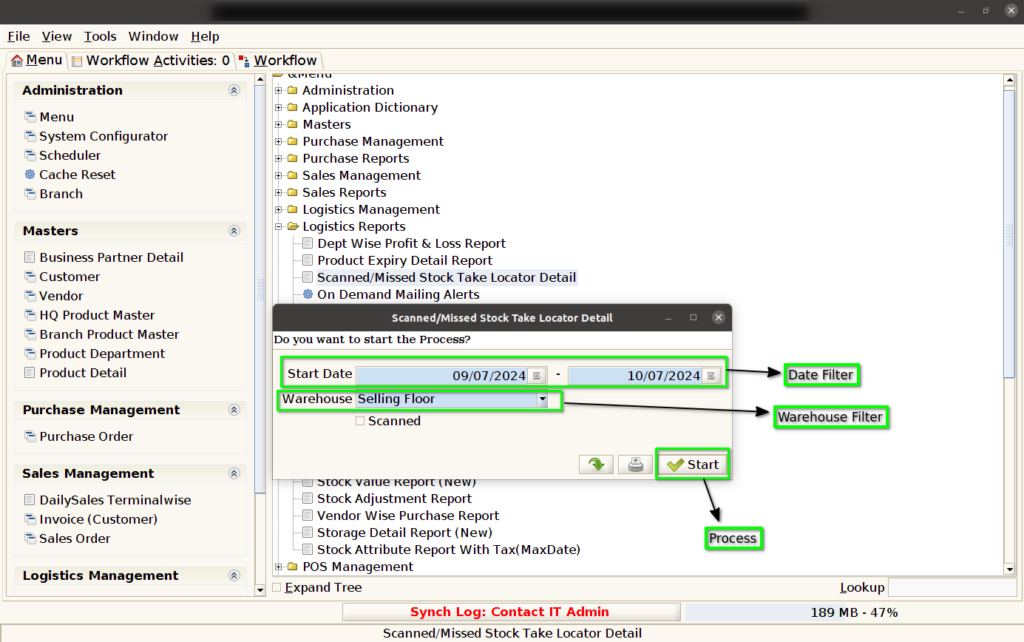
Step 2: After opening the report, you will see options to choose the “From” date, “To” date, and “Warehouse” for generating the report.
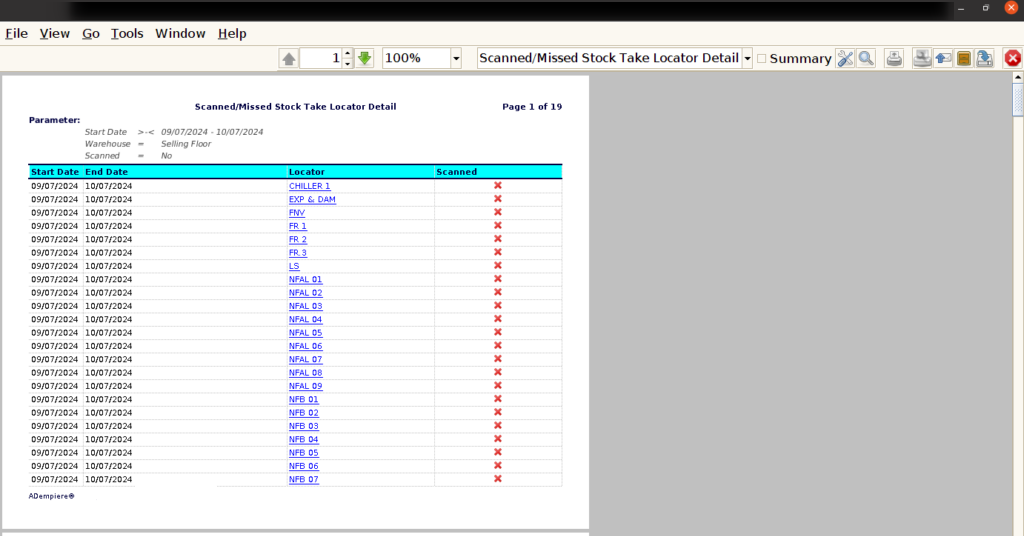
The report will look like below image shown
1.Start Date
2.End Date
3.Locator
4.Scanned