How to set selected Category of Products for Loyalty Points Calculation in ADempiere Retail
This function allows the system to calculate loyalty points only for products that belong to selected categories. Points will be awarded to the customer only when they purchase products from these specific categories.
User Access
Who Can Access
- Admin
- Manager
- Cashier
- Back office
What User Can Do
- Create
- Update
Pre-Requisite Activities
- Product categories must be defined in the Product Master
- Products should be properly mapped to their categories
- Loyalty program must be enabled in the system
- Point calculation formula or percentage must be configured
- POS should be updated to reflect loyalty settings
Business Rules
- Only products from selected categories will earn loyalty points
- System will ignore excluded categories even if they are billed
- Changes in category eligibility should not affect past transactions
- Customer must be linked to a valid loyalty account to earn points
- Loyalty point rounding should follow configured rules (e.g., floor/ceil)
User Interface
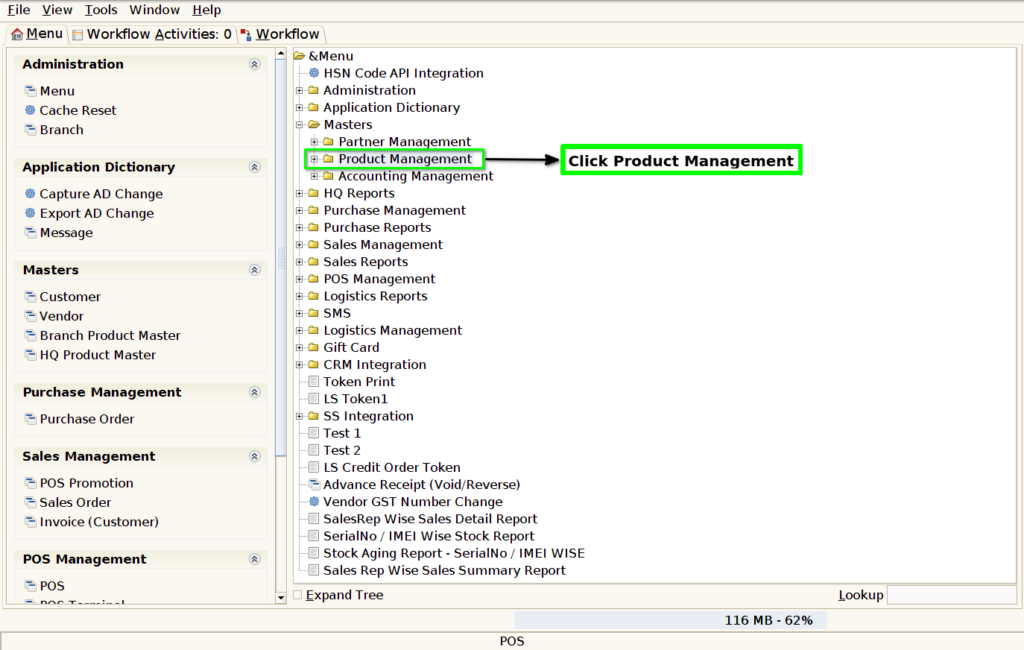
STEP 1: Click Master Folder.

STEP 2: Click Product Management Folder.
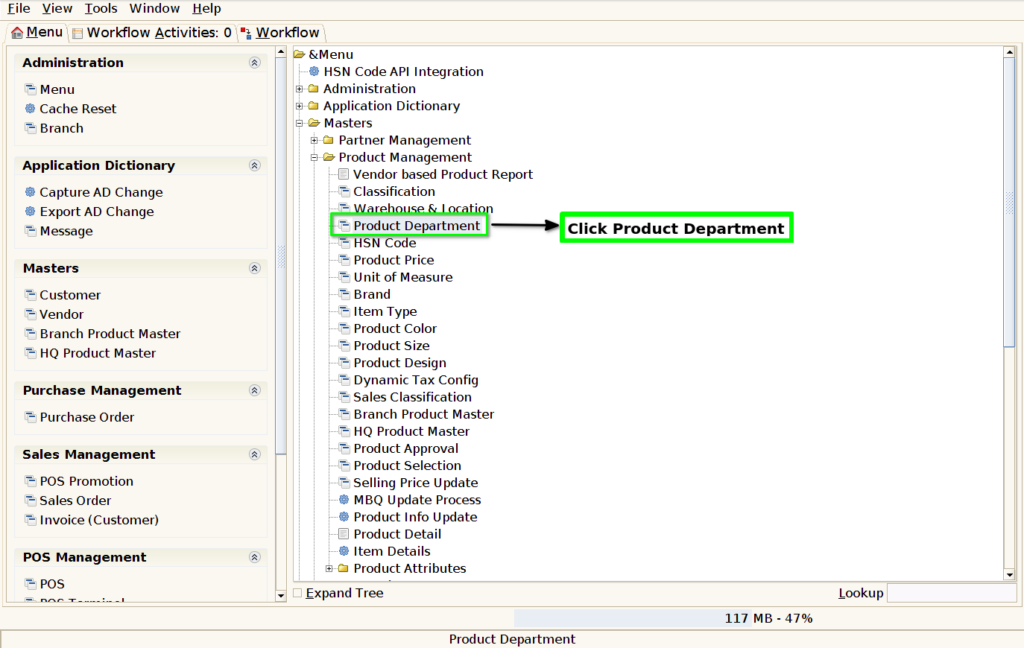
STEP 3: Click Product Department.
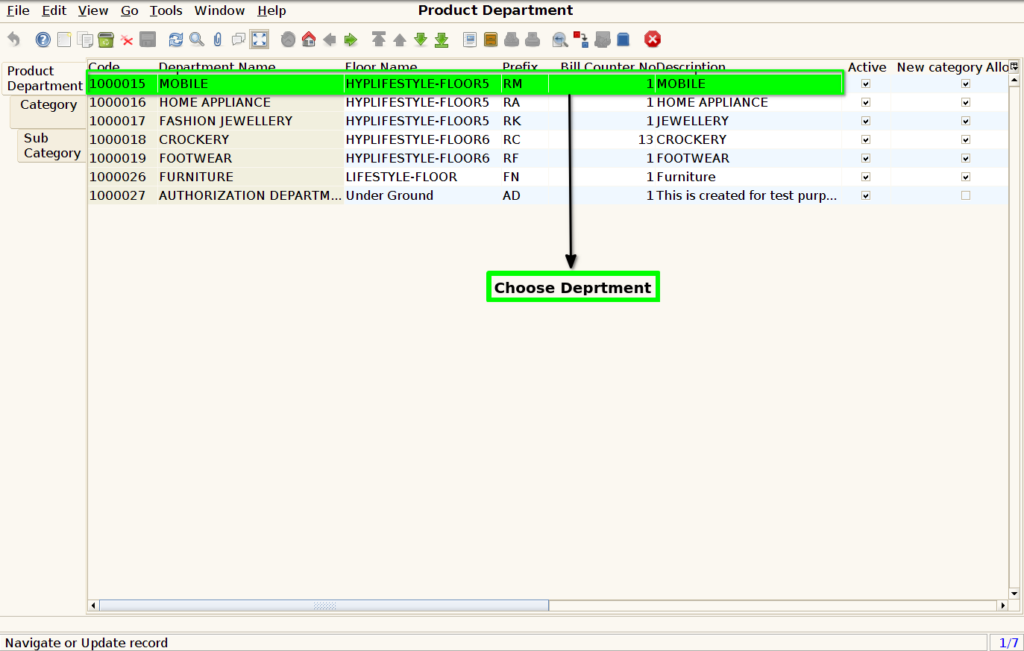
STEP 4: Choose Department.
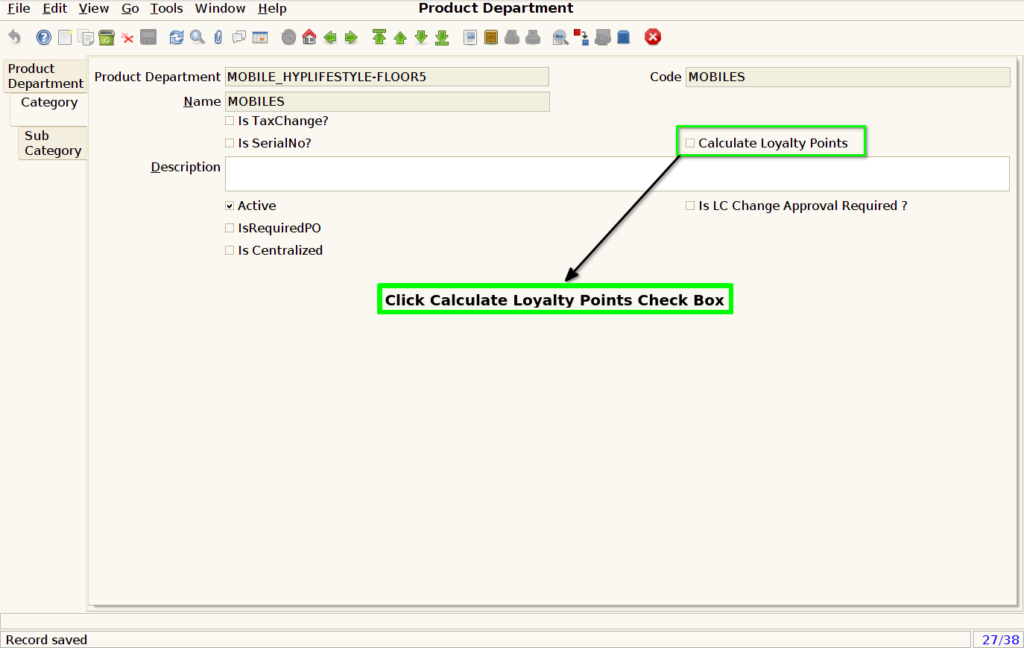
STEP 5: Choose Category.

STEP 6: Click Enable Loyalty Points Check Box.
STEP 7: Click Save Button.
