How to view Total Sales Report in Adempiere Retail
A Total Sales Report (New) shows the overall sales amount for a specific period, combining all transactions.
User Access
Who Can Access
- Admin
- Cashier
- Sales Manager
- Manager
What User Can Do
- Get Overall Sales Summary
- Track Business Performance
- Prepare Reports for Management
- Reconcile with Accounting
Pre-Requisite Activities
- Get Overall Sales Summary
- Track Business Performance
- Prepare Reports for Management
- Reconcile with Accounting
Business Rules
- Include All Valid Sales
- Exclude Cancelled or Refunded Sales
- Accurate Date and Time Filtering
- Real-Time or Scheduled Updates
User Interface
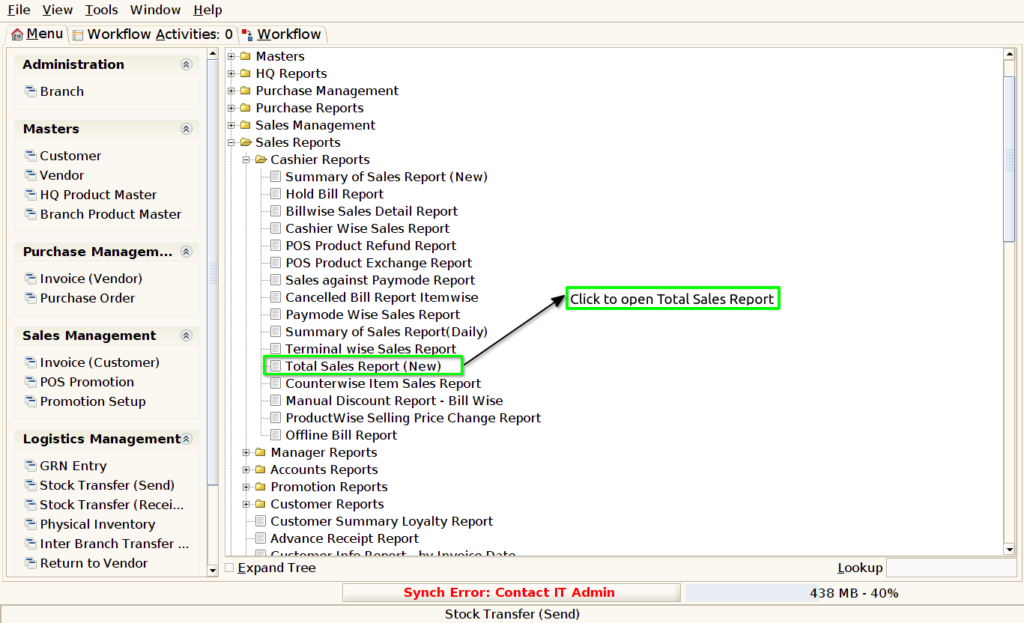
Step 1 : Select ‘Total Sales Report’ in Menu -> Sales reports > Cashier report > Total Sales Report or Search Total Sales Report in Lookup.
Step 2 : Select the date range and open the Total Sales Report.

Step 3 : To view a preview of the Total Sales Report

Date : Showing the date in the Total Sales Report is crucial for tracking sales performance over specific periods, enabling businesses to identify trends, seasonal variations, and peak sales times.
Discount amount : Showing the discount amount in the Total Sales Report is important for
understanding the impact of promotional strategies on overall sales
performance.
Round-off : Showing the round-off amount in the Total Sales Report is important for maintaining accuracy in financial reporting and ensuring that the figures presented are clean and easily interpret able.
Total paid amount : Showing the total paid amount in the Total Sales Report is essential for providing a clear representation of actual revenue received by the business during a specific period.
Bill count : Showing the bill count in the Total Sales Report is important as it provides insight into the volume of transactions conducted within a specific period.
Average Bill : Showing the average bill amount in the Total Sales Report is essential for assessing customer spending behavior and the overall effectiveness of sales strategies.