How to create Denomination Mode in Adempiere Retail
Denomination Mode is a feature used in billing or POS systems to count cash based on currency notes and coins.Instead of entering the total cash amount manually, the cashier enters how many notes/coins of each value are received.
User Access
Who Can Access
- Admin
- Back Office
- Purchase Manager
- Manager
What User Can Do
- Enter the number of notes and coins
- View the calculated total cash amount
- Compare system cash vs physical cash
- Save the denomination entry
- Print and export denomination report
- Submit cash for handover/deposit
- Re-enter or edit denominations (if allowed)
Pre-Requisite Activities
- Cash Register / Counter Must Be Open
- Cashier Must Have Access / Permission
- All Billing Activities Must Be Completed
- Cash Should Be Counted Physically
- Previous Day’s Settlement Must Be Completed
- All Payments Must Be Updated
Business Rules
- Only valid denominations allowed
- Negative values not allowed
- Difference must be recorded if mismatch
- Once submitted, entry may not be editable
- User must close shift/day before generating reports
- If cash variance exceeds limit, system may alert
User Interface
STEP 1: To click a Denomination Mode in Menu.

STEP 2: To show the document.

STEP 3: To click a POS screen in Menu.

STEP 4: To open a POS screen.

STEP 5: To enter a value and to search a product.

STEP 6: Once to enter a products to click f4 option for payment.

STEP 7: To open the payment screen and to enter a payment value.Finally to click a check box.
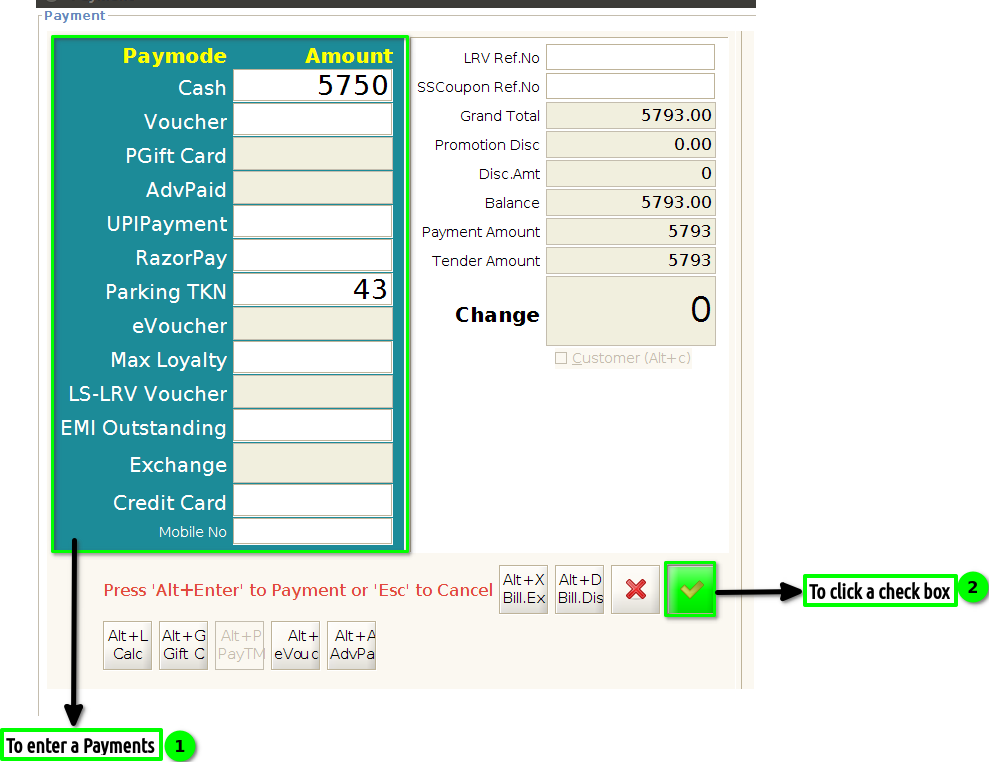
STEP 8: Once to complete a Payment to click f7 option for denomination screen.

STEP 9: To open a denomination screen to enter the values we used cash and parking token payments only used.So we enter the cash value and to enter a parking token value.Once to click parking token couldn’t enable then again to enter the right arrow option to show the popup.

STEP 10: To enter the value and to click the check box.
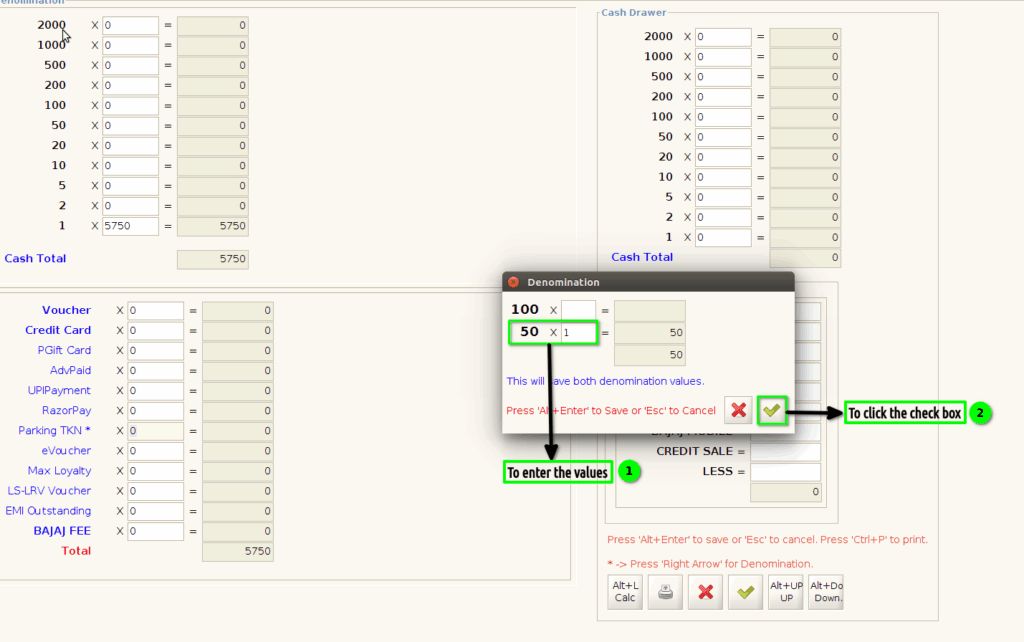
STEP 11: Once to complete the process to update the parking token value.To click the check box and then to click a print option.

STEP 12: To show the Denomination print.

STEP 13: To click a pay mode Screen in menu.

STEP 14: To show the Payment types.Parking token only used for Denomination mode.
