How to setup Organisation Info in Branch screen in ADempiere Retail
Organisation Setup means entering and configuring the core company or business details in the system. This setup defines how the company will appear and behave within the software—covering name, address, GST details, financial year, and default settings.
User Access
Who Can Access
- Admin
- Back office
- Manager
What User Can Do
- Update
- Activate
- De-Activate
Pre-Requisite Activities
- Collect all legal and financial details (GSTIN, PAN, etc.)
- Finalize company structure (branches, departments)
- Decide on financial year and default currency
Business Rules
- Each organization must have a unique GSTIN
- Company details must be entered before other setups (branches, POs, etc.)
- Financial year cannot be changed mid-period without proper controls
- Only authorized users can edit organization setup
User Interface
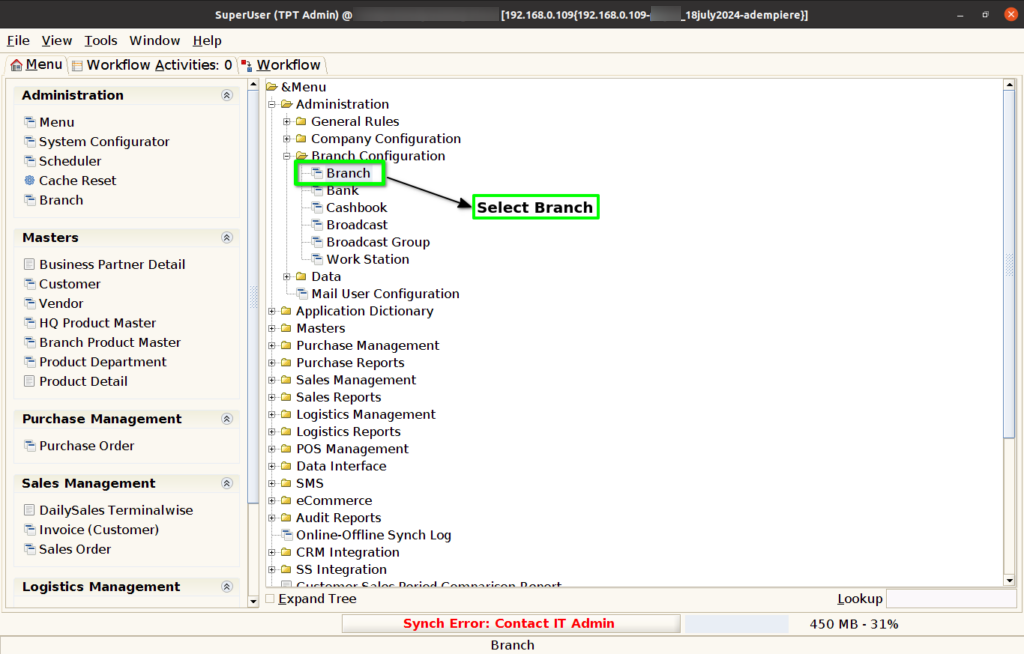
Step 1 : Select ‘Branch’ in Menu Branch Configuration -> Branch or Search Branch in Lookup.
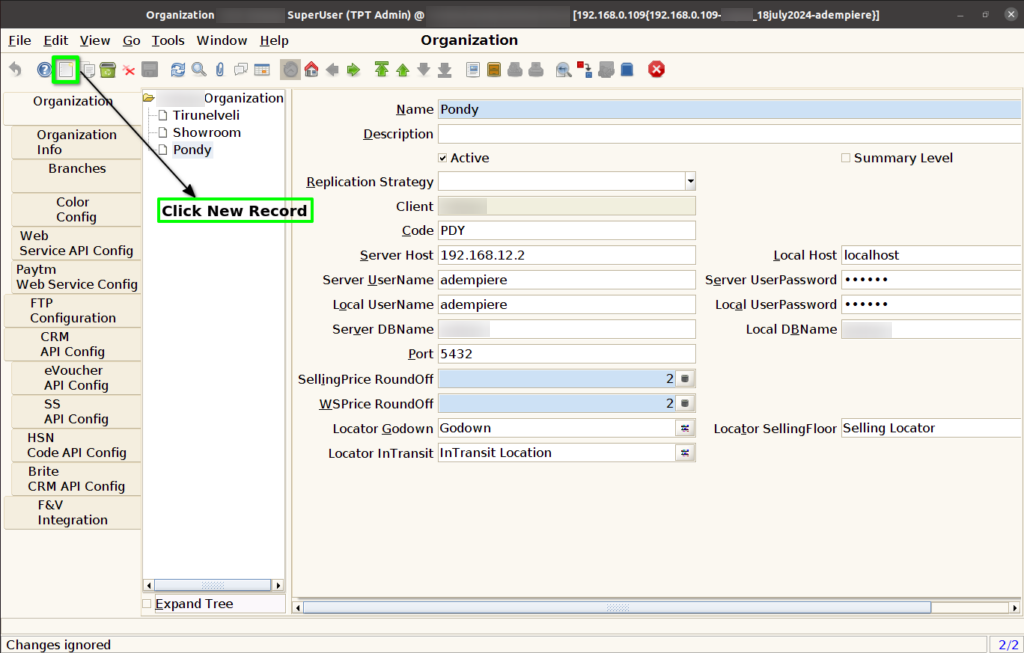
Step 2 : In Organization Tab, Click “New Record” button.
Step 3 : Enter Name of the organization, Code, Server Host and Port Number.
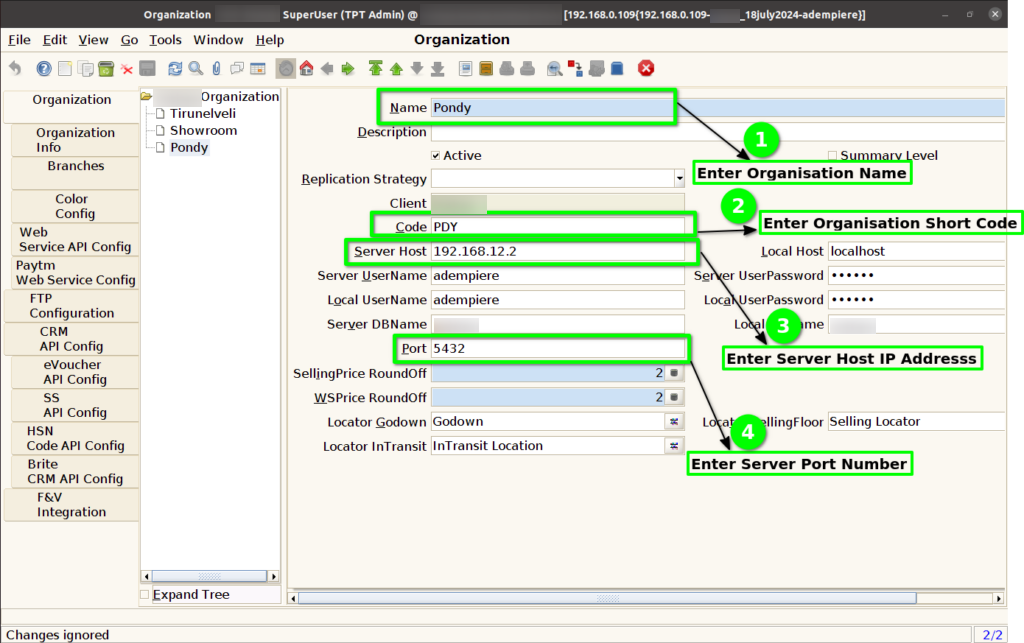
Step 4 : Enter Selling Price Round off digit and WS Price Round off digit.
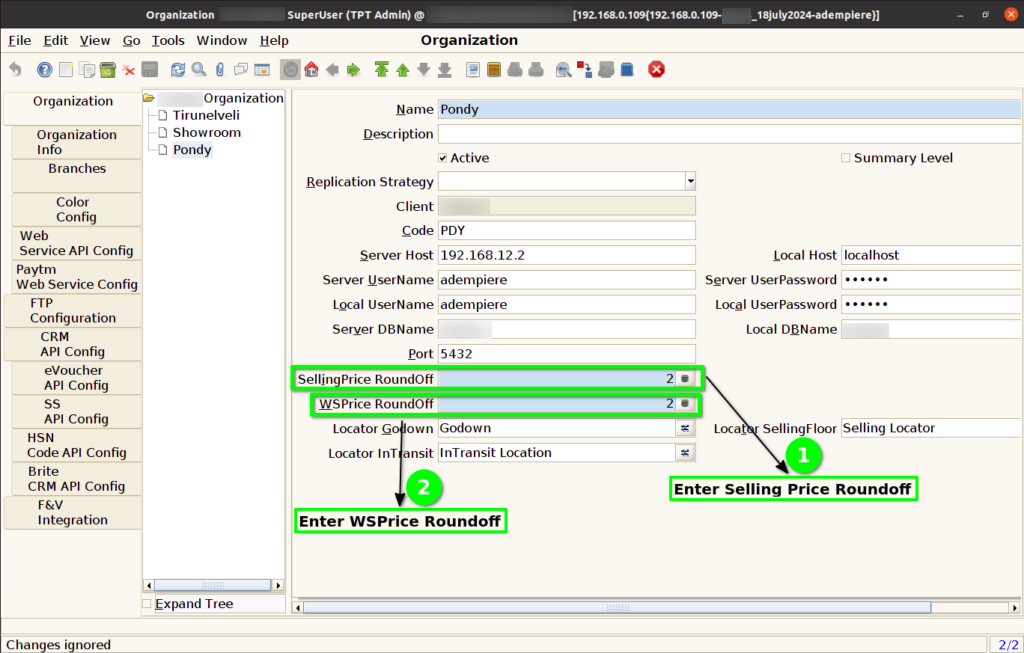
Step 5 : Enter Warehouse Locator information for Selling Floor, Go down, In Transit.

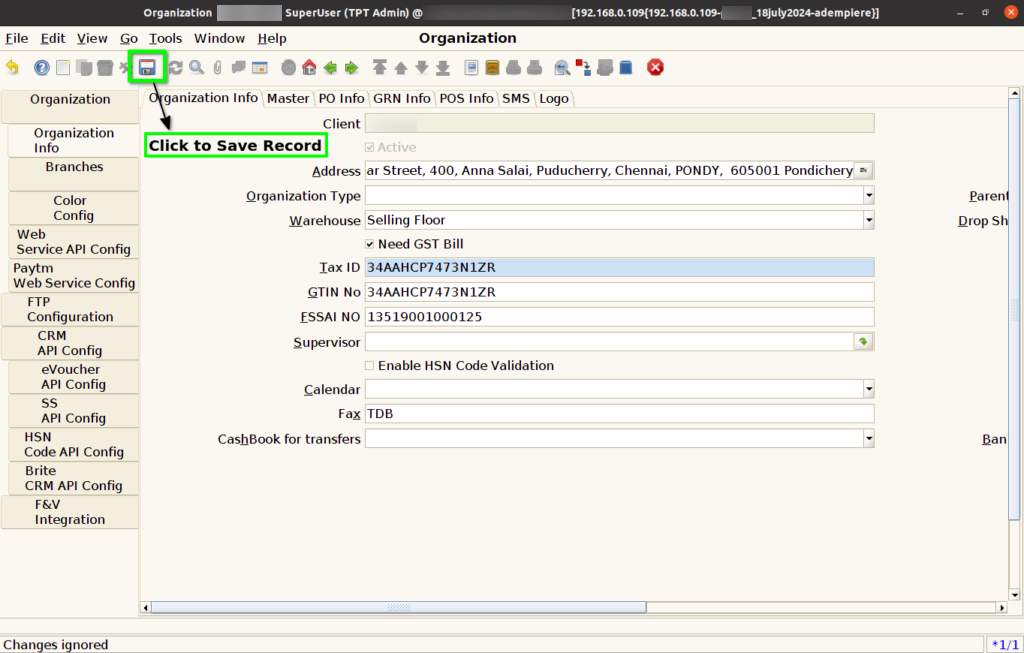
Step 6 : Click to Save Record.

Organization Info Tab
Step 7 : Click Organization Info Tab and click New Record.
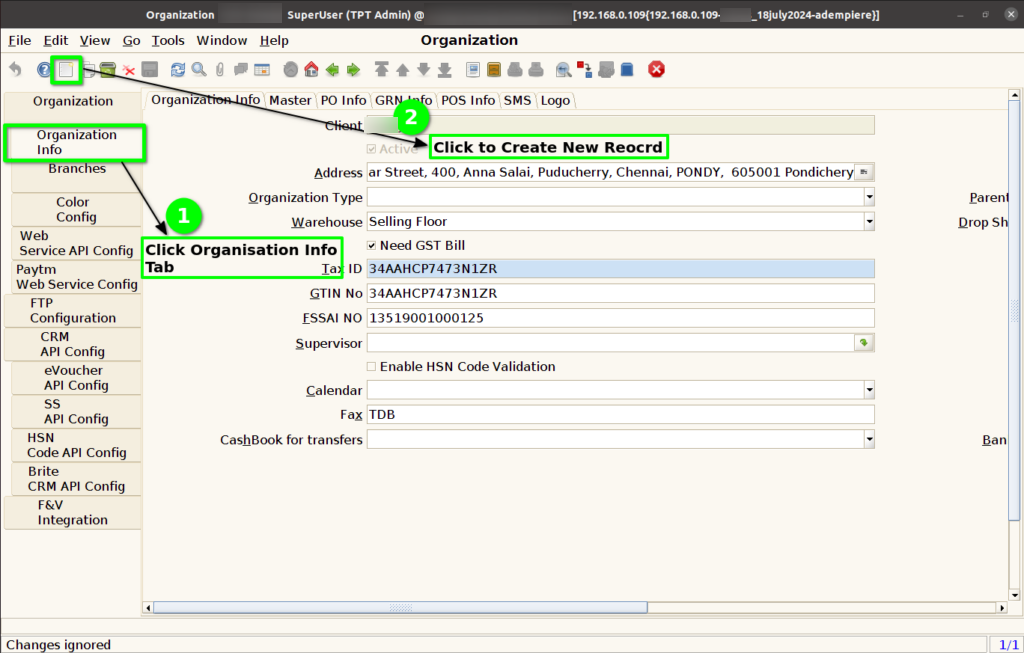
Step 8 : Click to enter the Address of the Organization.
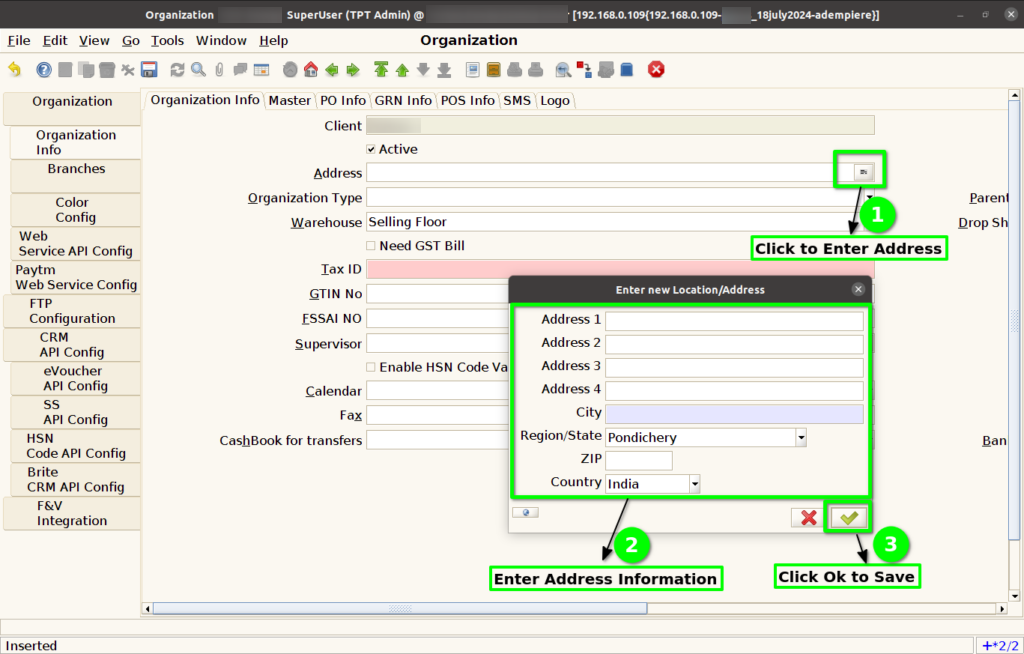
Step 9 : Enter GSTIn No and FSSAI No for the Organization.

Step 10 : If select Check box for Need GST Bill and Enable HSN Code Validation based on user needs.
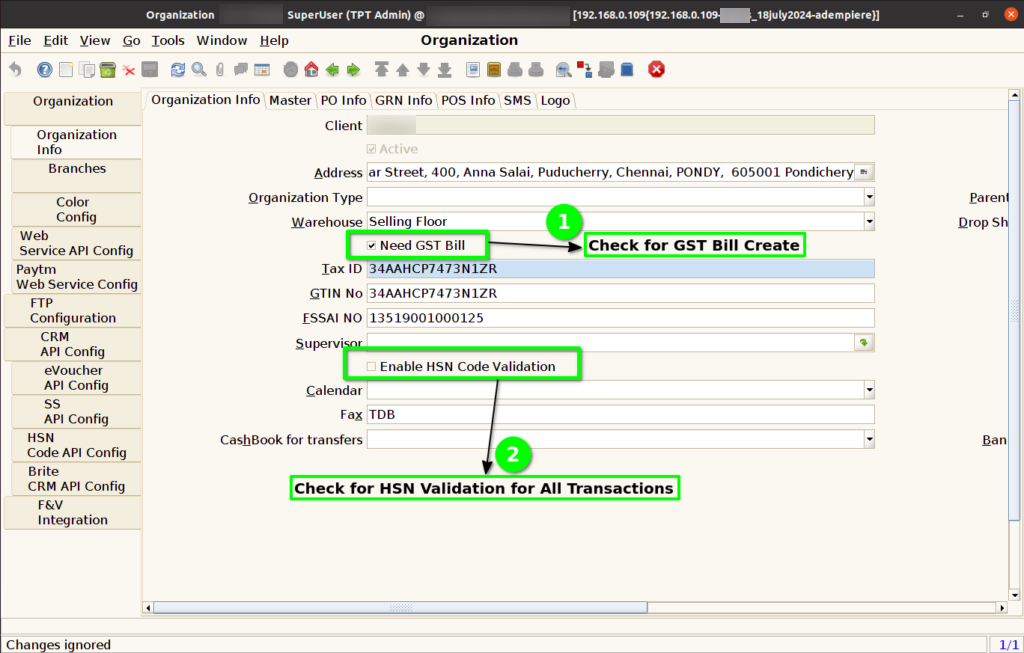
Step 11 : Enter CIN Number(Only for LS).

Step 12 : Click to Save Record.