How to view Department Wise Sales Report in Adempiere Retail
A Department Wise Sales Report shows the total sales made by each department in a store or business over a selected period.
User Access
Who Can Access
- Admin
- Head cashier
- Sales Manager
- Manager
What User Can Do
- Monitor Sales Performance by Department
- Identify Top and Low Performing Departments
- Identify Top and Low Performing Departments
Pre-Requisite Activities
- Products Assigned to Departments
- Sales Data Captured Accurately
- Date and Time Configuration
Business Rules
- Each Product Must Belong to One Department
- Support Multi-Location or Store Views (if applicable)
- Exclude Non-Sales Transactions
- Sales Grouped by Department and Period
User Interface
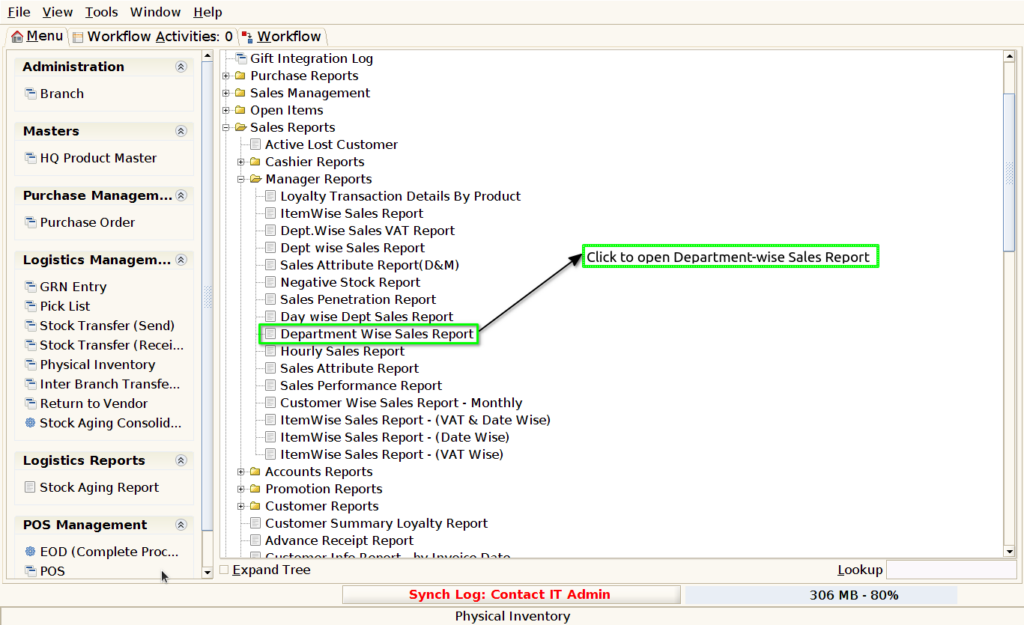
Step 1 : Select ‘ Department-wise Sales Report’ in Menu -> Sales reports > Manager report > Department-wise Sales Report or Search Department-wise Sales Report .
Step 2 : Select the date to open the Department-wise Sales Report.

Step 3 : To view a preview of the Department-wise Sales Report .
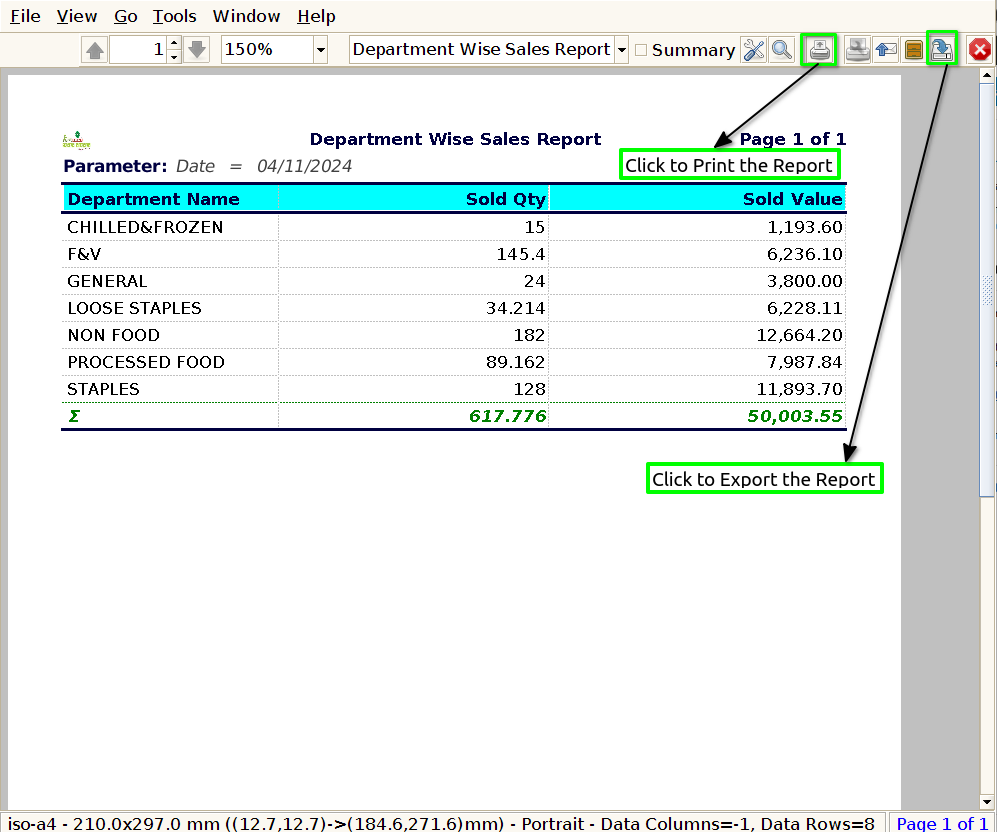
Department Name : To show the Department Name in a Department-wise Sales Report, you simply need to include a column or section where each department’s name is clearly displayed.
Sold Quantity : To show Sold Quantity in a Department-wise Sales Report, you simply need to add a column that tracks the total quantity of products sold for each department.
Sold Value : To show Sold Value in the Department-wise Sales Report, you would include a column that tracks the total value of goods sold for each department. This is distinct from Sales Revenue because Sold Value refers to the total value of products sold before any discounts, returns, or allowances are applied.