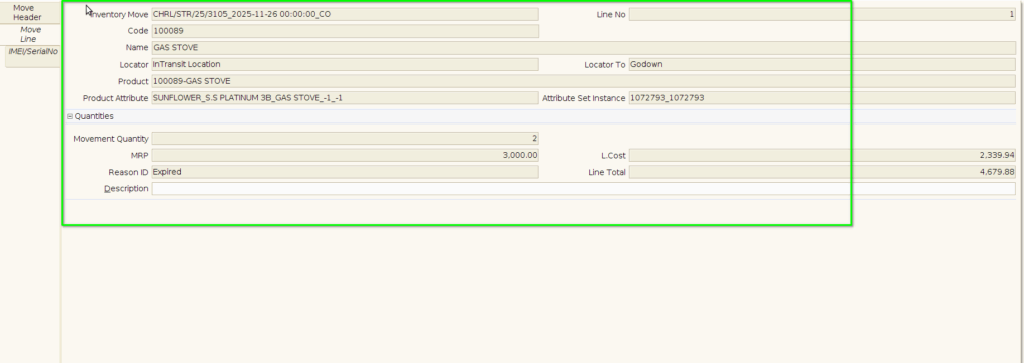
How to create Stock Transfer Receive document using HHT in Adempiere Retail
Stock Transfer Receive (HHT) means the process of receiving items in your store that were sent from another store or warehouse, using a Handheld Terminal (HHT) device.
User Access
Who Can Access
- Admin
- Cashier
- Manager
- Back office
What User Can Do
- View the list of incoming stock transfers
- Select the transfer they want to receive
- Scan items using HHT
- Enter or confirm quantities received
- Save and complete the receiving process.
Pre-Requisite Activities
- Sending location must complete Stock Transfer Send
- Items must be physically shipped to receiving branch
- HHT device must be synced
- User must be logged in with correct branch/location
- Transfer document must be in “In-Transit” status
Business Rules
- Only “In-Transit” transfers can be received
- User must scan items before completing the receiving
- Sent vs Received quantity must be validated
- Only mapped/barcoded items can be received
- User must have proper authorization
- System must update stock immediately after completion.
User Interface
Step 1 : To click a application on HHT Device then to login.
Step 2: To click a Logistics Management in Menu.

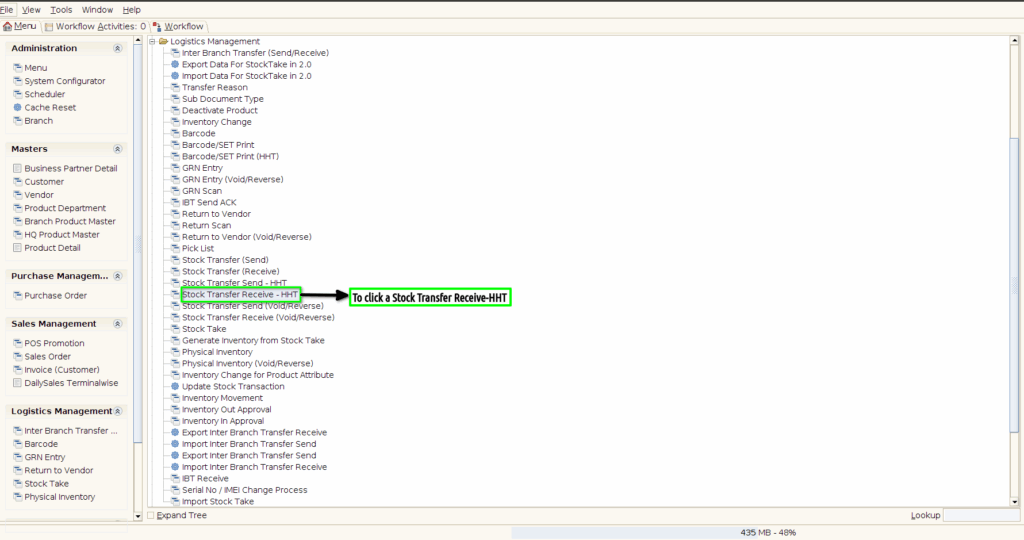
Step 3:To click a Stock Transfer Receive-HHT in Menu.
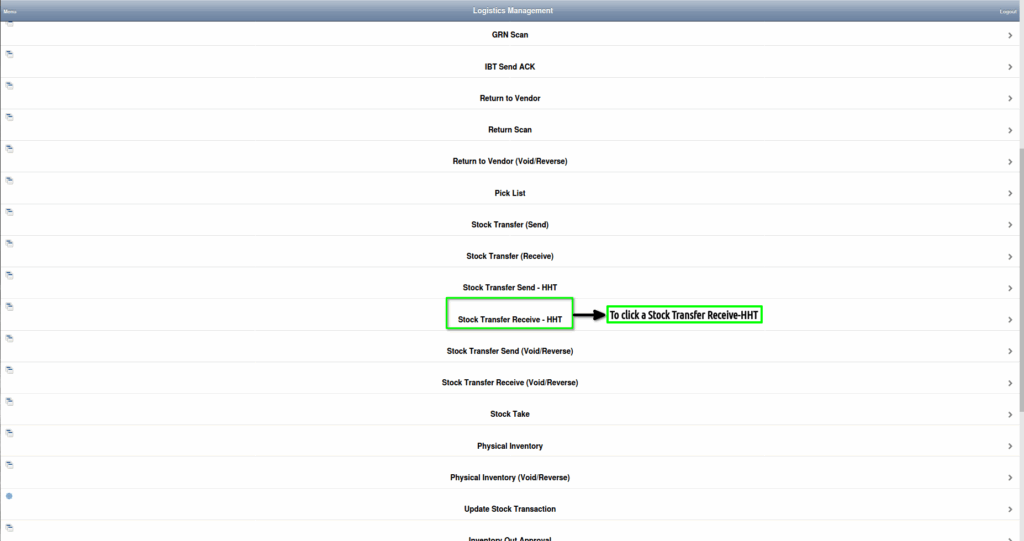
Step 4:To click a new record option and to enter the Dc no then to click save option.Once the document to save document no will generate automatically.To click a Copy lines Receive option.

Step 5: Once to click copy lines from transfer to select a document and then to click ok check box.
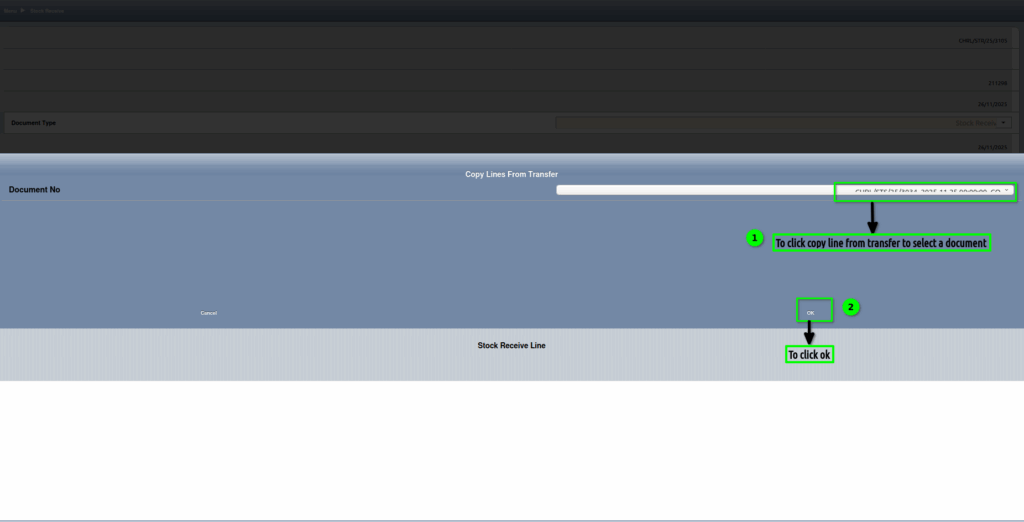
Step 6: To show the popup msg and then to click ok check box.Line level data will be updated.

Step 7: To click a Stock Receive line.

Step 8:To check the line level details.
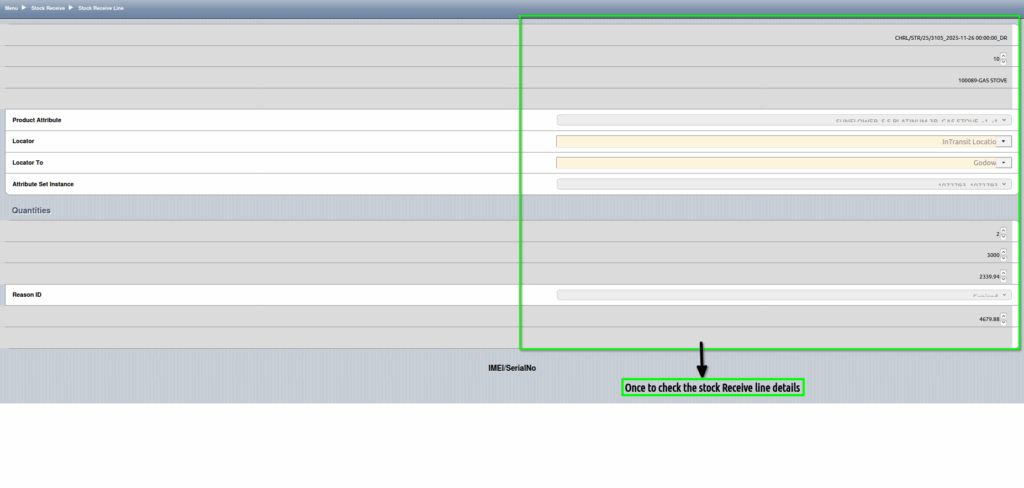
Step 9:To click the complete process.

Step 10:Once to complete the process to show close.

Step 11:To click the Stock Transfer Receive-HHT in Menu.
Step 12: Once to complete the Stock Transfer Receive-HHT device to synch the document in application.