How to Create Inter Branch Transfer Send document in Adempiere Retail
Inter Branch Transfer Send means,The process of sending or dispatching stock or inventory items from one branch to another to fulfill transfer requests.
User Access
Who Can Access
- Back Office
- Admin
- Cashier
- Manager
What User Can Do
- Create a Transfer Document
- Pick and Pack Items
- Scan or Verify Items
- Update Inventory Records
- Track Shipment Status
Pre-Requisite Activities
- Valid Transfer Request
- Check Stock Availability
- User Authorisation
Business Rules
- Authorised Users Only
- Approved Transfer Request Required
- Sufficient Stock at Sending Branch
User Interface
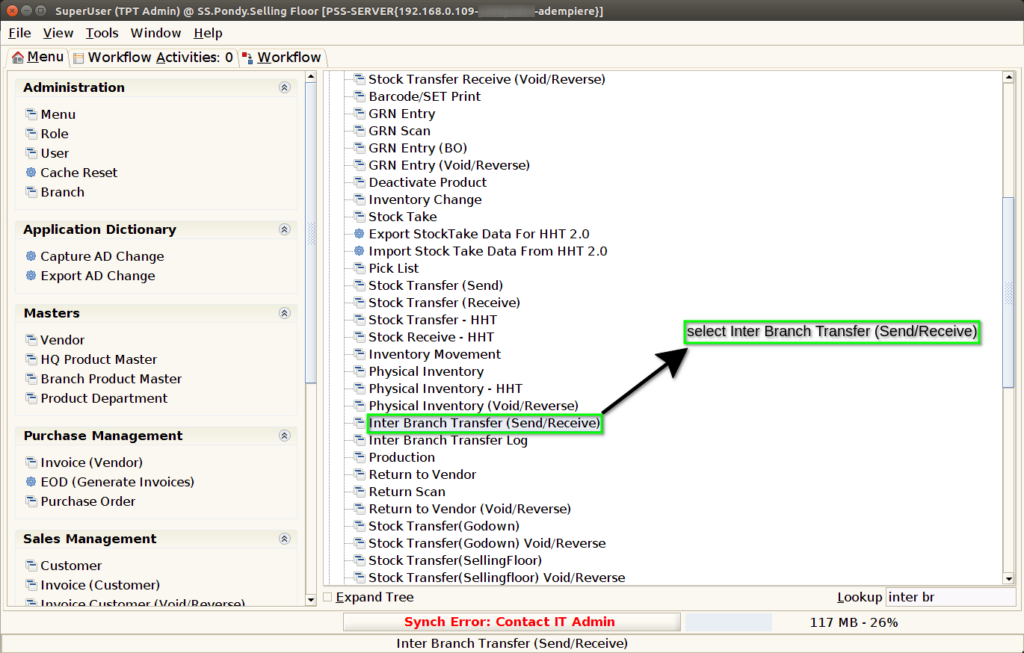
Step 1: Select ‘Inter Branch Transfer (Send/Receive)’ in Menu -> Logistics Management -> Inter Branch Transfer (Send/Receive) or Search Inter Branch Transfer (Send/Receive) in Lookup.
Step 2 : Click the ‘New Record’ button to create a new Product
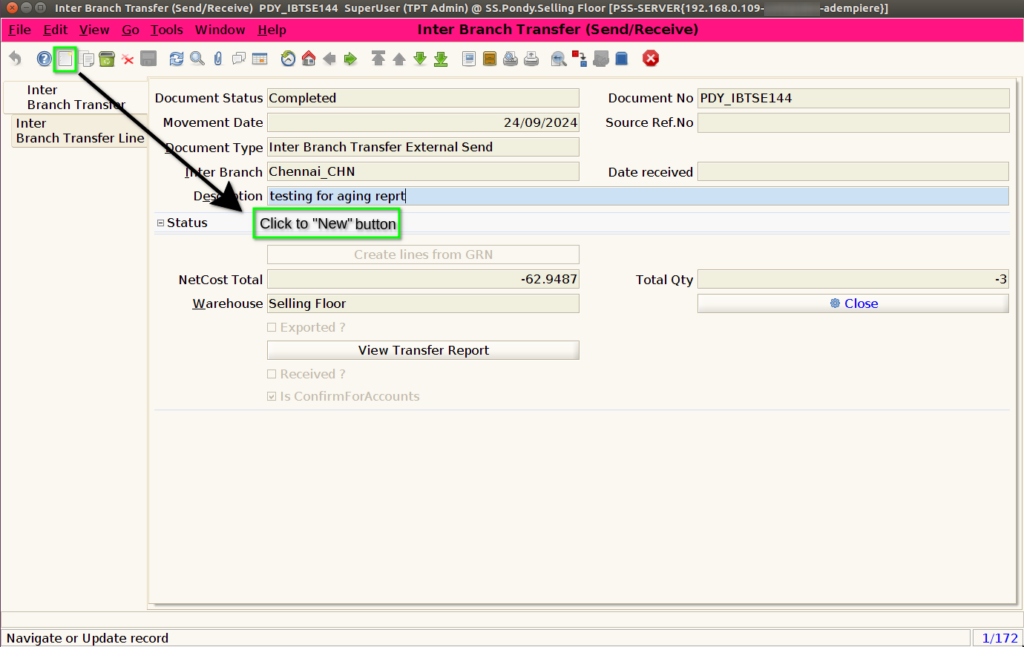
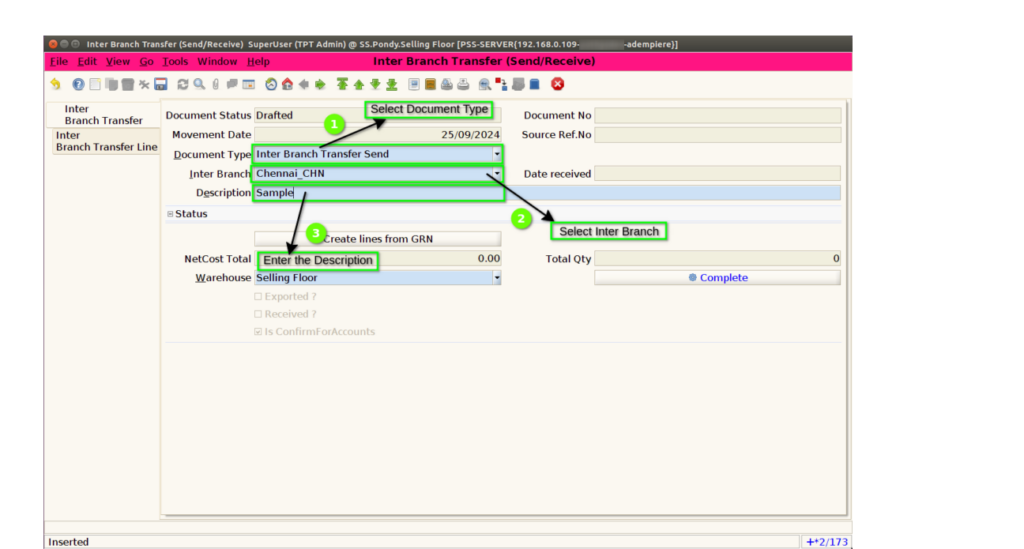
Step 3 : Choose the Document Type “Inter Branch Transfer Send” for same GST branch and choose the Document Type “Inter Branch Transfer External Send” for different GST branch, then choose the “Branch” where need to send the stock in “Inter Branch” field and enter the “Description“
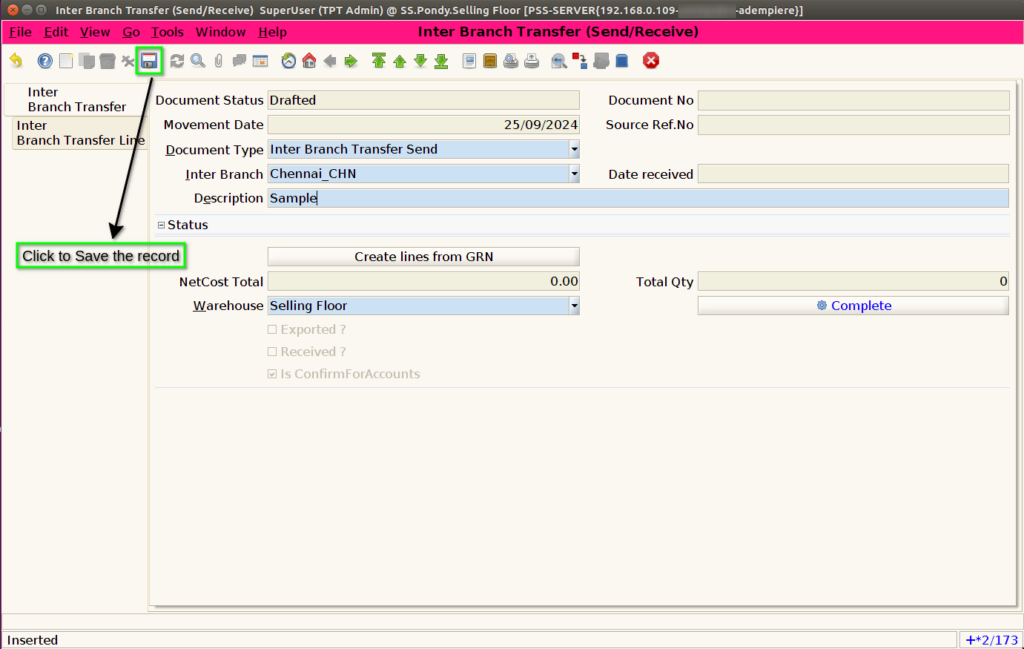
Step 4 : Click the “Save” button to save the Product
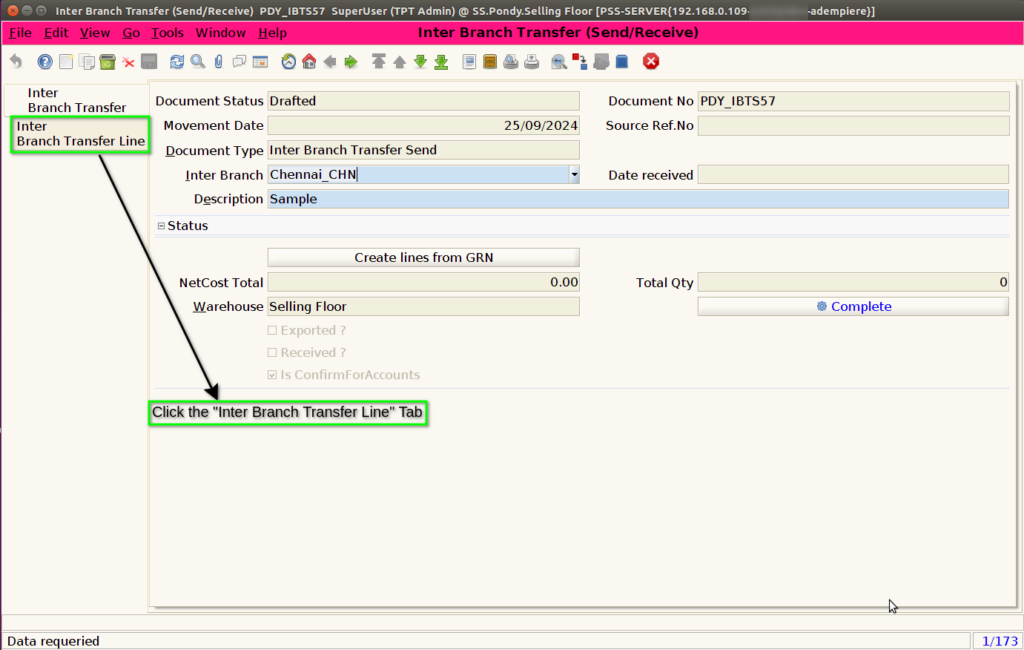
Step 5 : Click “Inter Branch Transfer Line” tab to select the Product
Step 6 : Click the icon to select the Product
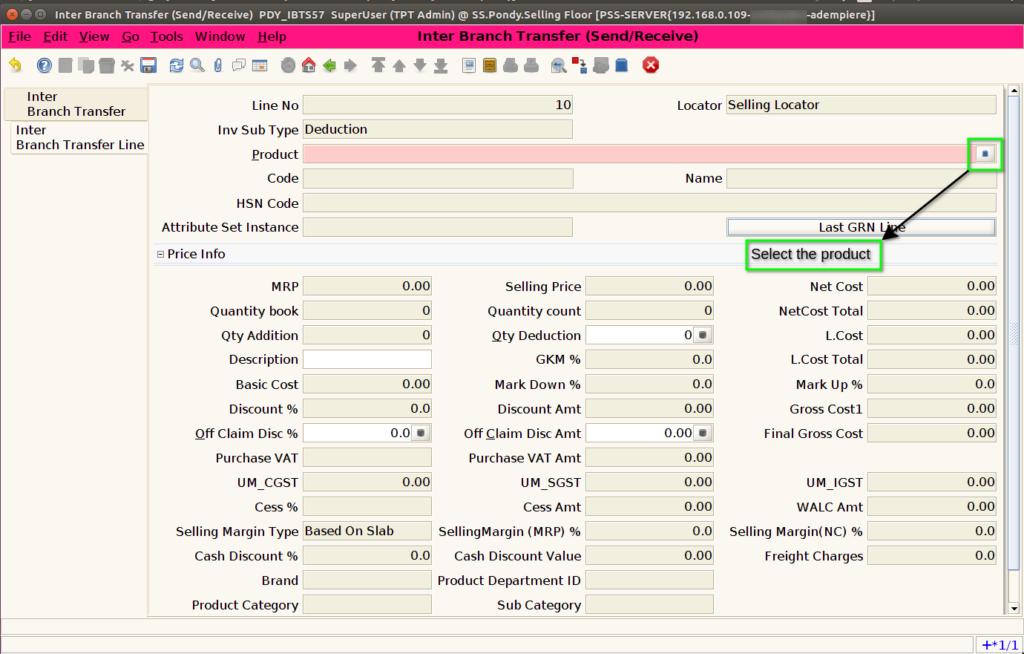
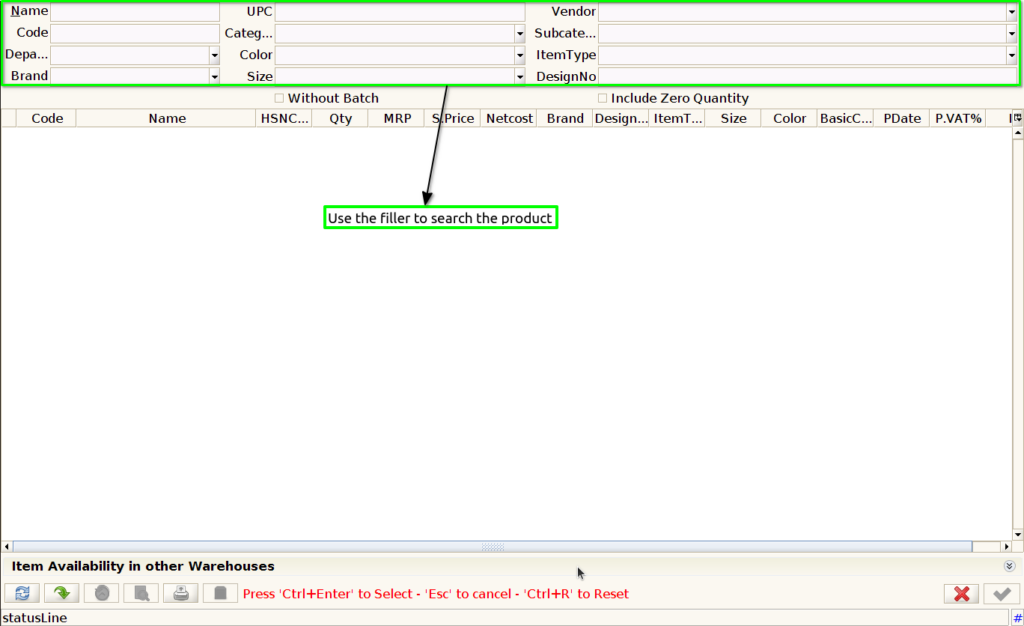
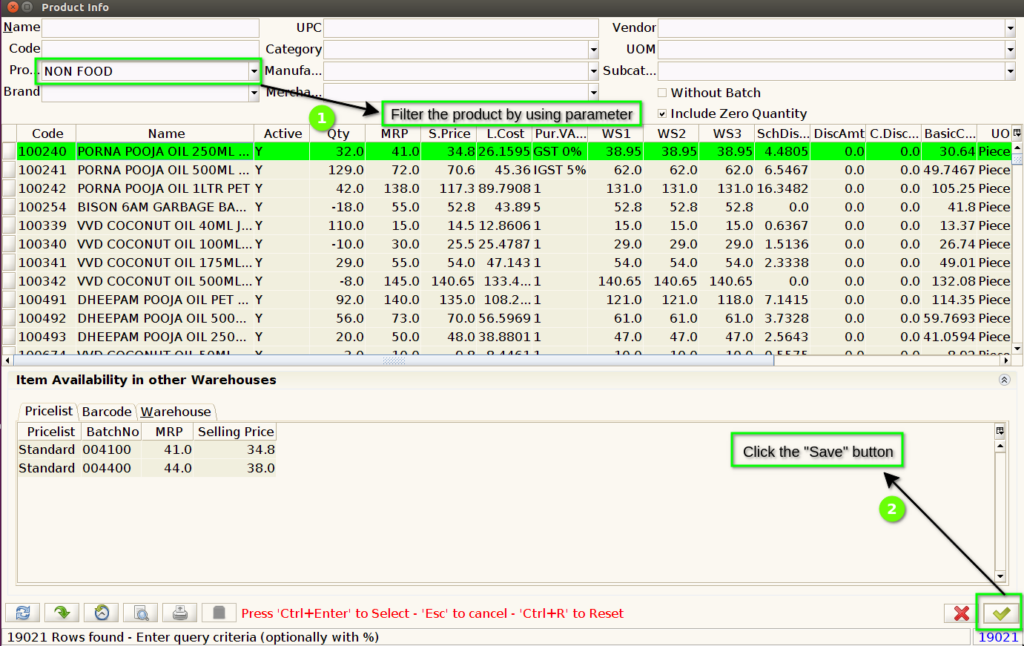
Step 7 : Select the product by filtering using the parameters
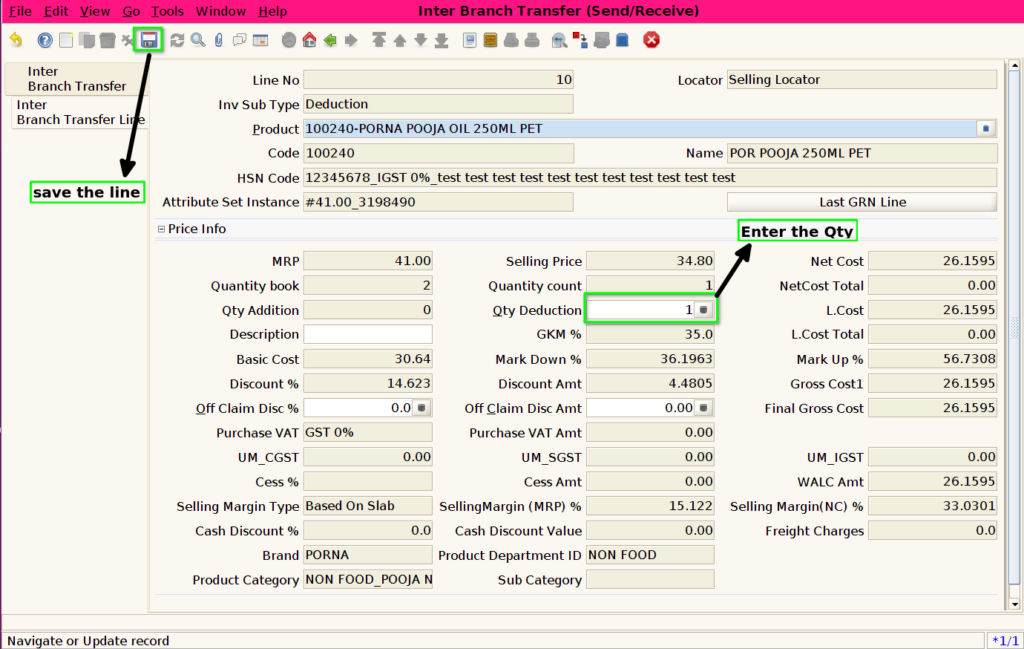
Load the Product using Create lines from GRN
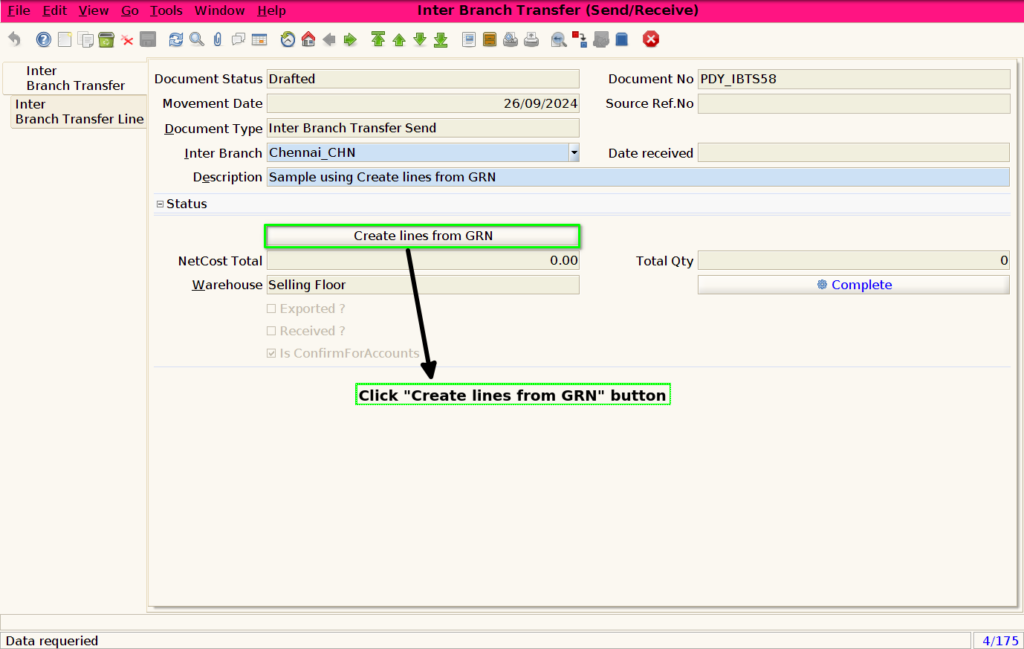
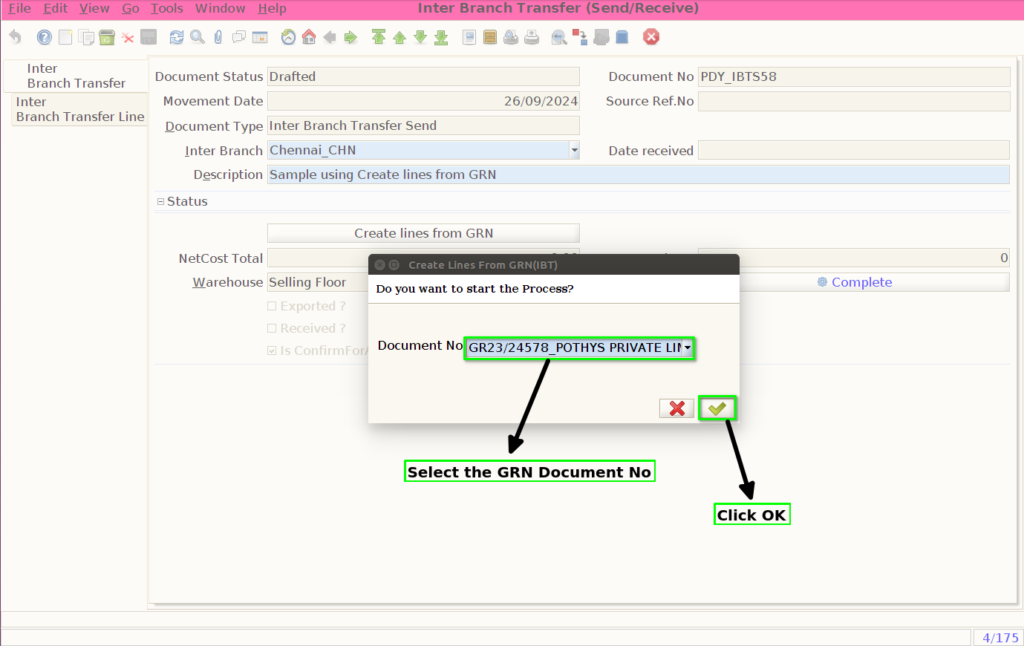
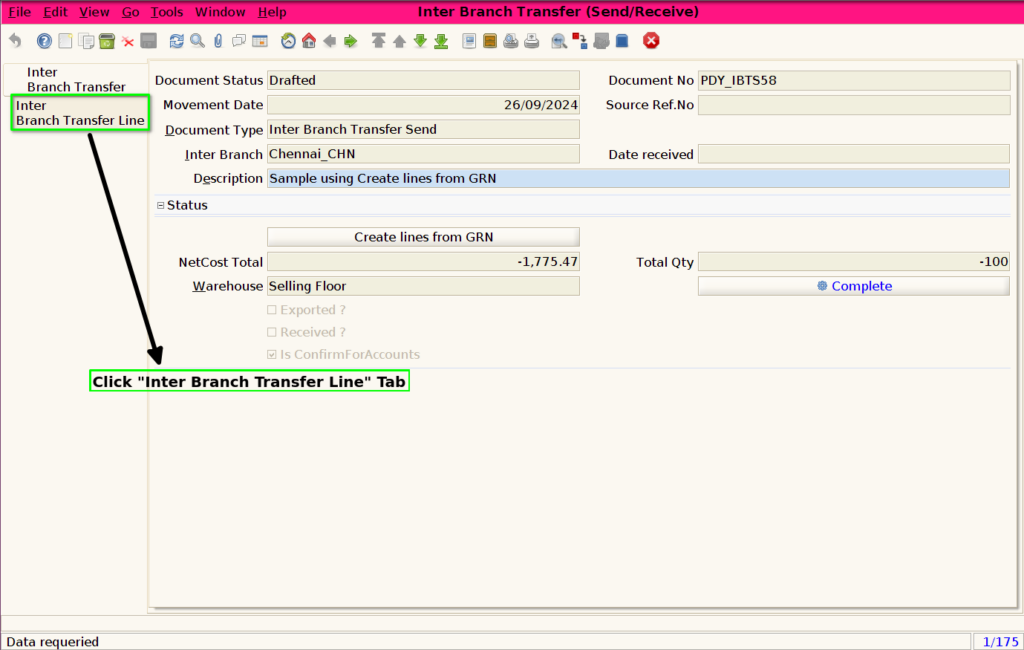
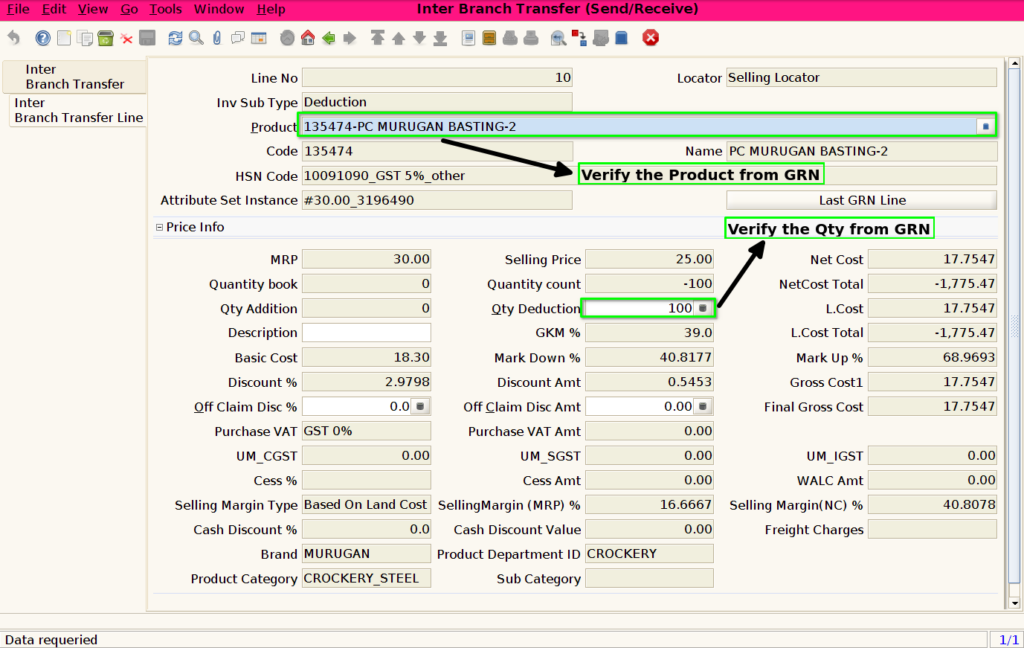
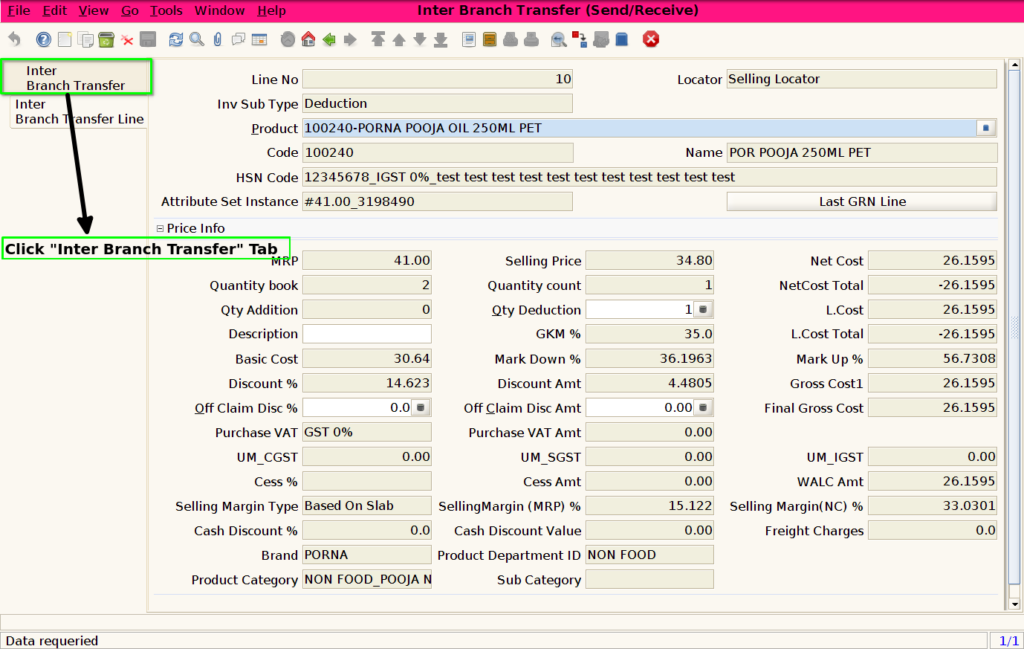
Step 8 : Click the “Inter Branch Transfer” Tab
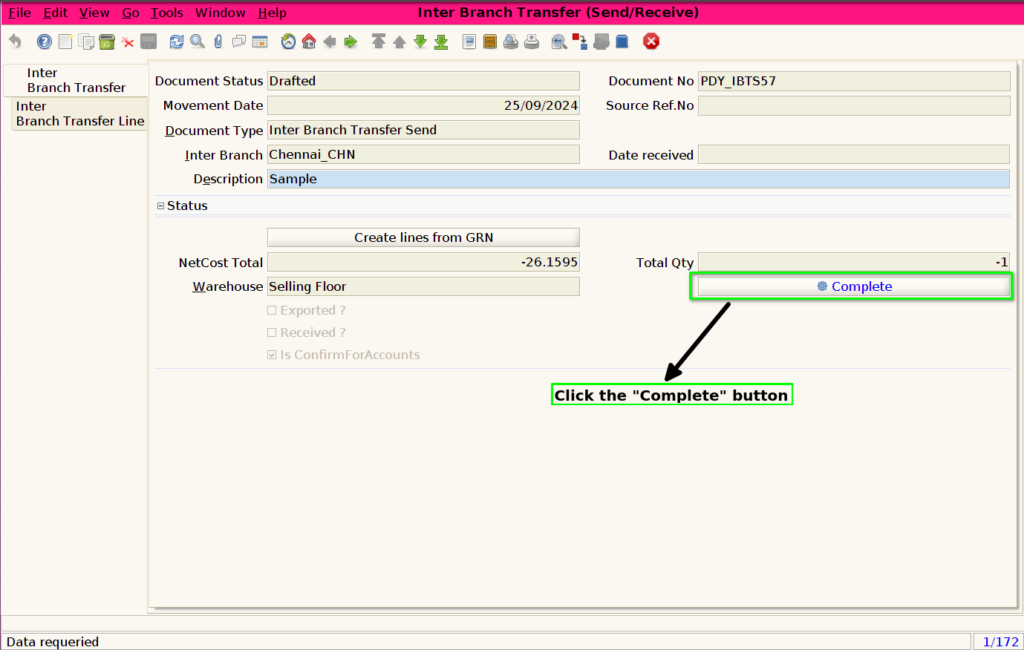
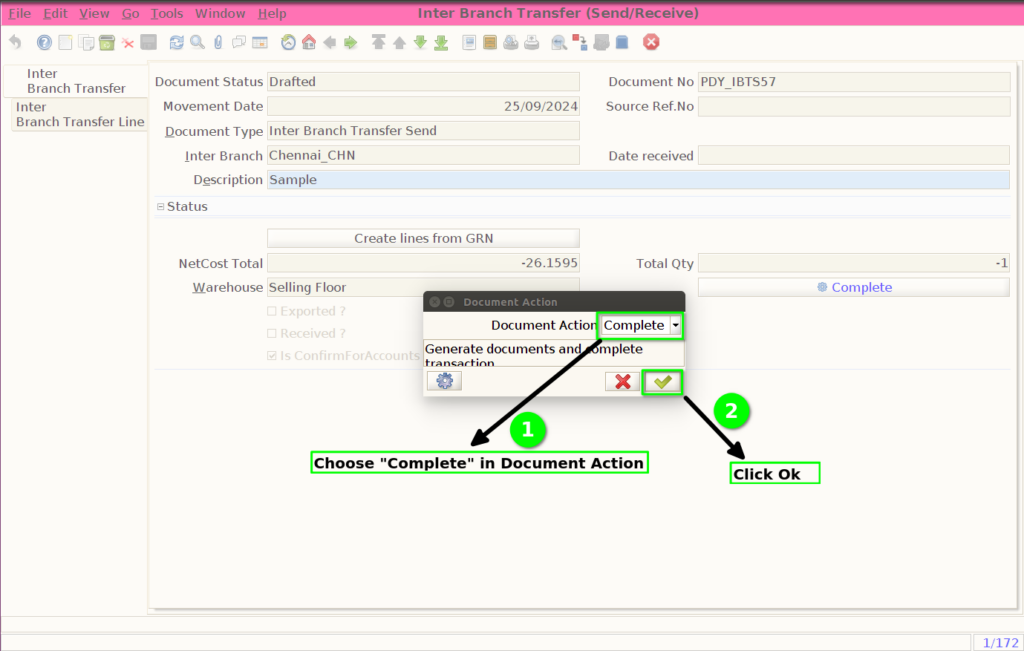
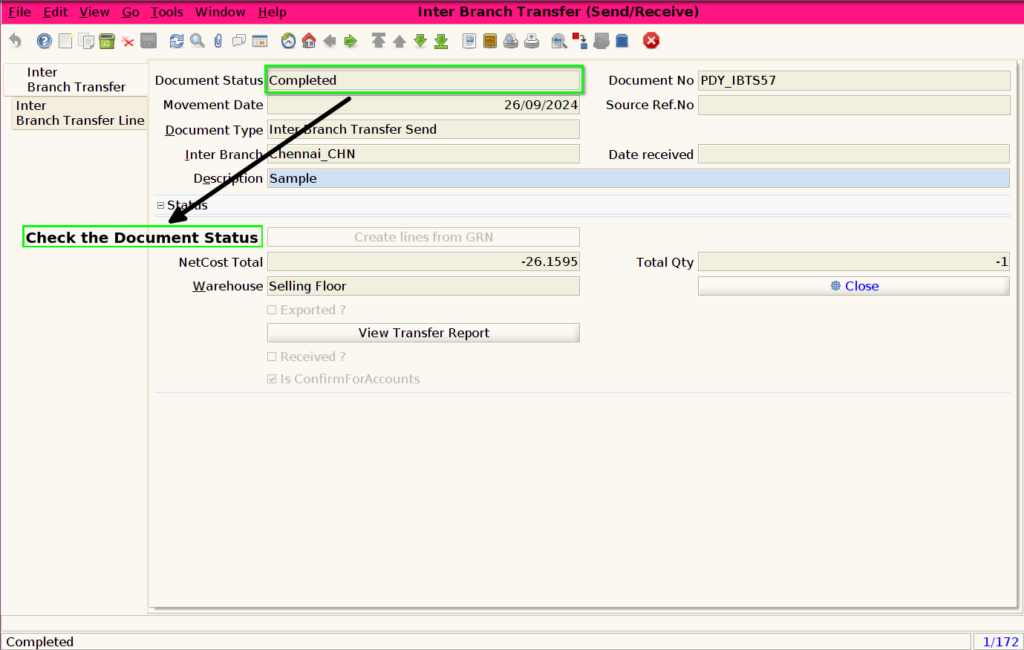
Step 9 : Complete the document