How to execute Goods Received Note Accounting Software Synch Rerun Process in Adempiere Retail
The GRN Entry SS Sync Rerun Process refers to re-triggering the data sync of Goods Received Note (GRN) entries from the local system (e.g., a store or POS) to the Accounting Software or ERP system, if the original sync failed due to network issues, system errors, or data validation problems.
User Access
Who Can Access
- Admin
- Cashier
- Manager
- Back Office
What User Can Do
- Identify failed or pending GRN sync entries
- Select GRN records that need re-synchronization
- Rerun the sync process manually for selected entries
- Verify whether the sync is completed successfully
- View sync logs or error reports for troubleshooting
Pre-Requisite Activities
- Ensure GRN is fully completed and approved
- Sales Server (SS) should be up and connected
- User must have access to perform re-sync
- Error logs or status flags must be reviewed before rerun
- Network and API configuration should be active
Business Rules
- Only GRNs with failed or missing sync status are eligible
- Duplicate sync should be avoided unless marked for rerun
- System must validate GRN data before sync
- Sync logs should be retained for audit trail
- Only authorized roles should have rerun access
User Interface
Step 1 : To select a GRN Entry SS Synch Rerun Process.

Step 2: To enter a GRN No or to enter the movement Date and to click the start check box.to run the process.

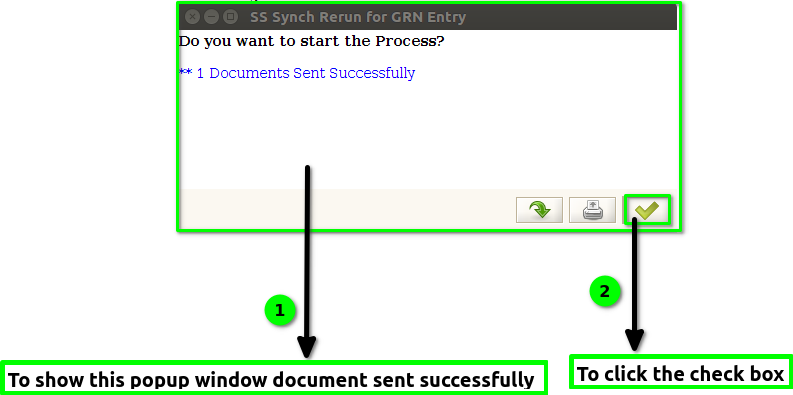
Step 3: Once to complete the process to show the popup window to show the count documents sent successfully.Once to complete the GRN document to synch GRN API Log.If u want again to synch the document to run the ss synch rerun process .Finally to click the check box.