How to run Generate Inventory from Stock Take process to create Stock Update documents in Adempiere Retail
Update the system inventory to match the actual counted stock.It means using the results of a physical stock count to correct and finalise inventory records in the system.
User Access
Who Can Access
- Back Office
- Cashier
- Manager
- Admin
What User Can Do
- Review Stock Take Results
- Generate and Post Inventory Updates
- Finalize the Stock Take
- Download or Print Reports
Pre-Requisite Activities
- Complete the Physical Stock Take
- Enter or Upload Count Data into the System
- Review and Validate Counted Data
- Freeze Inventory Transactions
- User Access and Approval Rights
Business Rules
- Stock Take Must Be Completed First
- Authorised Users Only
- Inventory Adjustments Are Final
- Notifications and Reporting
User Interface
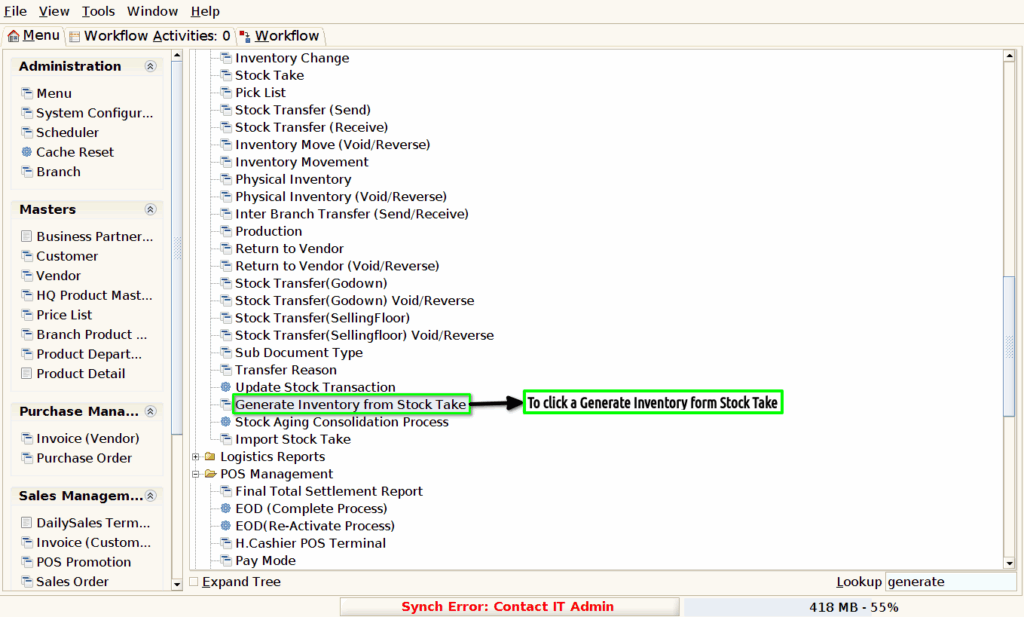
Step 1 : To Select a Branch in Menu.Then to click a Generate inventory from stock take.
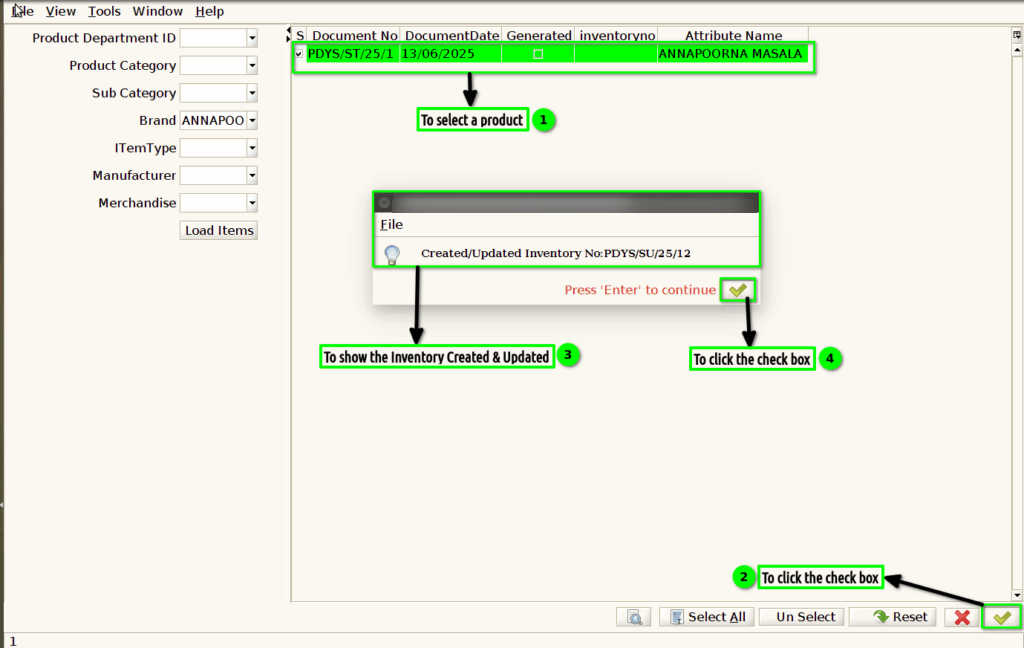
Step 2 :To enter the value for any of these parameters and to click a Load Items.Then to show a product based on the given data’s.

Step 3 :Once to show the product details from given data and to select the product to click the check box.Then to show the popup message for Inventory created or Updated Inventory no.Finally to click the check box.
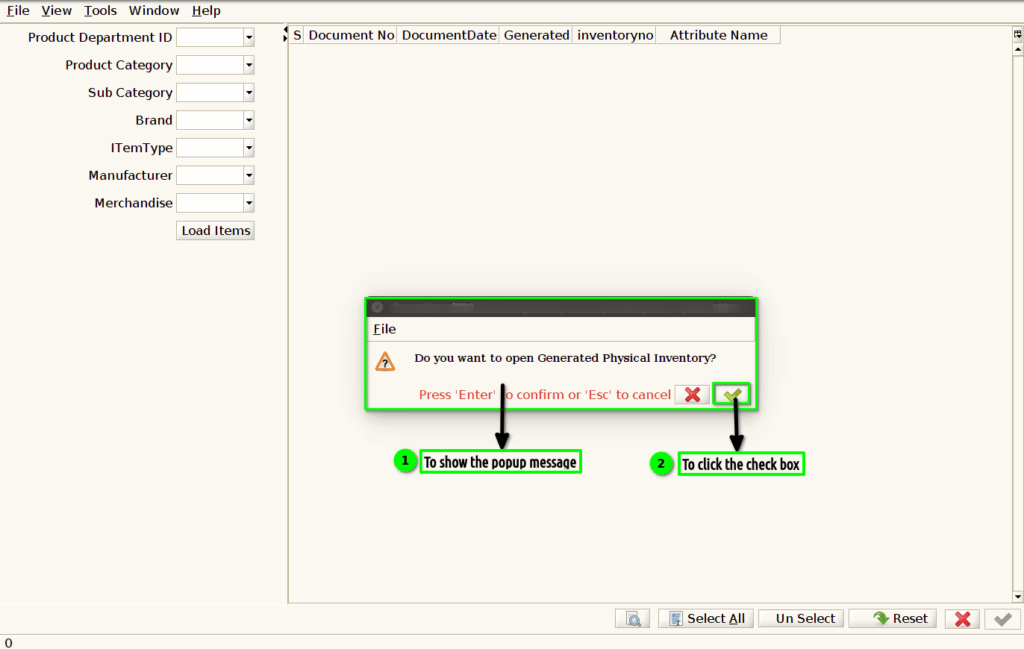
Step 4 :Once to click the check box to open the popup message.Then to click the check box.
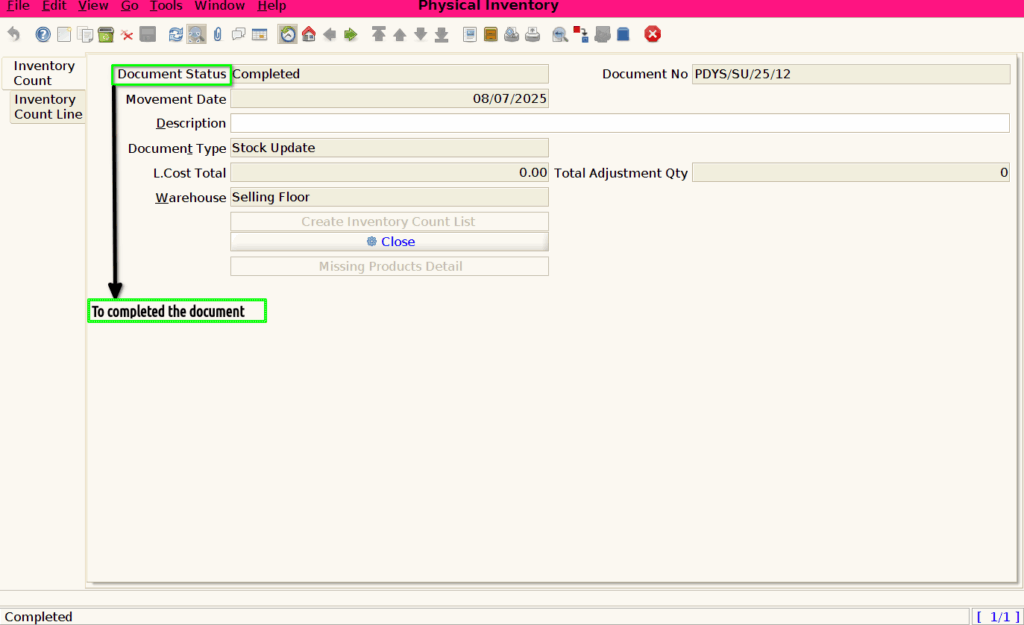
Step 5 : Once to click the check box to open the Physical Inventory Screen to click a complete process.

Step 6 :Once to click a complete process to show the document status .