How to view Day Wise Dept Sales Report in Adempiere Retail
A Day Wise Dept Sales Report shows the sales made each day, broken down by different departments in a store or business.
User Access
Who Can Access
- Admin
- Head cashier
- Sales Manager
- Manager
What User Can Do
- Monitor Daily Sales by Department
- Compare Department Performance
- Analyze Impact of Promotions or Events
- Generate Reports for Management
Pre-Requisite Activities
- Product Mapping to Departments
- Date and Time Stamping Enabled
- Data Synchronization
Business Rules
- Daily Totals Based on Transaction Date
- Only Completed Sales Are Included
- Real-Time or Daily Update
- Returns Should Be Adjusted
User Interface
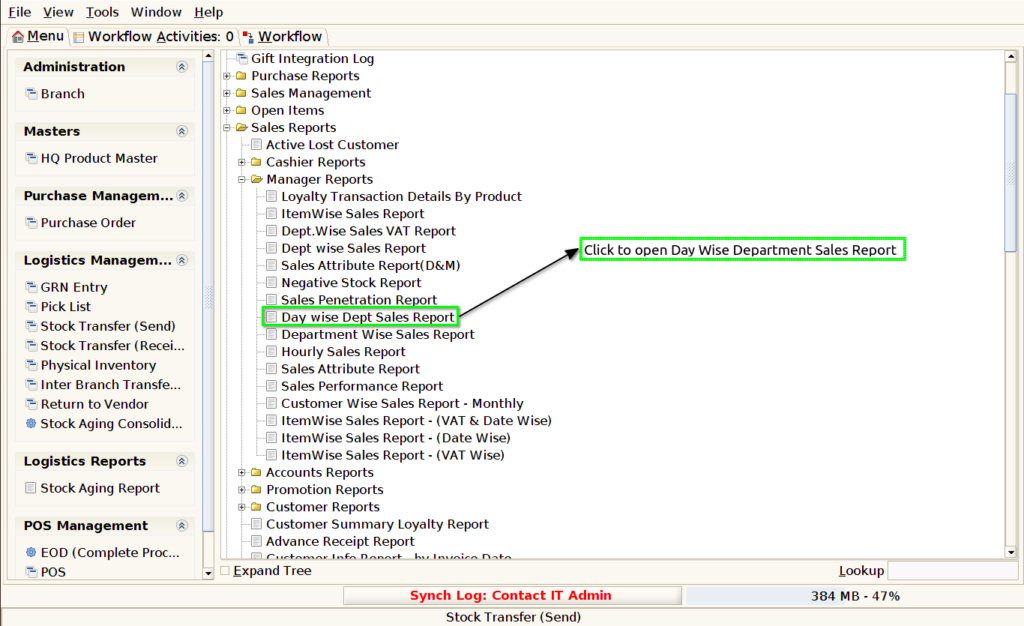
Step 1 : Select ‘Day Wise Department Sales Report ’ in Menu -> Sales reports > Manager report > Day Wise Department Sales Report or Search Day Wise Department Sales Report .
Step 2 : Select the date range to open the Day Wise Department Sales Report.

Step 3 : To view a preview of the Day Wise Department Sales Report.
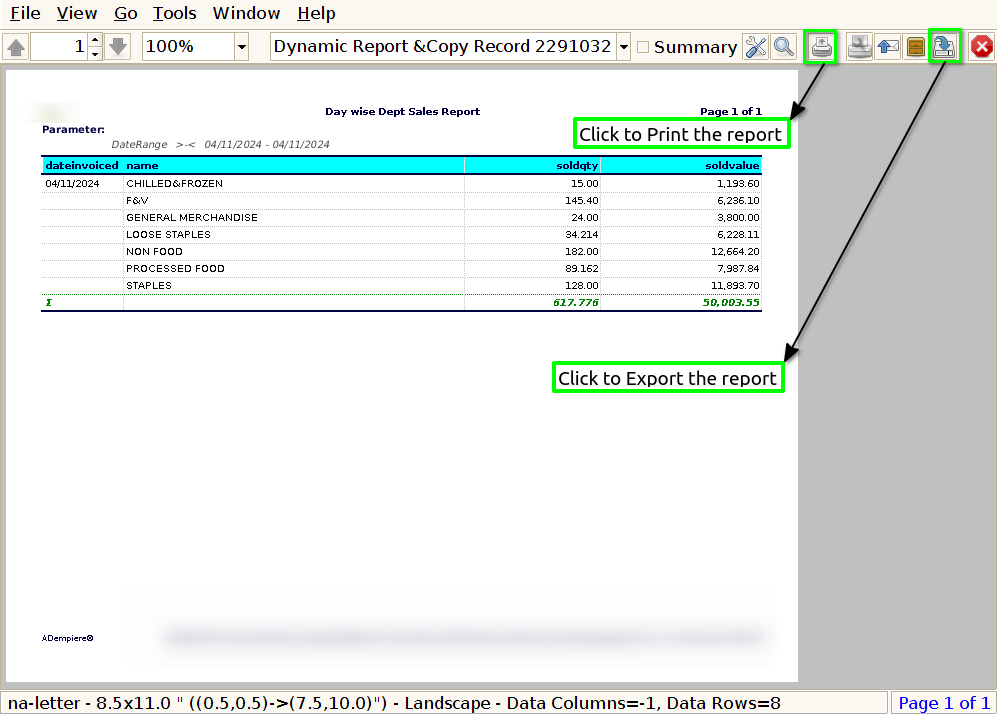
Date Invoiced : The Date column allows businesses to track the sales performance of each department for individual days.
Name : In a Day Wise Department Sales Report, the Name typically refers to the Name of the Department that the sales data corresponds to. This helps to clearly identify which department’s sales are being reported for each day.
Sold Quantity : The Sold Quantity helps businesses understand how much product is moving within each department. This can be used to gauge demand for specific products and identify which departments or product categories are driving the most sales.
Sold Value : The Sold Value column provides an accurate and straightforward measure of the revenue generated by each department on a daily basis. This allows businesses to evaluate the monetary performance of their various departments.