How to view Item Wise Sales Report Date-Wise in Adempiere Retail
An Item-Wise Sales Report (Date Wise) shows,Sales details for each product broken down by specific dates within a chosen period.
User Access
Who Can Access
- Admin
- Head cashier
- Sales Manager
- Manager
What User Can Do
- Track Daily Sales for Each Product
- Analyze Sales Trends Over Time
- Plan Inventory and Promotions
- Filter by Date Range or Product Category
Pre-Requisite Activities
- Accurate Product Master Data
- Complete Sales Data with Date Stamps
- Reporting Date Range
- Consistent Pricing and Discounts
Business Rules
- Include Only Completed Sales
- Aggregate Sales by Item and Date
- Exclude Cancelled or Returned Sales
- Apply Correct Pricing and Discounts
User Interface
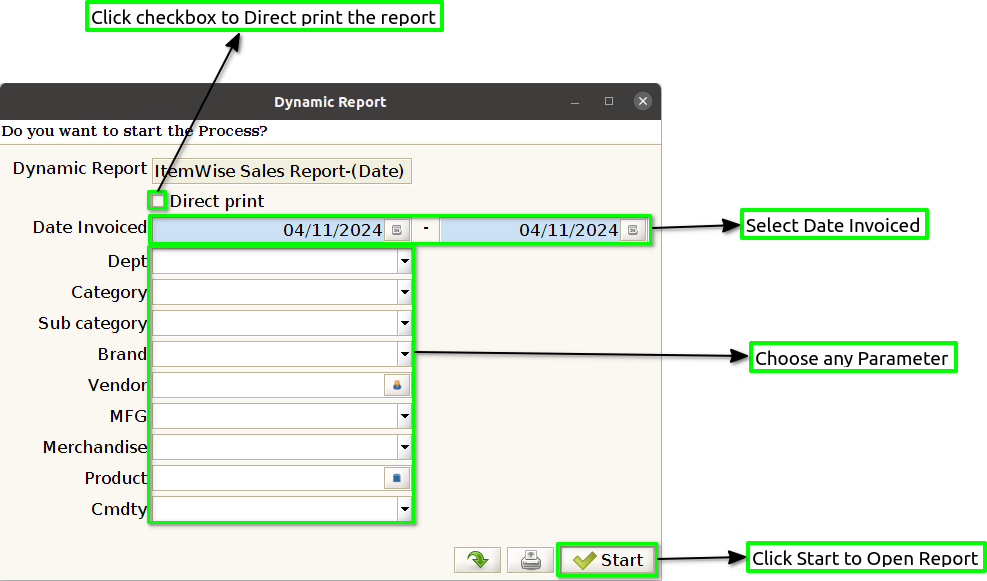
Step 1 : Select ‘Item-wise Sales Report (Date)’ in Menu -> Sales reports > Manager report > Item-wise Sales Report (Date) or Search Item-wise Sales Report (Date).

Step 2 : Select the date range and Parameter to open the Item wise Sales Report (Date).
Step 3 : To view a preview of the Item wise Sales Report (Date).
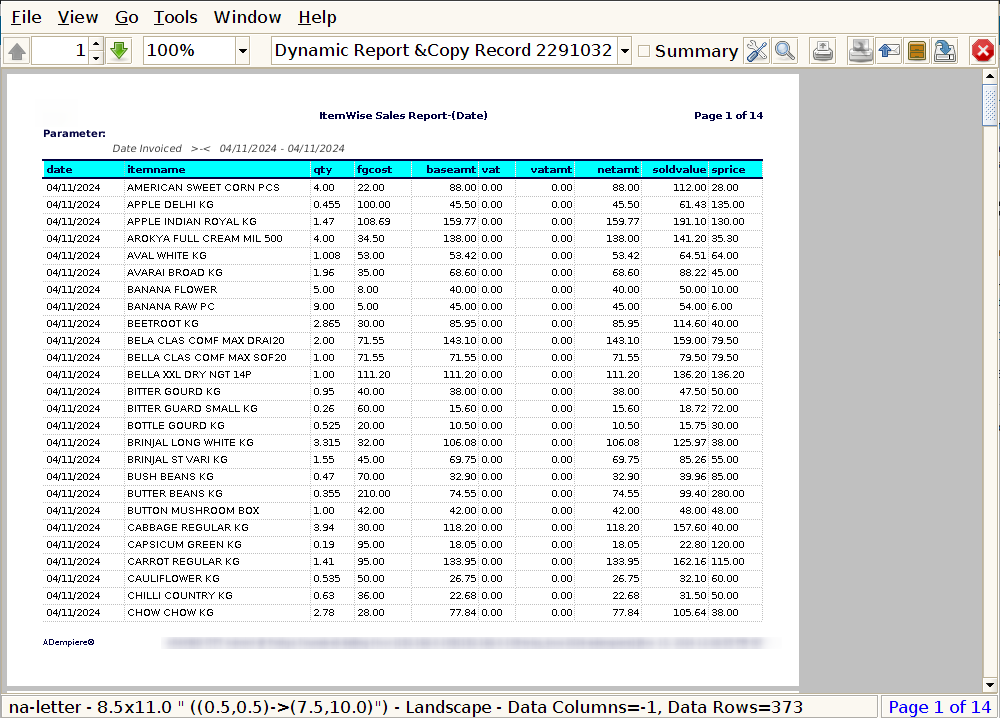
Date : In an Item wise Sales Report (Date), the date column is crucial for organizing and tracking sales transactions on specific days.
Item Name : In an Item wise Sales Report (Date), the Item Name column displays the name or description of the products or services that were sold. This column is essential for identifying which specific items contributed to the total sales, along with the corresponding VAT calculation and date of sale.
Quantity : The Quantity Sold column in an Item wise Sales Report (Date) is critical for understanding how many units of each item were sold, the total revenue generated, and the VAT applicable.
Final Gross Cost : The Final Gross Cost in an Item wise Sales Report (Date) typically refers to the total cost of goods sold (COGS), which includes the cost price of the items sold, VAT, and any other relevant costs or adjustments.
Base Amount : The Base Cost in an Item wise Sales Report (Date) refers to the cost price of an item or product without including any additional expenses like VAT or other indirect costs.
VAT : In an Item wise Sales Report (Date), the VAT column shows the Value Added Tax (VAT) applied to each item sold, based on the applicable VAT rate and the sale price of the item. This column is critical for businesses to track their VAT obligations, as it indicates the total VAT charged on each sale and helps in VAT filing and tax compliance.
Net Amount : The Net Amount in an Item wise Sales Report (Date) is essential for businesses to track their actual sales revenue, excluding VAT. It allows for clear distinction between net sales and tax liabilities.
Sold Value : In an Item wise Sales Report (Date), the Sold Value typically refers to the total amount of revenue earned from selling the item before adding VAT (excluding taxes). It represents the total value of the goods sold for each item, based on the unit price excluding VAT and the quantity sold.
Selling Price : In an Item wise Sales Report, the Selling Price refers to the price at which each item was sold. Depending on the reporting requirements, this price could either be the price excluding VAT (net price) or the price including VAT (gross price).