How to run EOD (Dept Wise Sales Report) in Adempiere Retail
EOD (Dept Wise Sales Report) is a summary report that shows the total sales made by each department at the end of the business day.
User Access
Who Can Access
- Admin
- Back Office
- Purchase Manager
- Manager
What User Can Do
- View department-wise sales summary
- Filter the report by date (if system allows)
- Check sales quantity and value
- Compare performance between departments
- Export the report
- Verify system day-end sales
Pre-Requisite Activities
- All Sales Transactions Should Be Posted
- Department Master Should Be Updated
- System Date and POS Shift Must Be Closed
- Returns and Exchanges Should Be Recorded
- Payment Settlement Should Be Completed
Business Rules
- Only completed and posted sales are included
- Department mapping must be correct
- Report data is based on selected date
- Tax, discount, and net amount follow system logic
- Refunds and exchanges follow defined posting rules.
User Interface
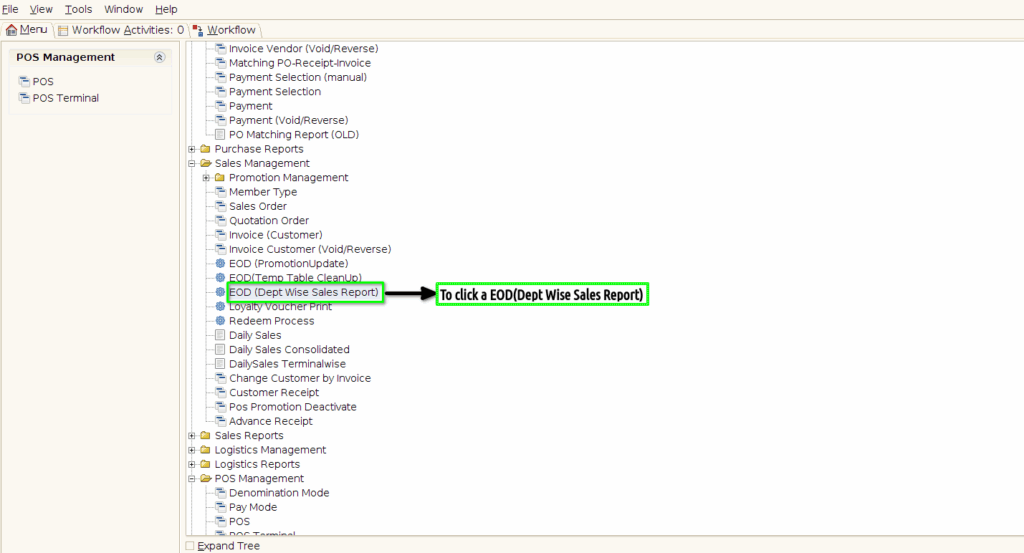
STEP 1: To click a EOD(Dept Wise Sales Report) in Menu.
STEP 2: To enter a Date and then to click a start check box.

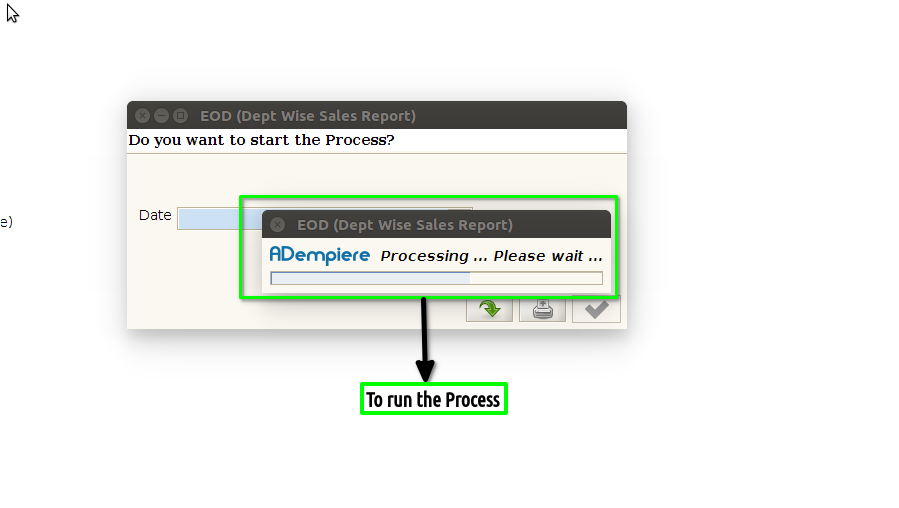
STEP 3: To run the process.