How to run Import Inter Branch Transfer Receive Process in ADempiere Retail
The process of uploading and recording incoming stock transfers from other branches into the receiving branch’s inventory system, often by importing data files or using system integration.
User Access
Who Can Access
- Admin
What User Can Do
- Upload Transfer Data
- Validate Transfer Details
- Record Receipt
- Update Inventory Levels
- Generate Receipt Reports
Pre-Requisite Activities
- Prepare Transfer Data File
- System Compatibility
- Review Pending Transfers
- Communicate with Sending Branch
Business Rules
- Authorized Access Only
- Valid Data Format
- No Duplicate Imports
- Inventory Update on Confirmation
- Approval for Adjustments
User Interface
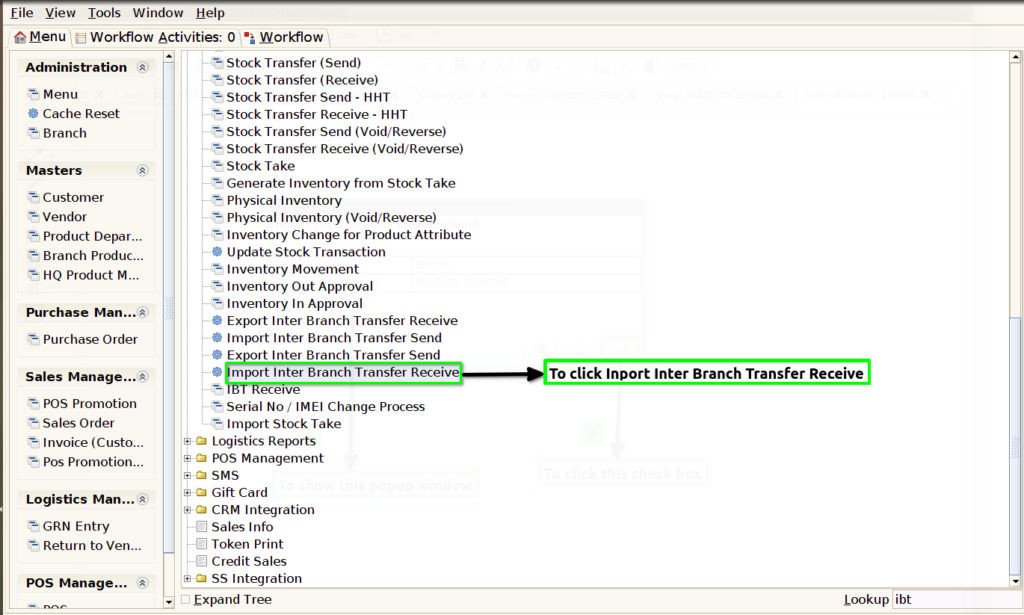
STEP 1: To select the Import Inter Branch Transfer Receive.
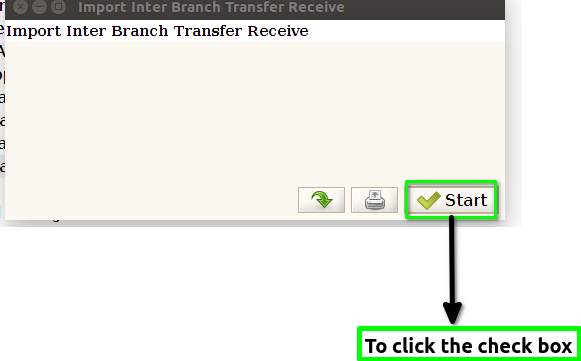
STEP 2: To click the check box and to run the process.
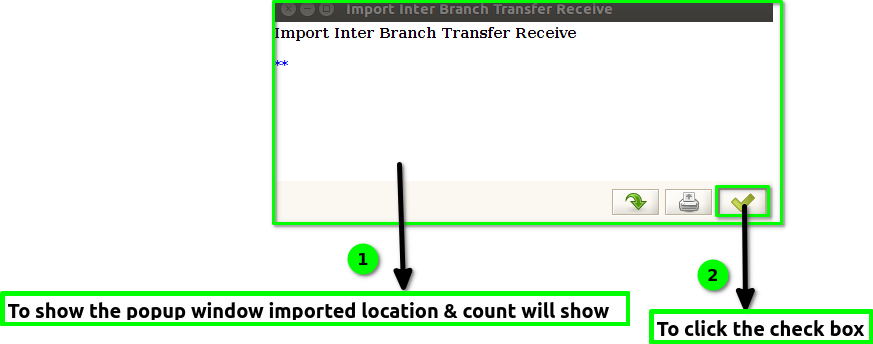
STEP 3: Once to run the process and to show the popup window, File imported Count & Location will show and then finally to click the check box.
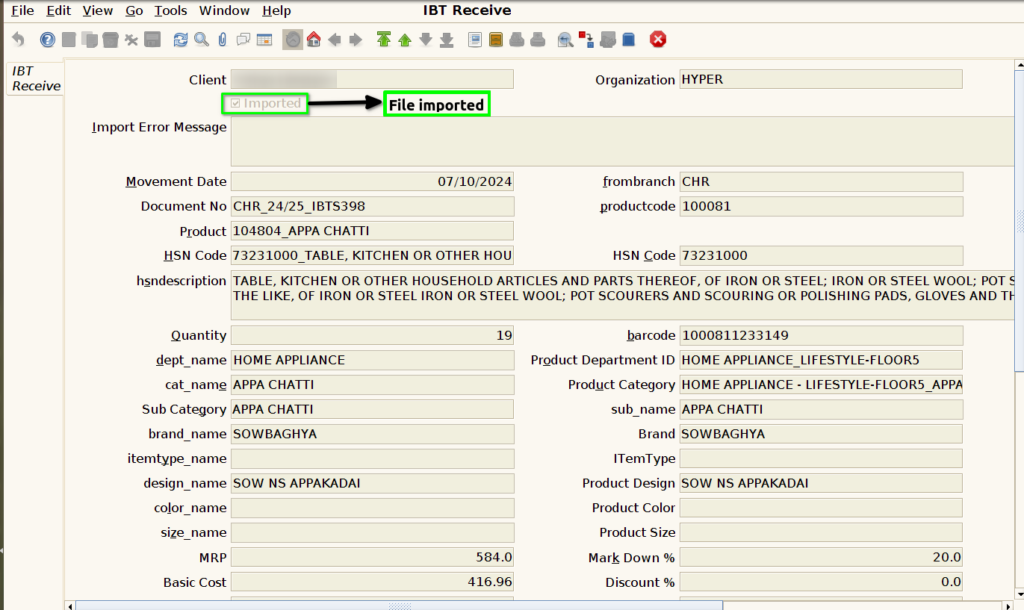
STEP 4: Finally to check the documents for IBT Receive Screen Imported check box will tick file was imported. Otherwise check box will uncheck file not imported.