How to run B2B Sales SS synch process in Adempiere Retail
B2B Sales SS Sync refers to the automatic synchronization of B2B (Business-to-Business) sales data between your system and the Siva Sakthi(SS). This ensures that all B2B transactions like orders, invoices asnd customer data updated.
User Access
Who Can Access
- Back Office
- Manager
- Admin
- Cashier
What User Can Do
- Enable or schedule sales data sync from branches to server
- Sync B2B orders, dispatches, invoices, returns
- View sync logs and error reports
Pre-Requisite Activities
- Siva Sakthi (SS) credentials and API setup must be complete
- B2B customers must be properly tagged in the system
- Branch systems must be connected to the internet
- Data validation rules must be configured
Business Rules
- Only B2B tagged invoices will be synced
- Data will not sync if mandatory fields (like GST, PAN) are missing
- Duplicate invoice numbers are not allowed
- Sync failures must be logged with error reasons
User Interface
Step 1 : Select ‘B2B Sales Synch Process’ in Menu -> SS Integeration > B2B Sales Synch Process or Search B2B Sales Synch Process in Lookup.
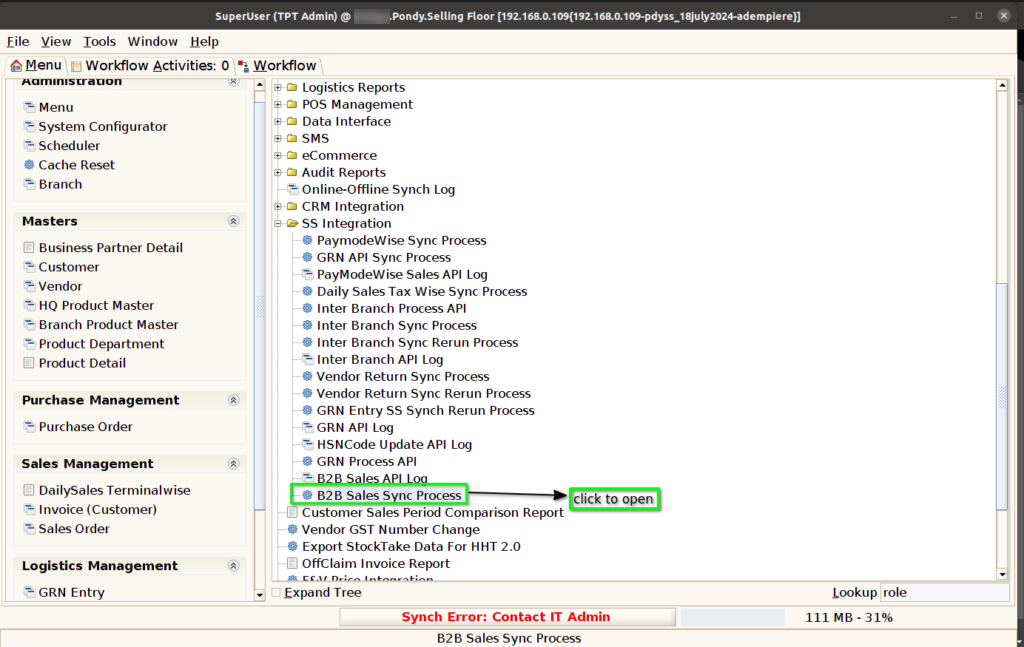
Step 2: After clicking the process menu it will show like below image.

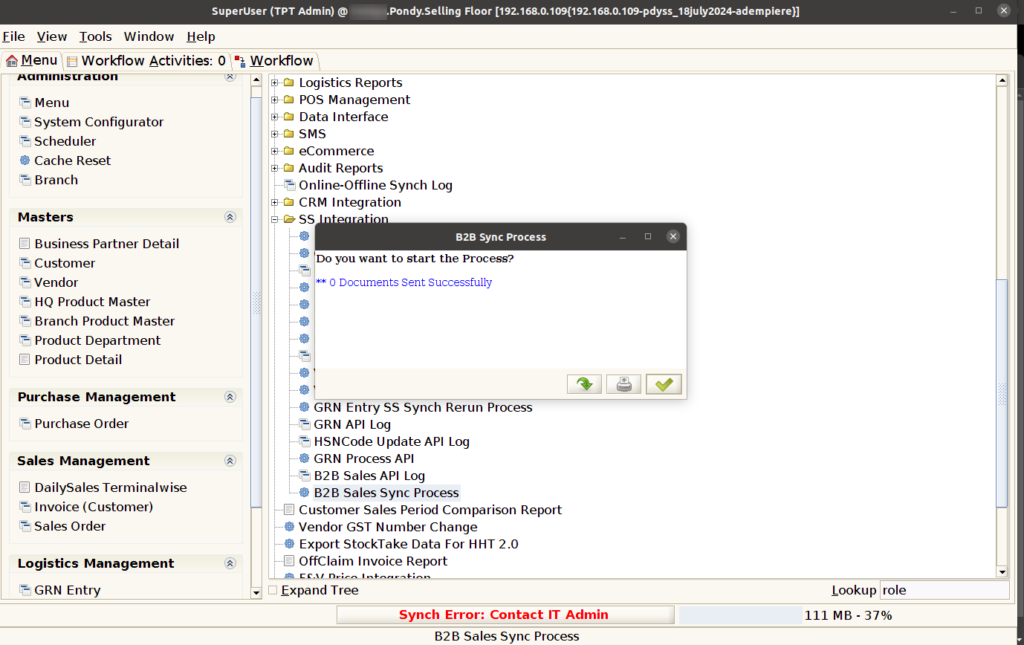
Step 3: This screen displays an example of successful SS synchronization requests and responses, highlighting the status of each document. Users can easily review the details to ensure accurate data transfer and confirm that all records have been synchronized correctly.
