How to create Inter Branch Transfer (HHT) in Adempiere Retail
Moving stock or inventory items from one branch/location to another using a Hand-Held Terminal (HHT) device for scanning and processing.
User Access
Who Can Access
- Back Office
- Cashier
- Purchase Manager
- Manager
- Admin
What User Can Do
- Initiate Transfer Request
- Verify Quantities
- Update Inventory in Real-Time
- Track Transfer Status
Pre-Requisite Activities
- Verify User Access
- Check Inventory Availability
- Prepare HHT Devices
- Transfer Process and Approvals
- Communicate with Receiving Branch
Business Rules
- Authorized Users Only
- Real-Time Inventory Update
- Sufficient Stock Requirement
- No Negative Stock
User Interface
Step 1 : To Select a Branch in Menu.Then to click a Logistics Management.
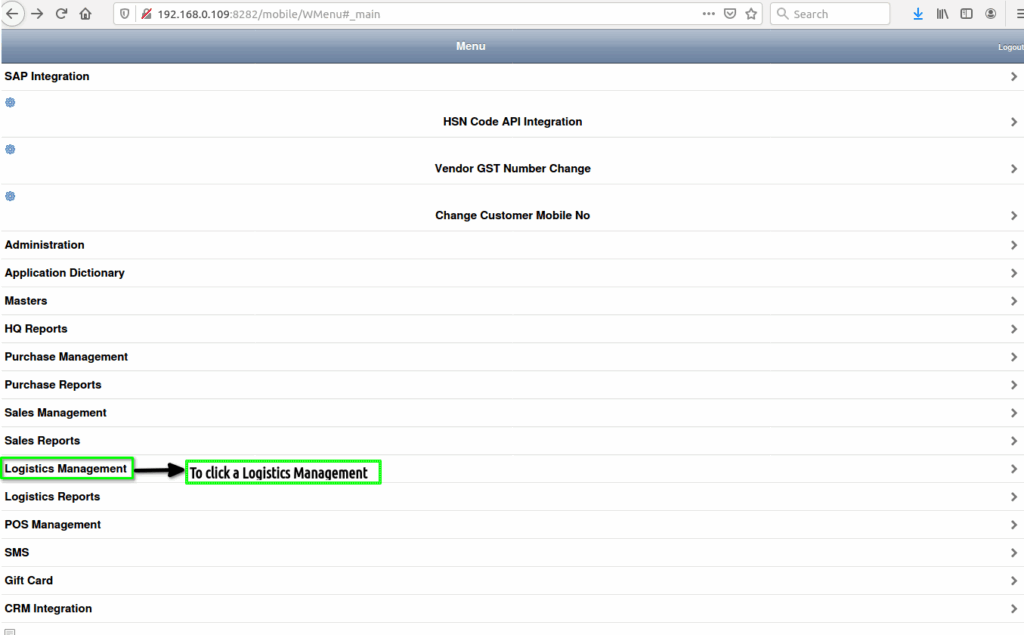
Step 2 : To click a Inter Branch Transfer(Send/Receive)(HHT).

Step 3 : To click a create new record option and to enter the values form valid data.

Step 4 : To enter the values from Document Type,Description to click a save option and to generate it.

Step 5 : To enter a document no and to select a Inter branch then to save it.To click Inter Branch transfer line tab.
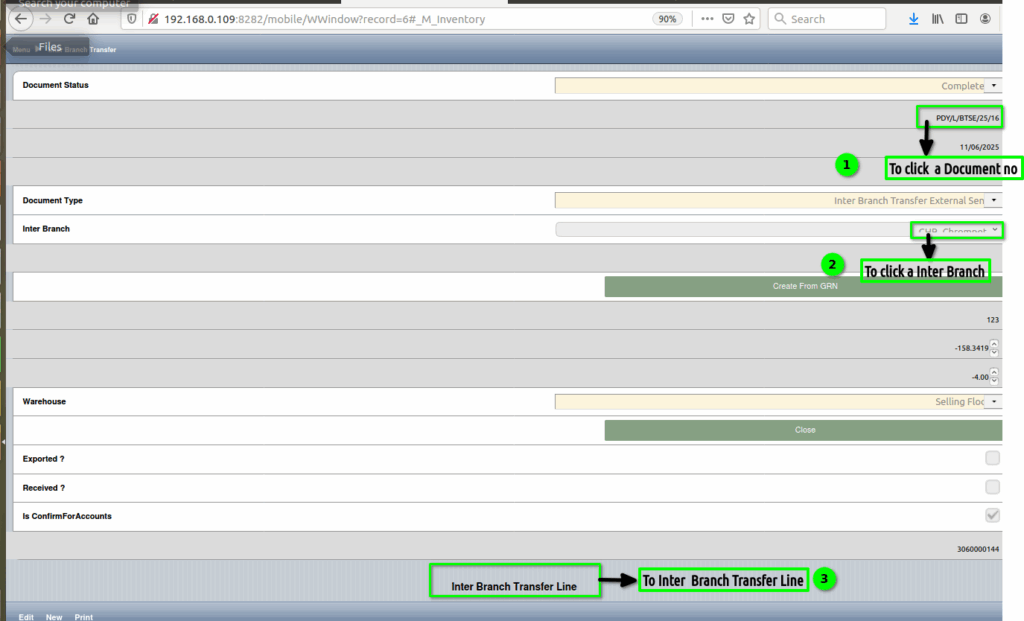
To enter the product value and to enter the quantity then to save it.