How to view Transaction Detail Report in Adempiere Retail
A clear list showing all individual transactions with important details like date, amount, product, and tax.
User Access
Who Can Access
- Back Office
- Cashier
- Purchase Manager
- Manager
- Admin
What User Can Do
- Review Transactions
- Track Payments and Taxes
- Generate Invoices or Statements
Pre-Requisite Activities
- Ensure transactions are recorded correctly in the system
- User must have report access permissions
- Set correct date range or filters before generating report.
Business Rules
- All Transactions Must Be Recorded Timely and Accurately
- Each Transaction Must Include Essential Details
- Transactions Should Be Classified Correctly
- Access to Transaction Reports Should Be Controlled
- Reports Must Reflect Real-Time or Up-to-Date Data
- Audit Trail Must Be Maintained
- Reports Should Be Used for Compliance and Decision Making
- Confidentiality Must Be Preserved.
User Interface
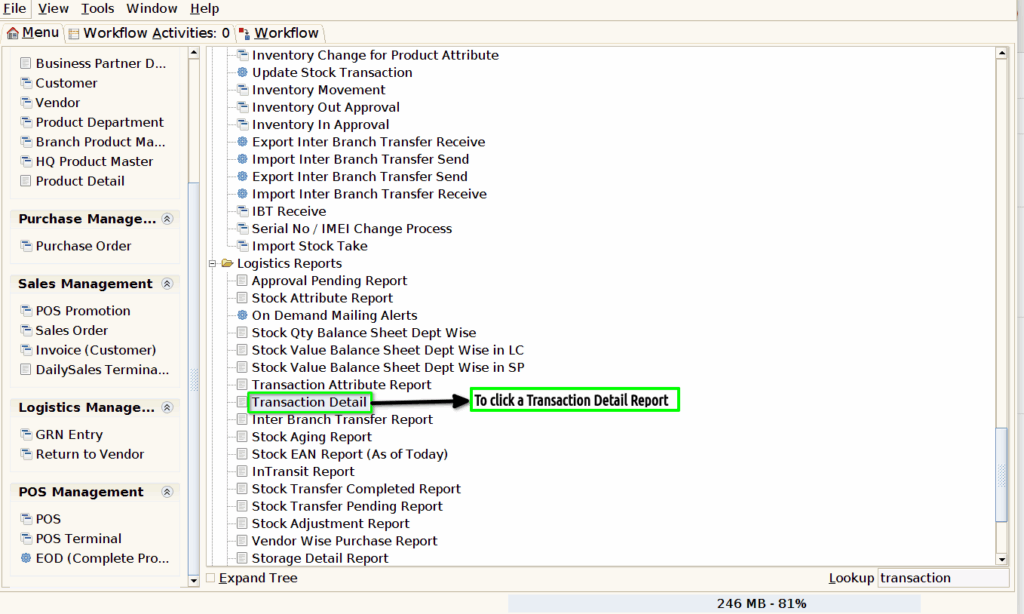
Step 1 : To Select a Branch in Menu.Then to click a Transaction Detail Report.
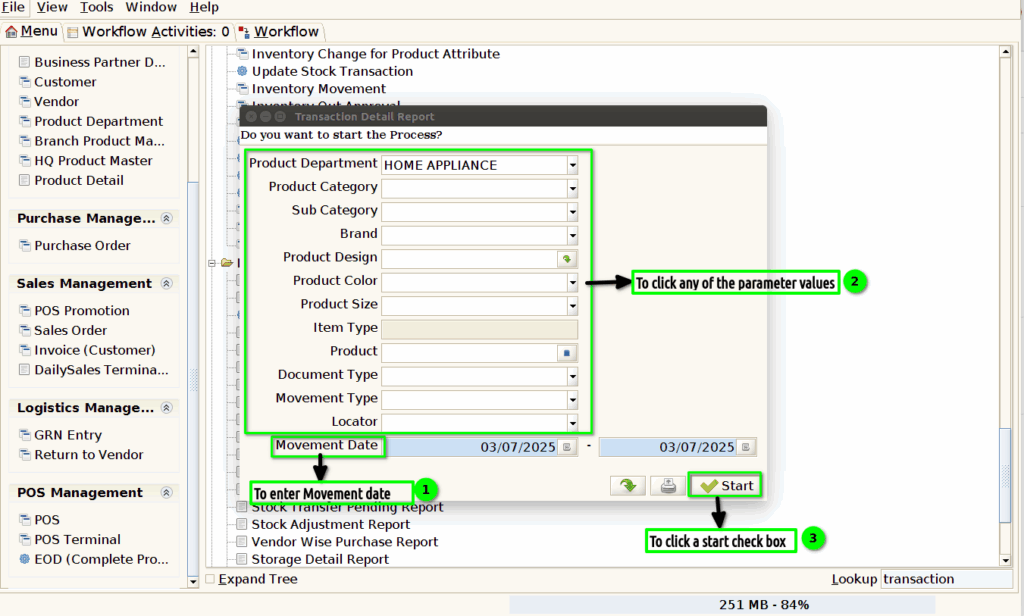
Step 2 : To click any of the parameter values and to enter the movement date from date and to date.Movement date field is mandatory.Finally to click the start check box.
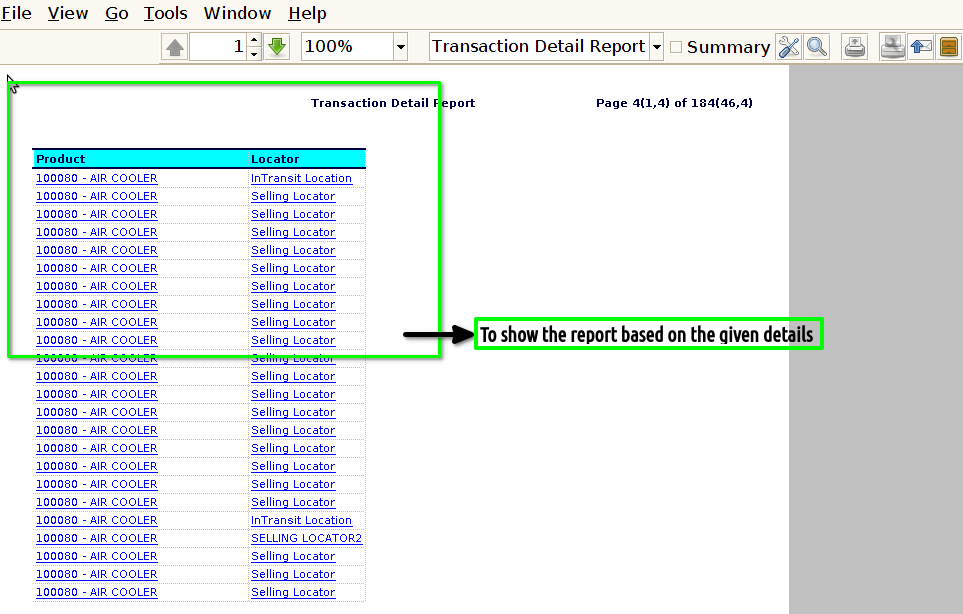
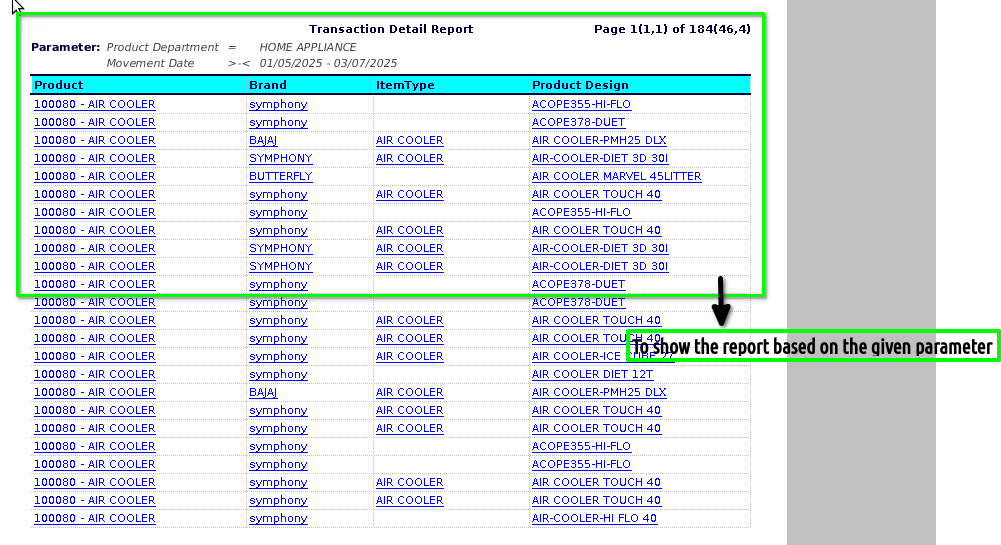
Step 3 : Once to run the process to show the particular detail from the given data in the Transaction detail report.
1.Product
2.Brand
3.Item Type
4.Product Design
5.Product Colour
6.Product Size
7.Movement Date
8.Quantity
9.MRP
10.Basic Cost
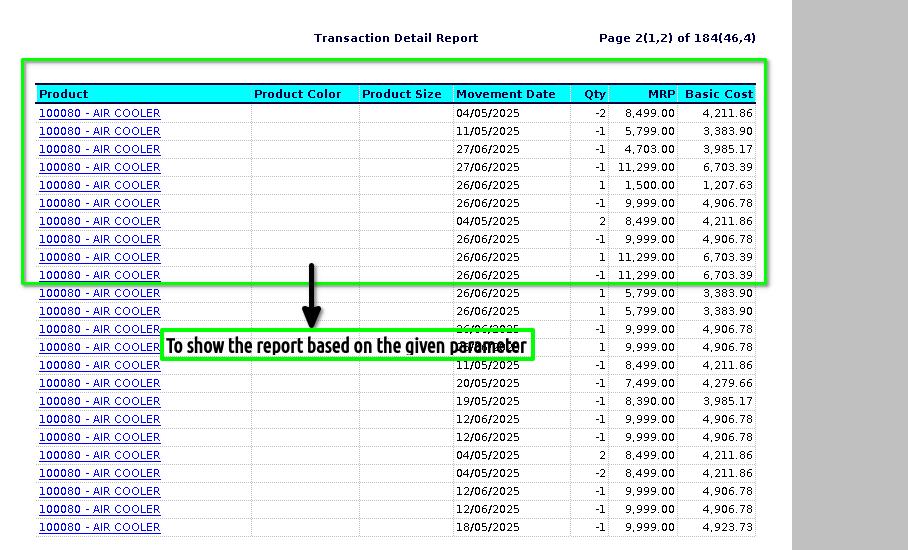
11.Landed Cost
12.Total Value
13.Movement Type
14.Doc Type
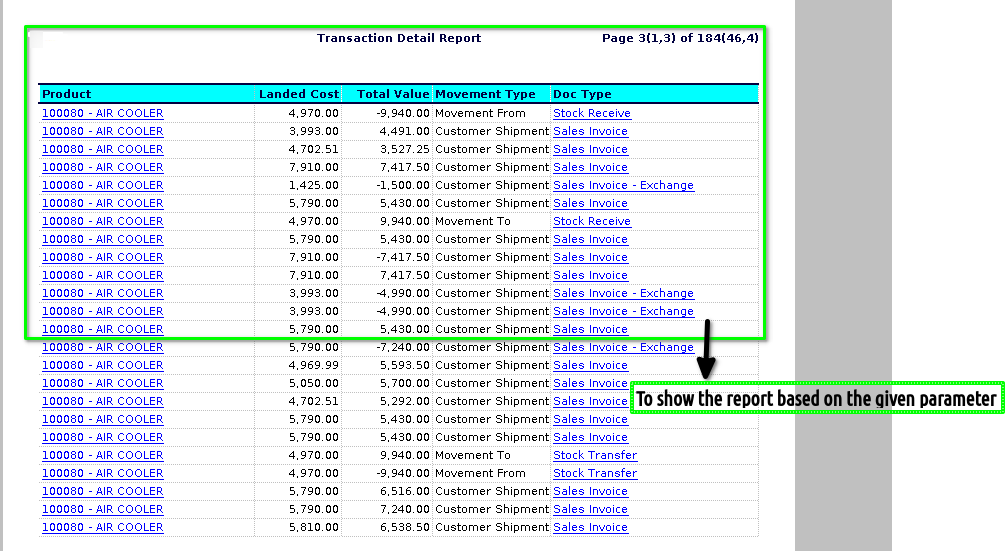
15.Locator.