How to view Date Wise Purchase Tax Report-LS in Adempiere Retail
A Date-Wise Purchase Tax Report is a report that shows all the purchases made by a business on each date along with the tax amounts applied to those purchases.
User Access
Who Can Access
- Admin
- Back Office
- Purchase Manager
- Manager
What User Can Do
- View all purchase transactions date-wise
- Filter the report by date range
- Check tax details for each purchase
- Verify vendor-wise tax information
- Validate tax accuracy
- Download or export the report
Pre-Requisite Activities
- All Purchase Invoices Must Be Entered
- GRN (Goods Received Notes) Must Be Completed
- Tax Details Should Be Correctly Entered
- Vendor Master Details Should Be Updated
- All Purchase Transactions Should Be Posted
Business Rules
- Only posted/approved purchase entries will be shown
- Report displays data only within the selected date range
- Tax calculations must follow system-defined GST rules
- Vendor GSTIN and item HSN must be valid
- Voided or reversed purchase transactions should not be included.
User Interface
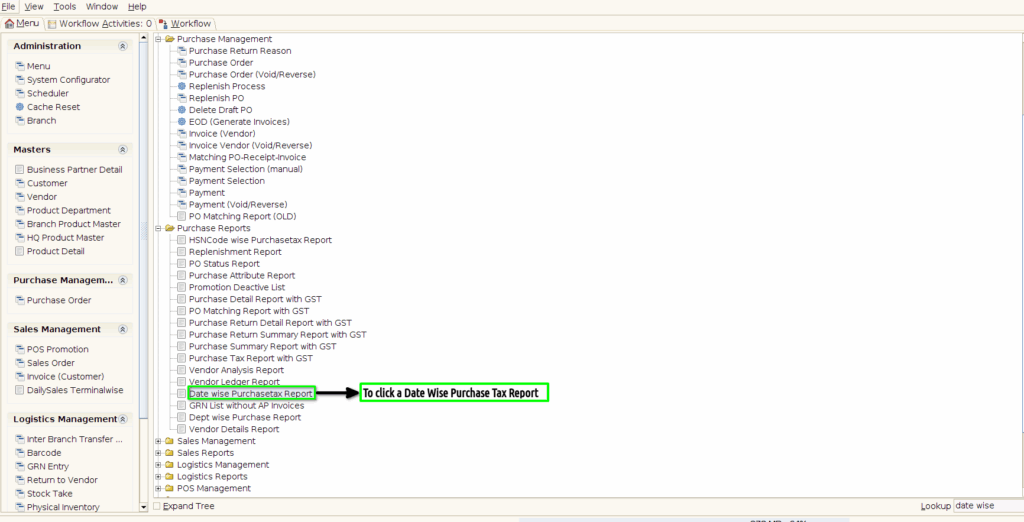
STEP 1: To Click a Date Wise Purchase Tax Report in Menu.
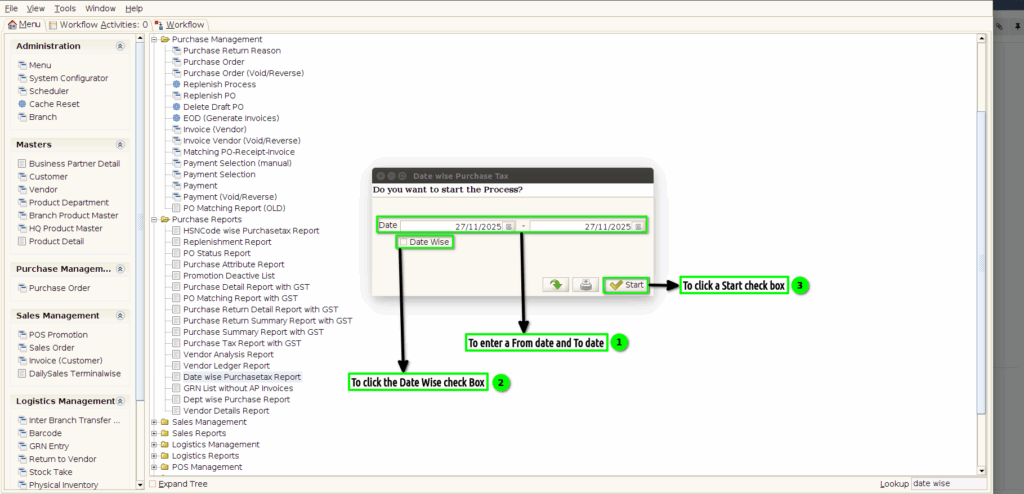
STEP 2: To enter a Date Range from date to date.To click a date wise check box.Finally to click a Start check box.
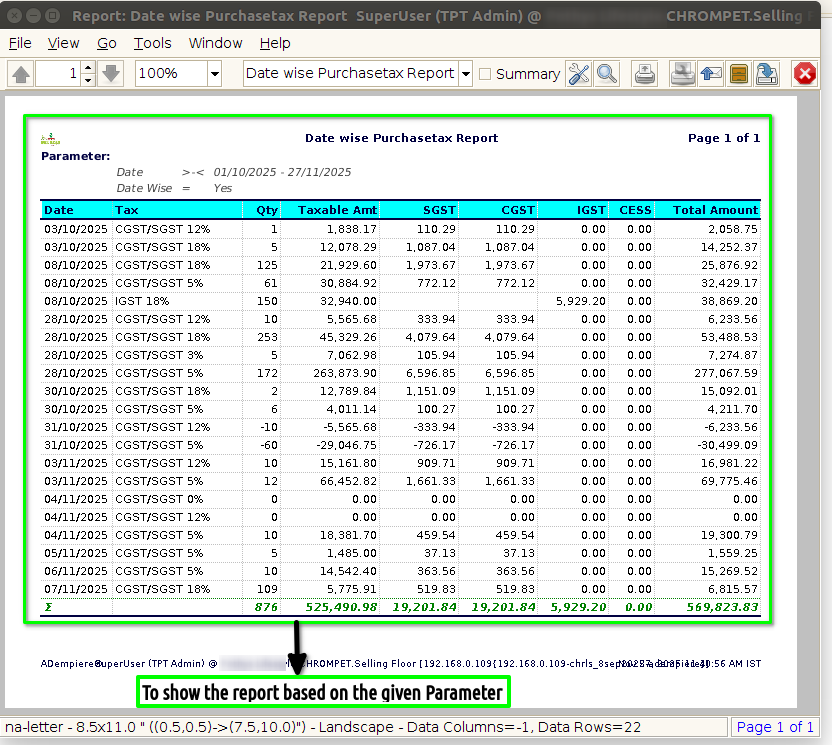
STEP 3: Once to complete the process to show the report based on the given parameter.
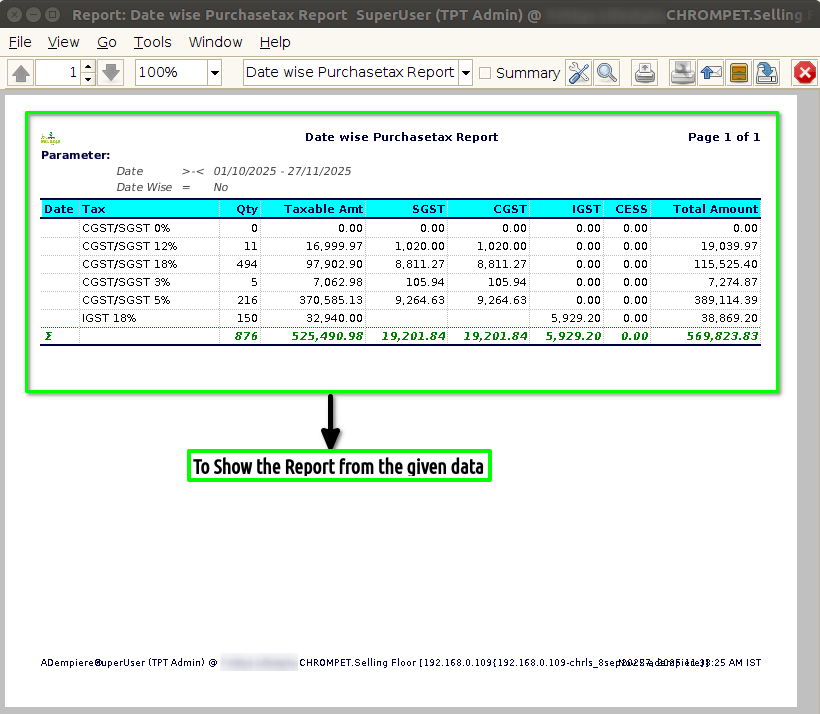
STEP 4: To click a date wise check box to show the report based on the Date wise Purchase Tax Report.