How to use Barcode/Set Print-SS feature in ADempiere Retail
Barcode / Set Print refers to the process of generating and printing barcode labels or stickers for products. These barcodes help in identifying, tracking, and billing items accurately through POS or inventory systems.
User Access
Who Can Access
- Back Office
- Purchase Manager
- Manager
- Admin
What User Can Do
- Select product(s) for barcode generation
- Choose the barcode format and size (e.g., sticker, label)
- Set print quantity based on stock or packaging
Pre-Requisite Activities
- Products should be created and have valid codes
- Barcode template must be pre-defined
- Printer settings must be configured
- Paper size and layout must match with sticker type
- User must have access rights to generate and print
Business Rules
- Barcode should be unique and scannable
- No barcode can be printed for inactive or discontinued products
- Barcode print must matc
User Interface
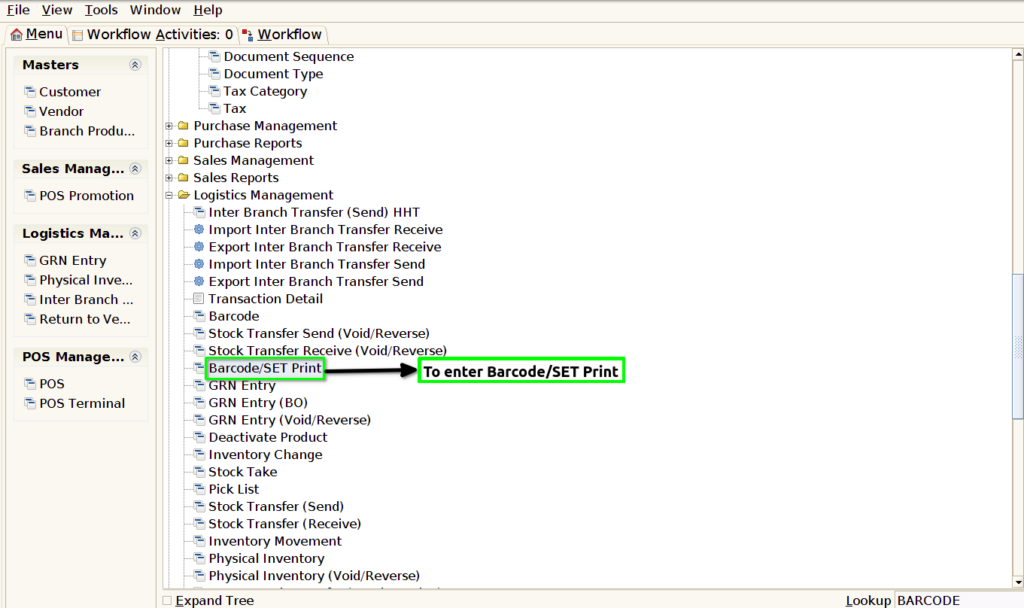
STEP 1: To select the Barcode/SET Print.
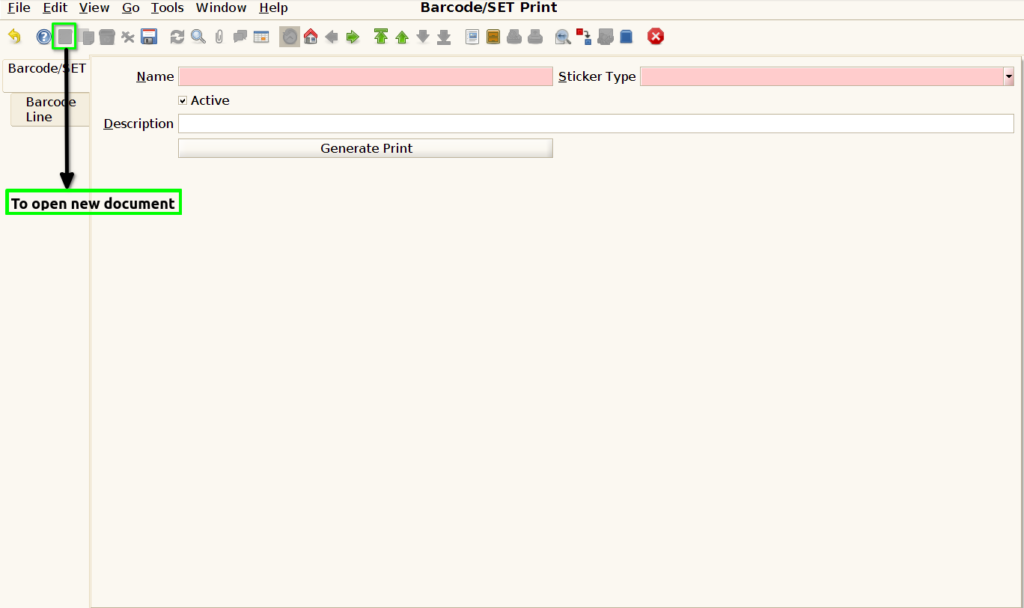
STEP 2: To open a new document.
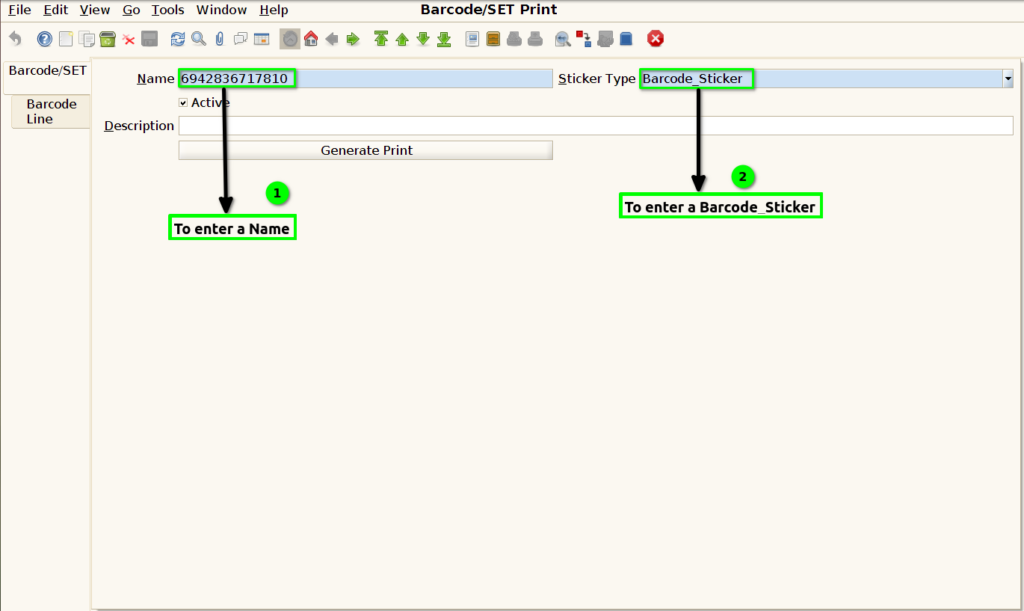
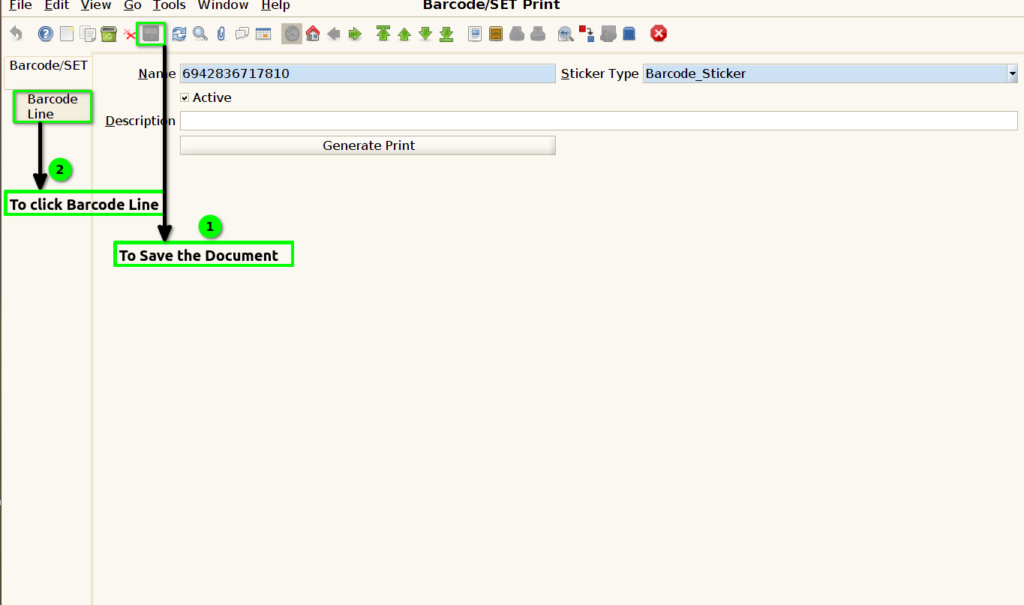
STEP 3: To enter the Name and Sticker Type.
STEP 4: To save the document (header). And to click the Barcode Line.
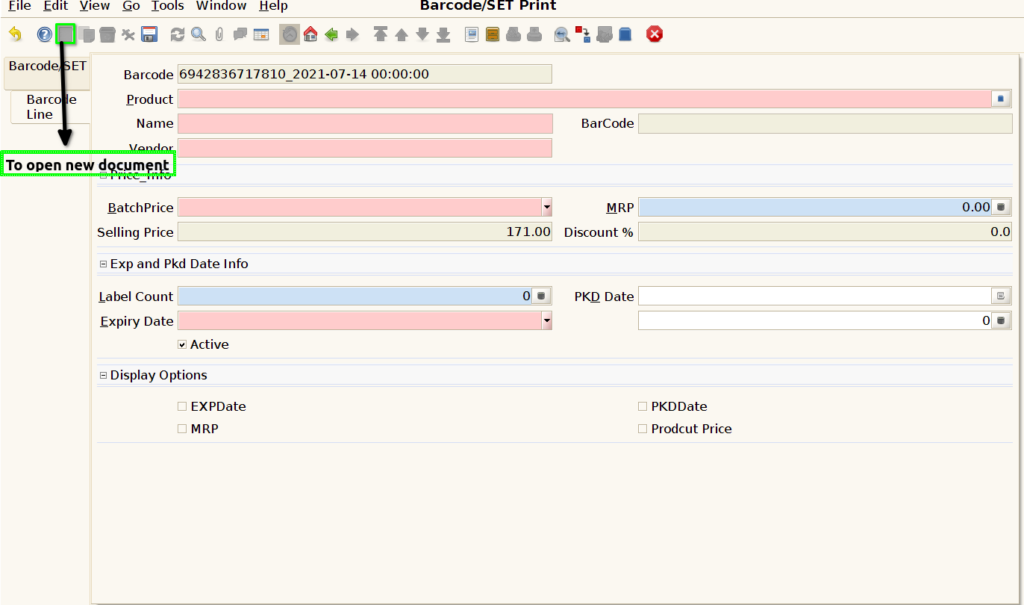
STEP 5: To open a new document.
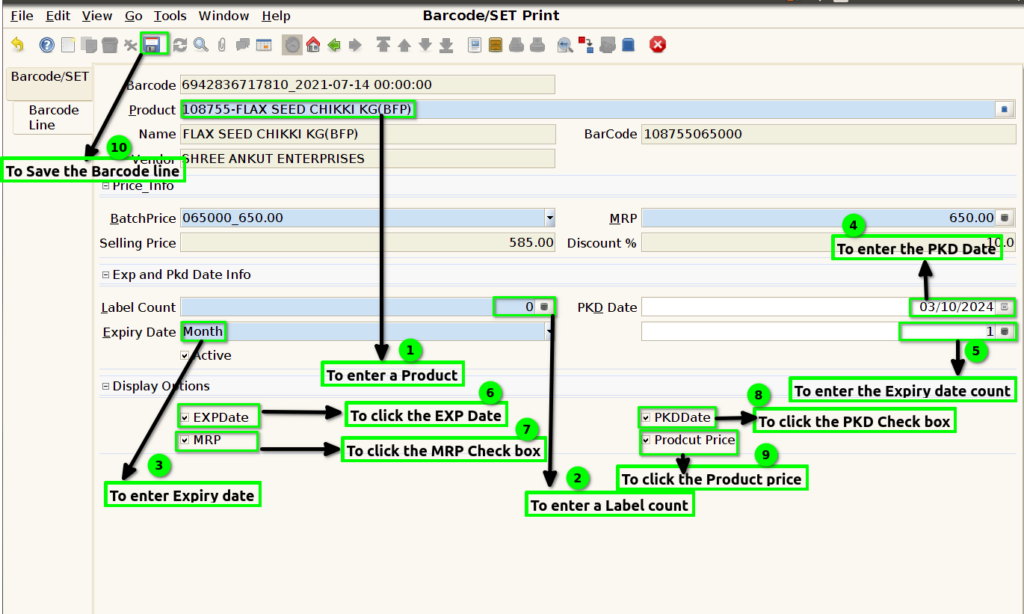
STEP 6: To enter a product,Label count,Expiry Date,PKD Date,Expiry Date count.Then to click the check box EXP Date,MRP,PKD Date & Product price.
To save the Document line.
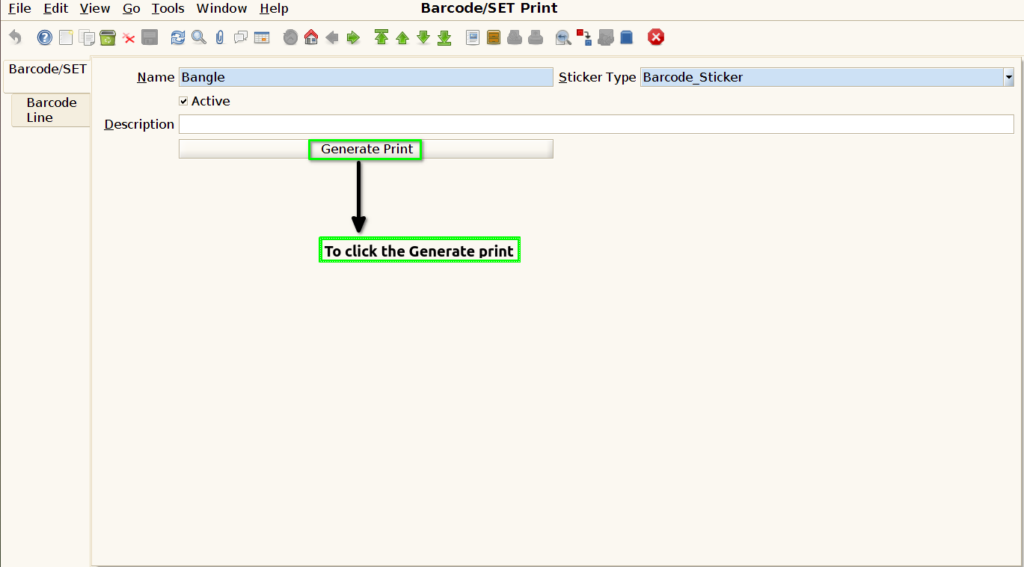
STEP 7: Once To save the Barcode line go to header to click the Generate Print.