How to view PO Matching Report in Adempiere Retail
A PO Matching Report is a report that compares the details of a Purchase Order (PO) with the related Goods Received and Invoices to make sure everything matches correctly.
User Access
Who Can Access
- Admin
- Head cashier
- Sales Manager
- Manager
What User Can Do
- Verify Accuracy
- Prevent Payment Errors
- Support Inventory Management
Prerequisite Activities
- Purchase Order (PO) Creation
- Invoice Processing
- User Roles & Access
- Standardize Item Codes and Descriptions
Business Rules
- Complete PO Creation
- Match Based on PO Number
- Quantity & Price Matching
- Inventory Update
- Invoice Payment Approval
User Interface
STEP 1: Click Purchase Reports Folder.
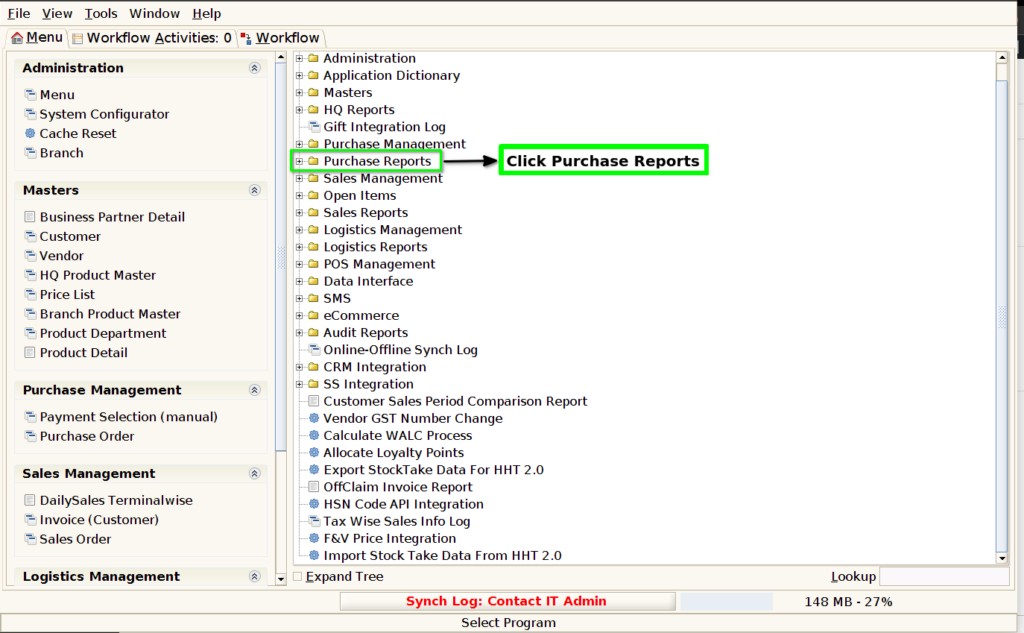
STEP 2: Click PO Matching Report(New).

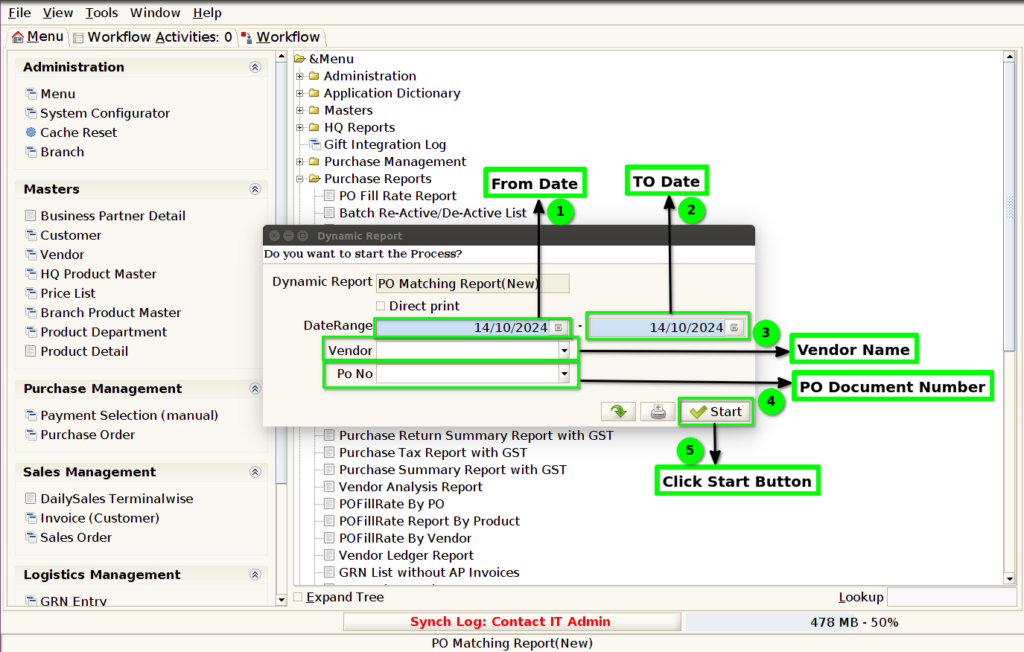
STEP 3: Choose Parameter From Date, To Date ,Vendor and Purchase Order Document Number.
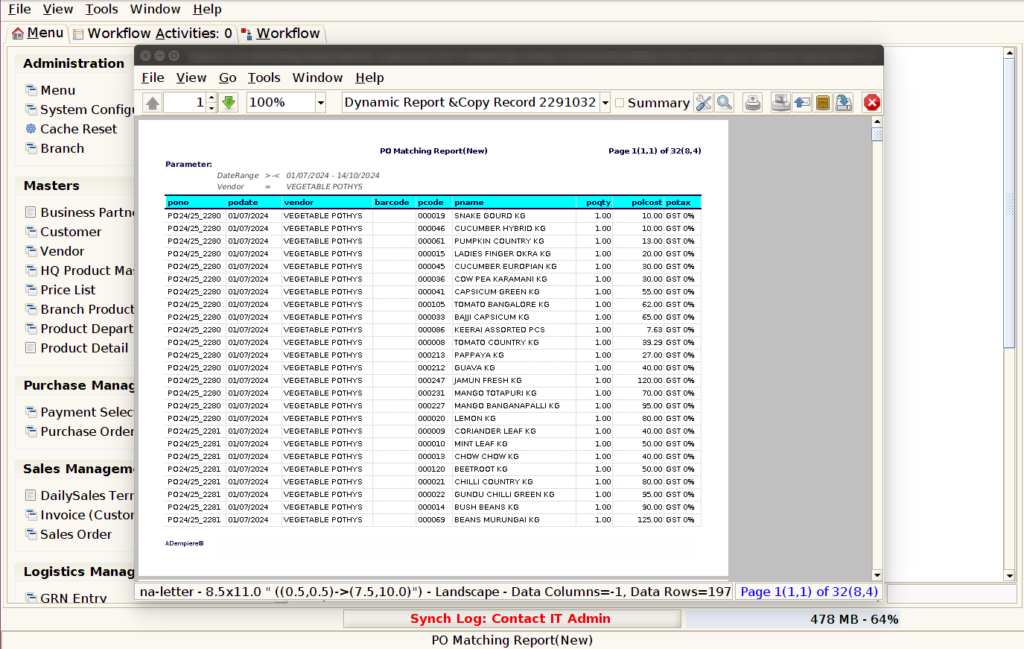
STEP 4: Show Columns Details.
1.Purchase Order Document Number.
2.Purchase Order Date.
3.Vendor.
4.Bar code.
5.Product Code.
6.Product Name.
7.Purchase Order Quantity.
8.Purchase Order Land Cost.
9.Purchase Order Tax.
STEP 5: Click Page Down Button Show Columns Details.
10.Purchase Order VAT Amount.
11.Purchase Order Line Amount.
12.Invoice Number.
13.Invoice Date.
14.Vendor Bill Number.
15.Invoice Product Code.
16.Invoice Quantity.
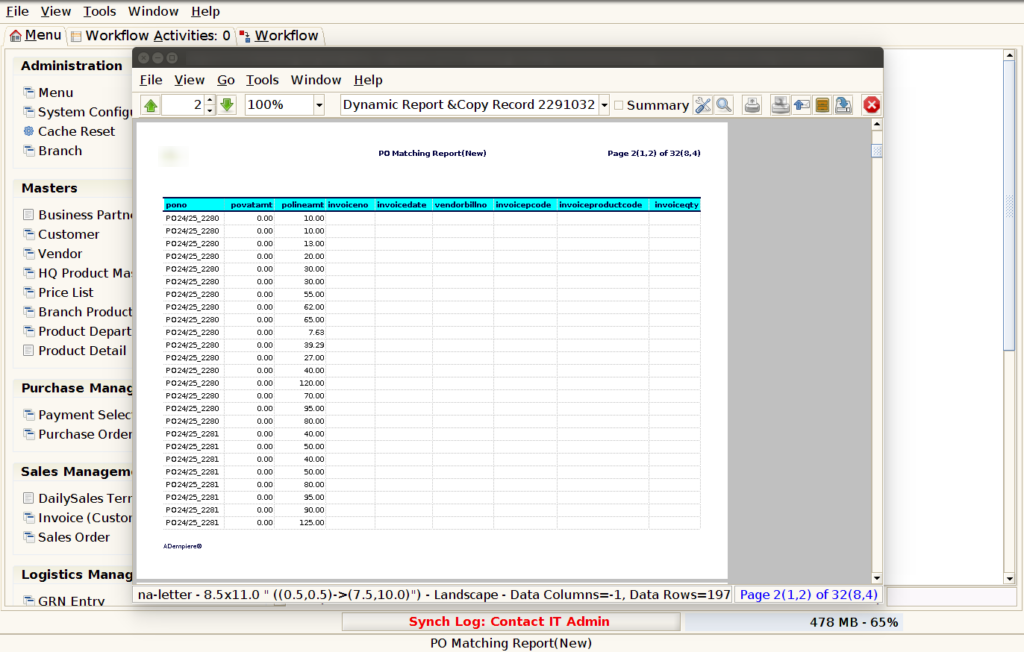
STEP 6: Click Page Down Button Show Columns Details.
17.Invoice Land Cost.
18.Invoice Tax.
19.Invoice VAT Amount.
20.Invoice Line Amount.
21.Brand.
22.Department.
23.Category.
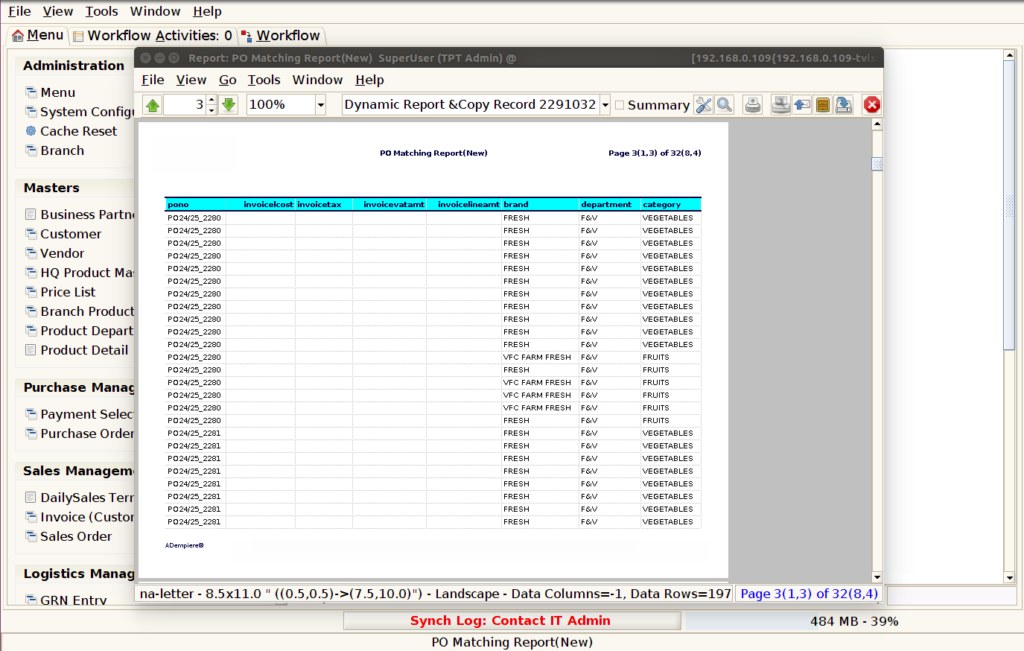
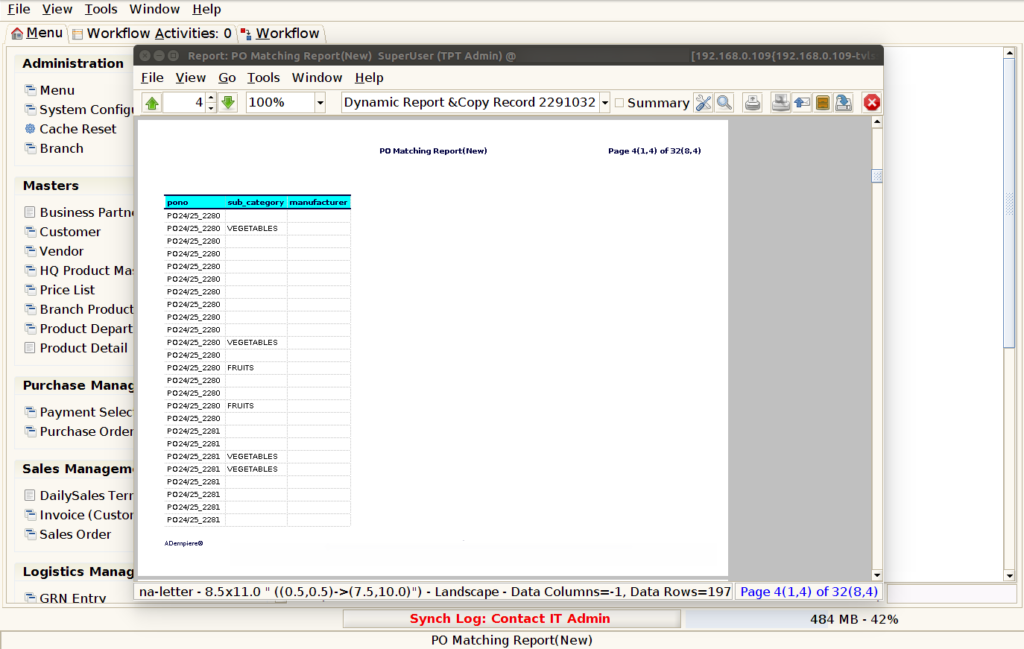
STEP 7: Click Page Down Button Show Columns Details.
24.Sub-Category.
25.Manufacture.