How to view Vendor Based Product Report in Adempiere Retail
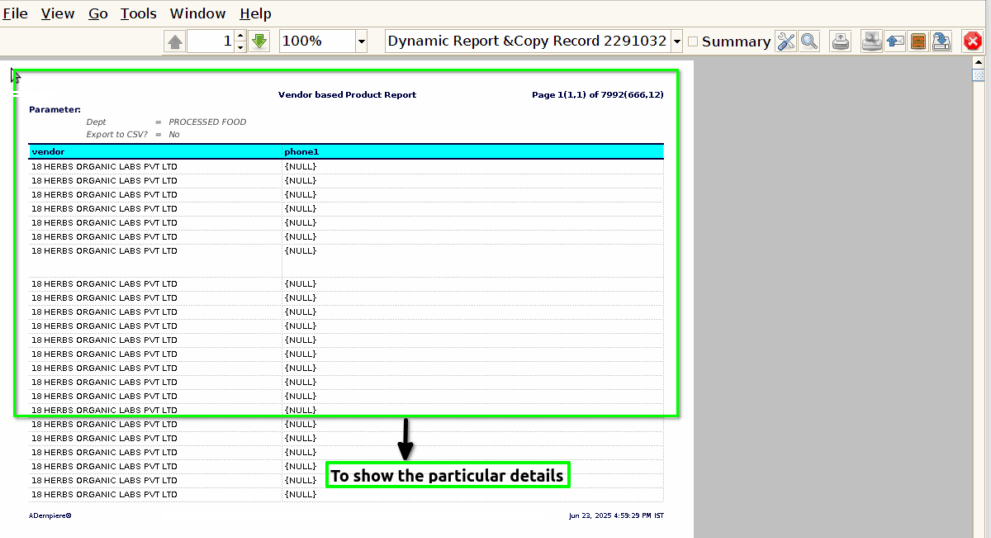
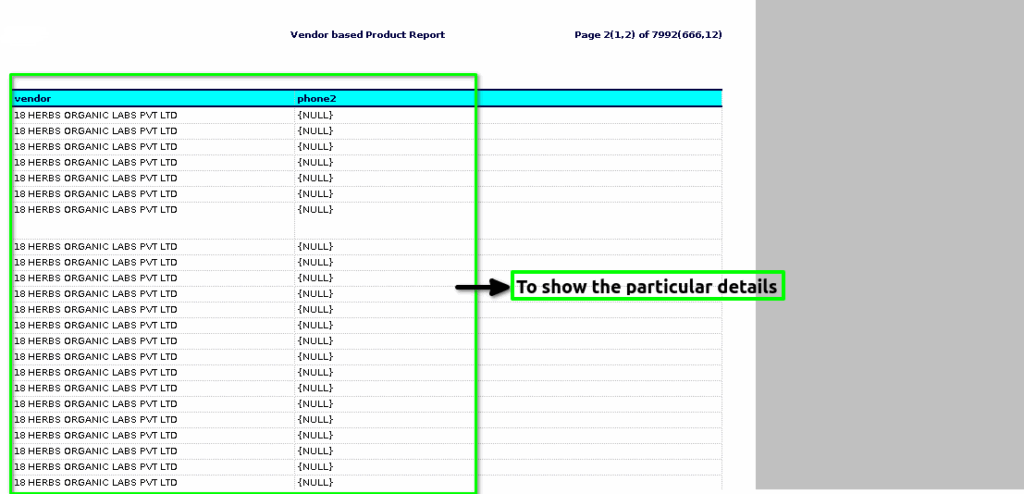
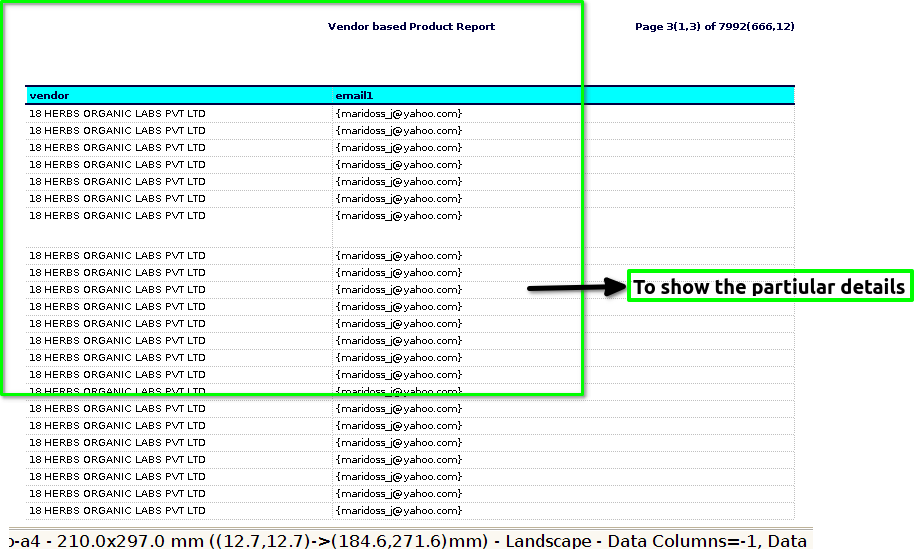
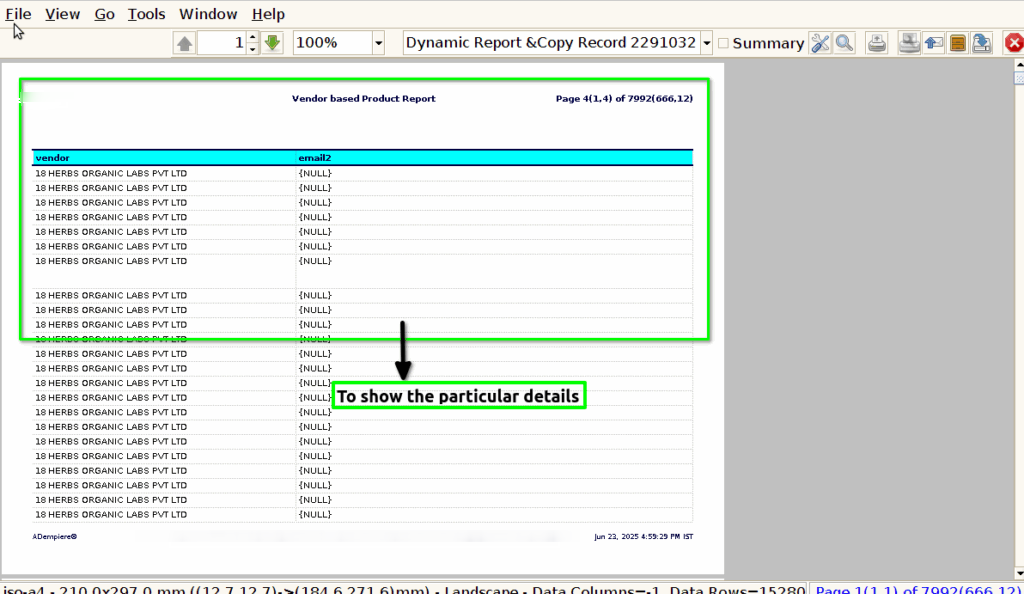
Prepare a report that shows which products are supplied by which vendors. It typically includes details about the products purchased, quantities, costs, and the vendors who supply them.
User Access
Who Can Access
- Back Office
- Purchaser
- Purchase Manager
- Manager
- Admin
What User Can Do
- View Vendor-wise Product List
- Generate Reports
- Export Report
- Update Vendor/Product Info
Pre-Requisite Activities
- Vendor Master (vendor names, IDs, contact)
- Product Master (product names, codes, descriptions)
- Vendor-Product Mapping or Purchase Records
Business Rules
- Each product must be linked to only one active vendor
- It include discontinued or inactive products.
- Show only products with a vendor
User Interface
Step 1 : To Select a Branch in Menu.Then to click a Vendor based Product Report.

Step 2 :To open form for Vendor Based Product Report then to show the multiple parameters to select any of these parameter values and to click the start check box.
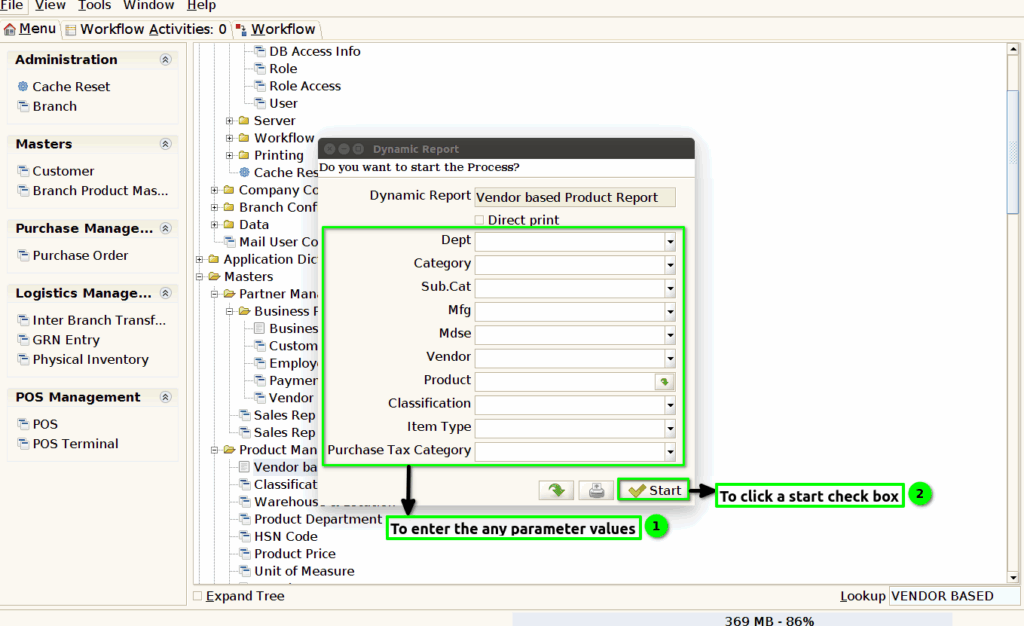
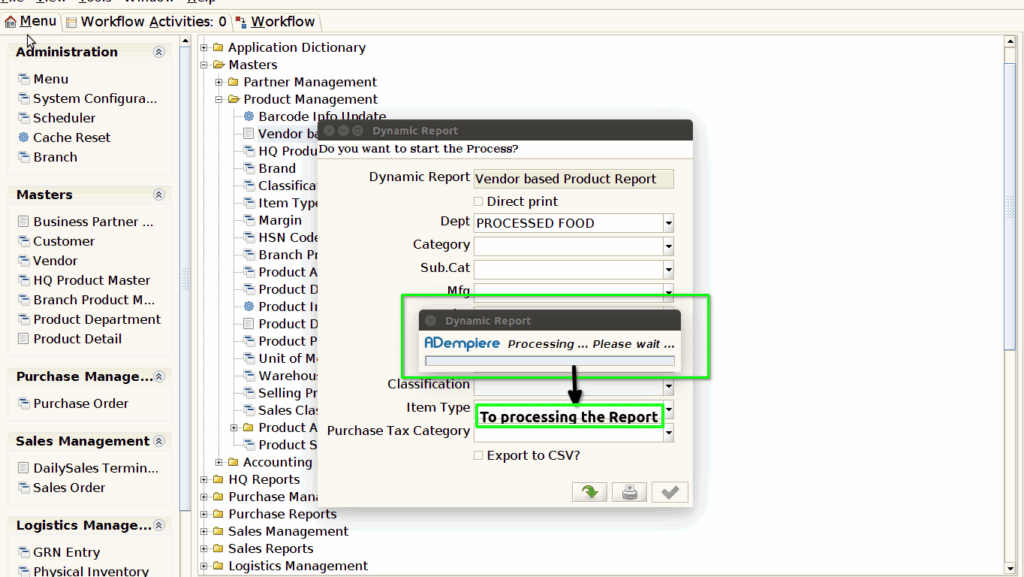
Step 3 :Once to click the start check box to run the process.
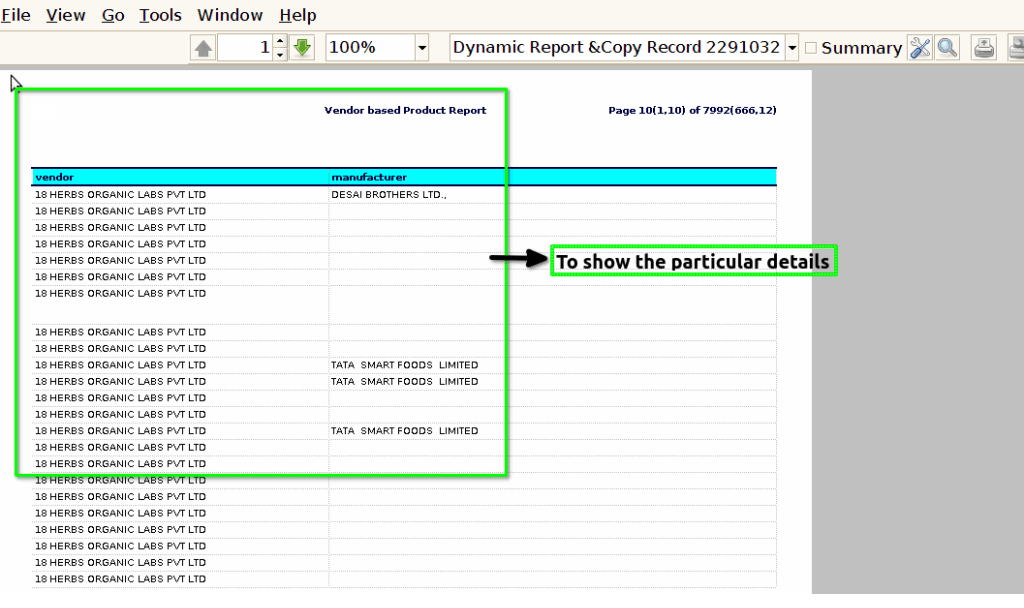
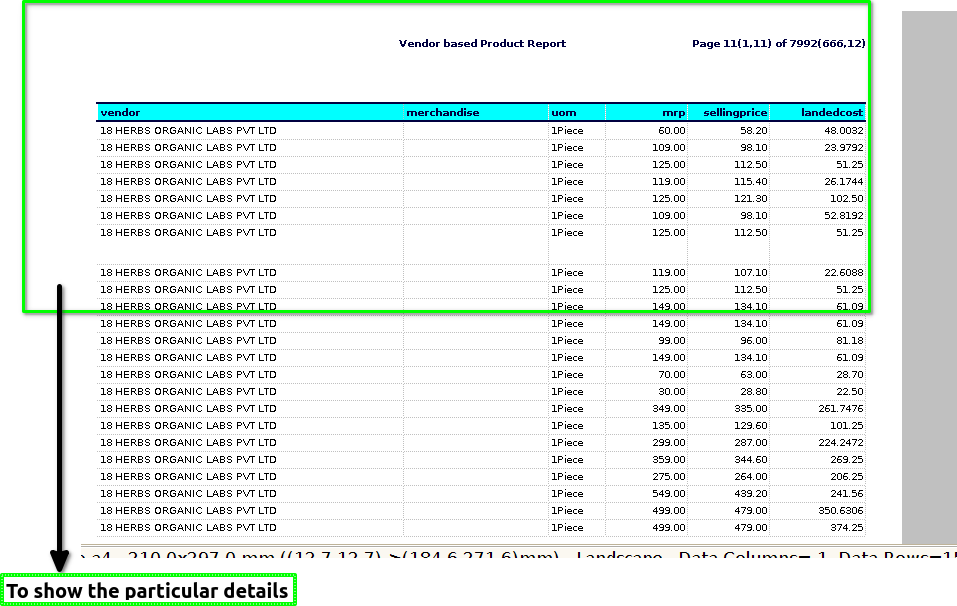
Step 4 :Once to complete the process to open the report from the given particular detail.