How to create Inter Branch Transfer (Send) document using HHT in Adempiere Retail
It means sending stock from one branch/store to another branch using the Hand-Held Terminal (HHT) device.
HHT = the mobile scanning device used in warehouse/store for scanning barcodes.
User Access
Who Can Access
- Admin
- Cashier
- Manager
- Back office
What User Can Do
- Scan Items to Be Sent
- Enter/Confirm the Receiving Branch
- Check and Verify Quantities
- Add or Remove Items
- Validate Item Availability
Pre-Requisite Activities
- Sending & Receiving Branches Must Be Active
- Items Must Have Valid Barcodes
- Stock Must Be Available in Sending Branch
- User Must Have Permission
- HHT Device Should Be Working
- Receiving Branch Must Be Selected/Mapped Before Sending
Business Rules
- Only Available Stock Can Be Sent
- Items Must Match Valid Barcodes
- Cannot Send Blocked or Inactive Items
- Receiving Branch Must Be Valid and Active
- Each Scan Updates Quantity Automatically
User Interface
Step 1 :To open the application to login the HHT device.Then to click a Logistics management.

Step 2 : To click a Inter Branch Transfer (send) HHT.

Step 3 : To click a Create new record option and then to enter the values in Document type,Branch and description.Finally to click a save option.
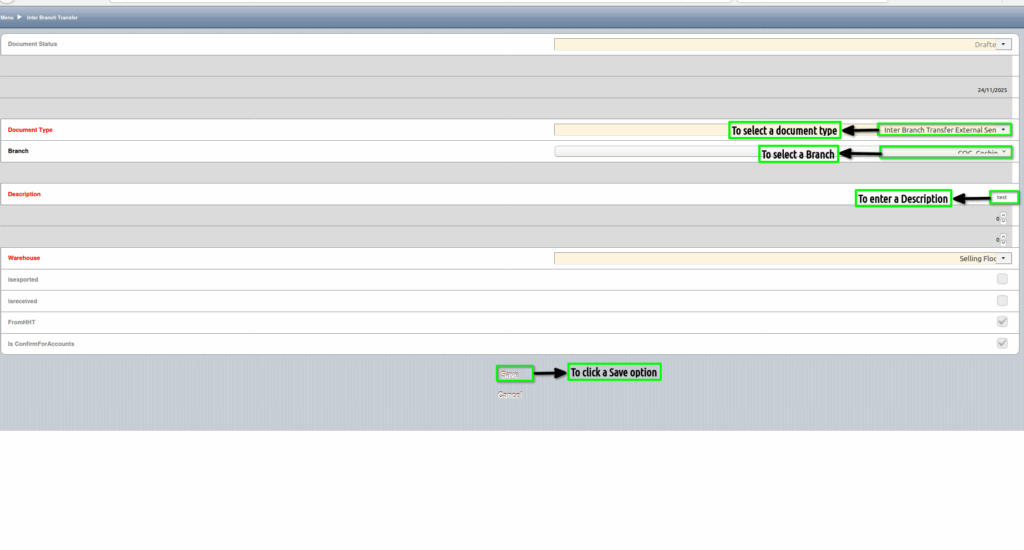
Step 4 : Once to save the GRN header and then to click Inter Branch Transfer Line.

Step 5 : To click create new option and then to enter the values for Product,Quantity and Finally to click save option.
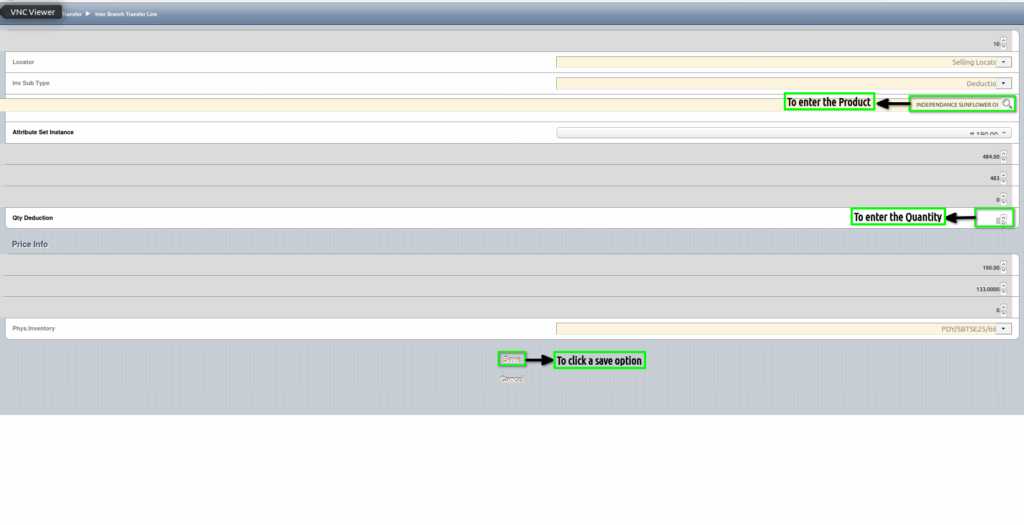
Step 6 : To open the application and to click Inter Branch transfer(send)HHT in Menu.

Step 7 : To sync the values form HHT.
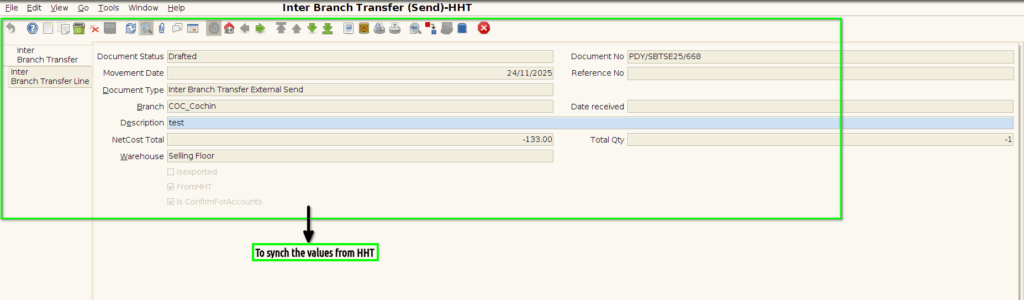

Step 8 : To click a Inter Branch Transfer(Send/Receive) in Menu.
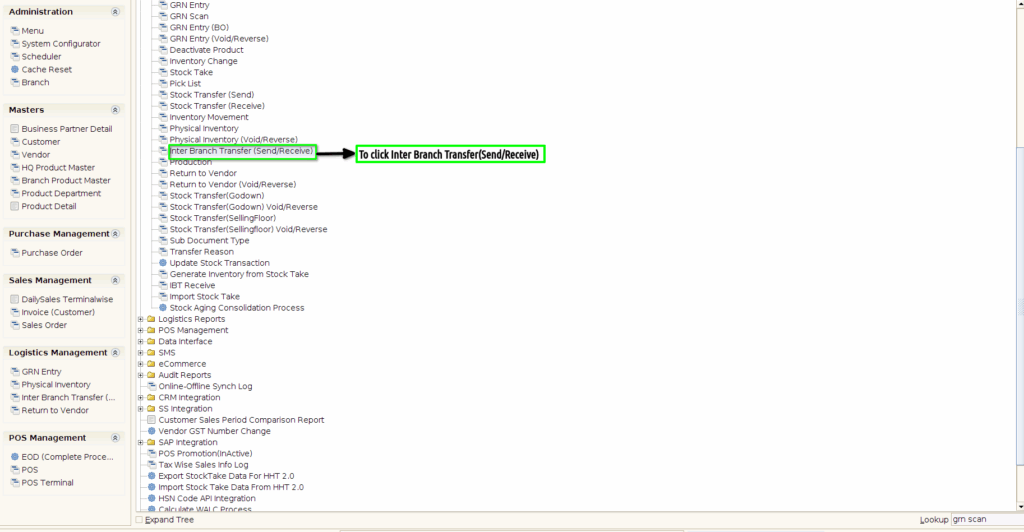
Step 9 : To synch the document from HHT and then to click the complete process.

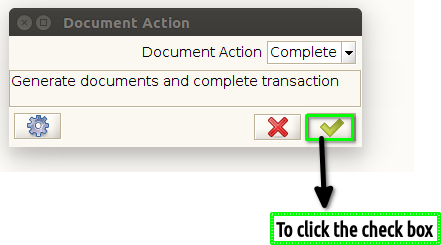
Step 10 : To click the check box.
Step 13 : Once to complete the process to show the document status will be completed.
