How to run EOD (Complete Process) in Adempiere Retail
EOD (End of Day) process means completing all necessary tasks and closing activities for the day to ensure everything is recorded, updated, and ready for the next day.
User Access
Who Can Access
- Back Office
- Cashier
- Manager
- Admin
What User Can Do
- Review and finalize all pending tasks
- Update records or data
- Reconcile information
- Prepare summary reports (if required)
Pre-Requisite Activities
- Complete all daily transactions
- Verify data accuracy
- Ensure system uptime and connectivity
- Backup current data (optional but recommended)
Business Rules
- All daily transactions must be completed and recorded before starting EOD.
- No changes to transactions are allowed once the EOD process begins.
- Data Validation and Integrity
- Batch Processing
- User Access and Session Management
User Interface
Step 1 : To Select a Branch in Menu.Then to click a EOD complete process.

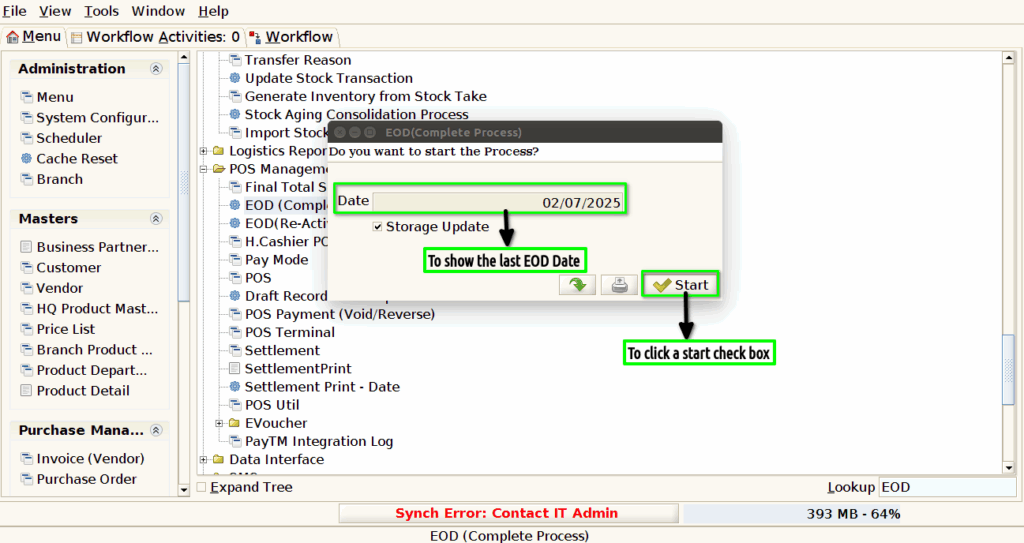
Step 2 :To show the Last EOD date and to click the start process.
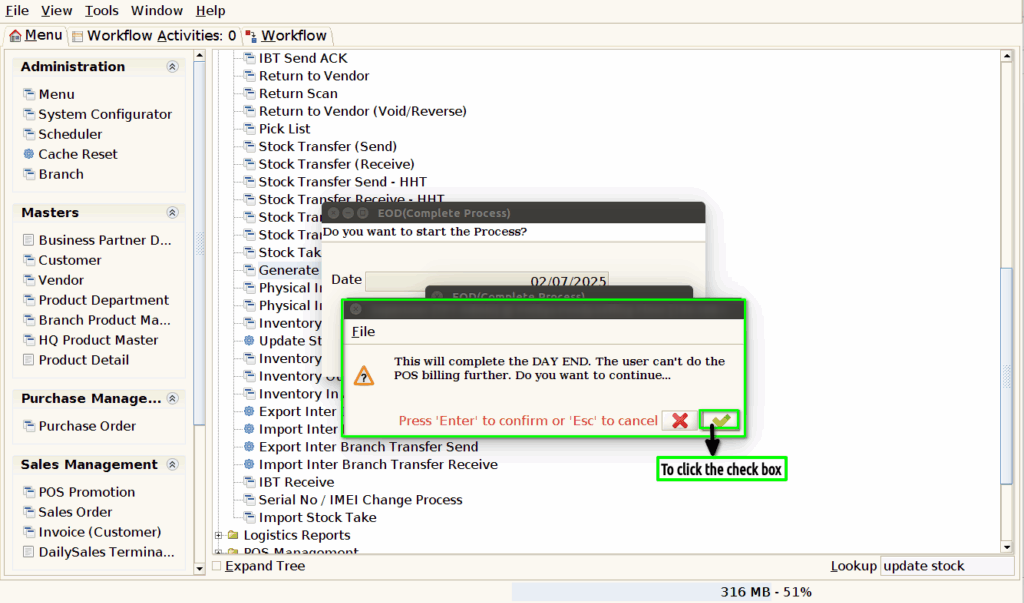
Step 3 :To show the popup message and to click the check box.
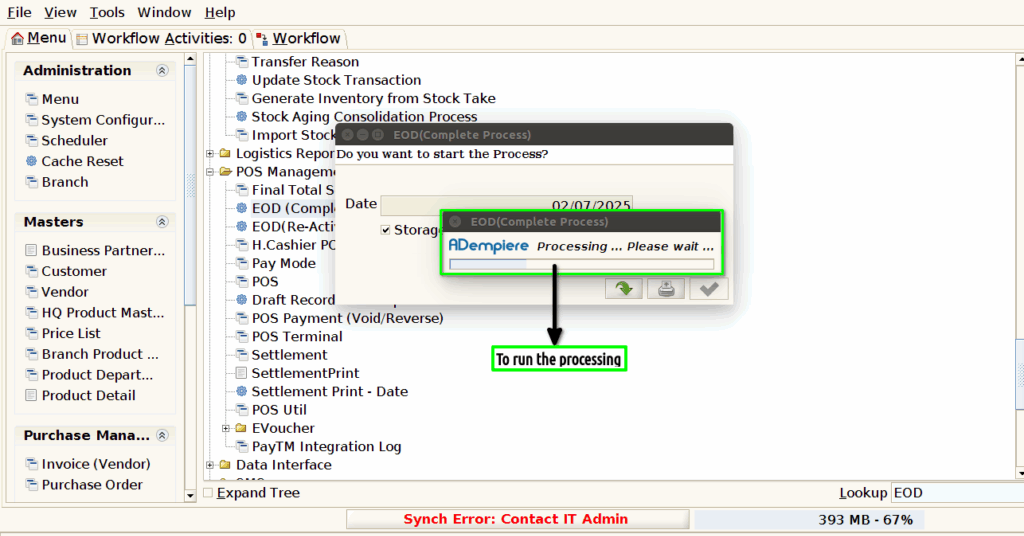
Step 4 :Once to click the check box to run the process.
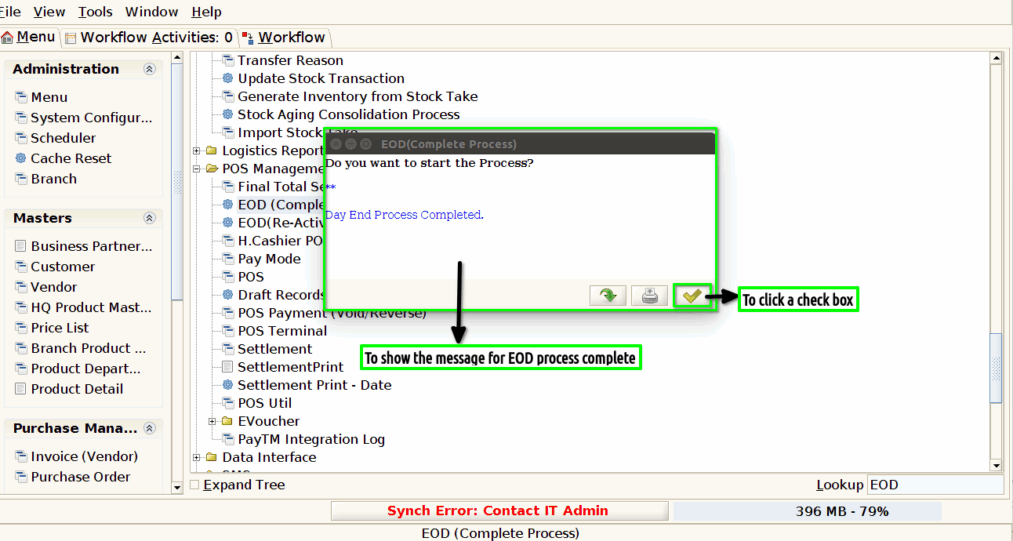
Step 5 :Once to complete the process and to show the Completed message and to click the check box.